Every policy update has to be approved by your organisation before it's available in your policy library. Most organisations have automatic release turned on, so approving is the only step. If yours releases policies manually, you also release each approved policy to each of your locations. Both happen under Policy Hub > Review.
Approve the update
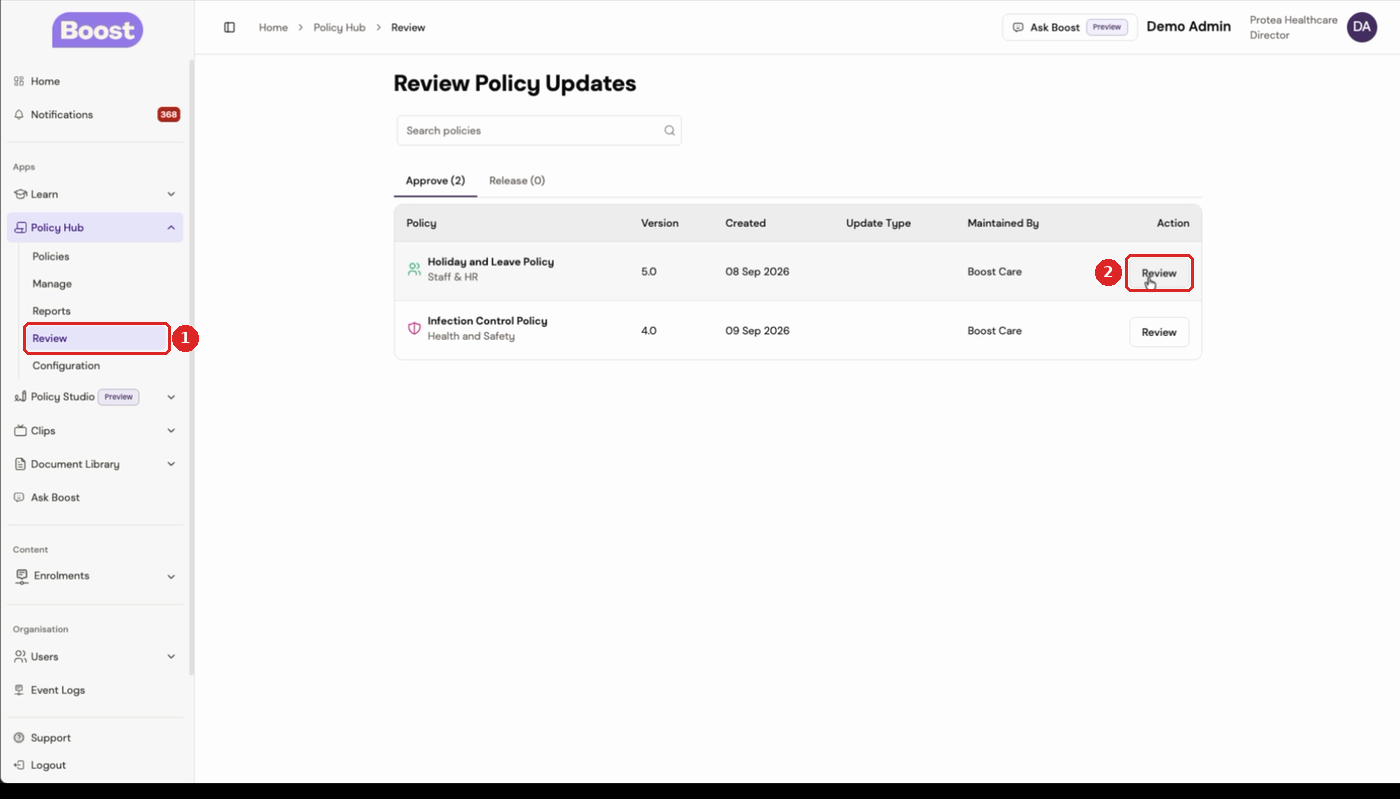
- In the left-hand menu, click Policy Hub, then Review.
- On the Approve tab, find the policy and click Review.
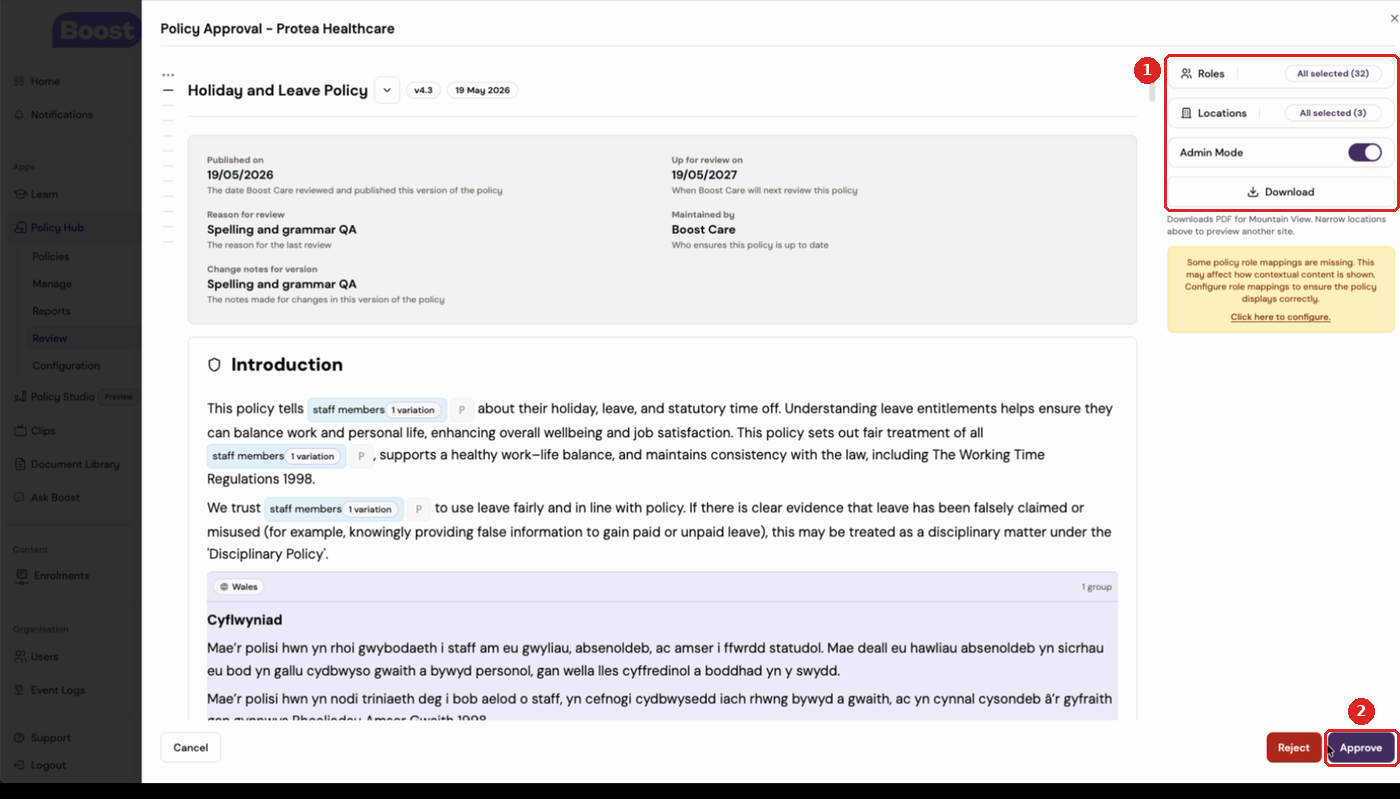
- Wait for the policy to finish loading, then read it through to check it meets your compliance and quality standards. The panel on the right controls what you're looking at:
- Roles and Locations show the policy as staff in a particular role or location will see it.
- Admin Mode shows which parts of the text change by role or location.
- Download saves a PDF of the policy for one location.
- Click Approve, or Reject if the update isn't right for your organisation.
A "Policy approved successfully" message appears. With automatic release, the policy goes straight into your library and you're done. If your organisation releases manually, it moves to the Release tab – carry on below.
There's no "Approve all" button. Each policy has to be opened and approved on its own, because your organisation, not Boost, is responsible for its policies being accurate and compliant.
Release it to each location (manual release only)
Skip this section if your organisation has automatic release.
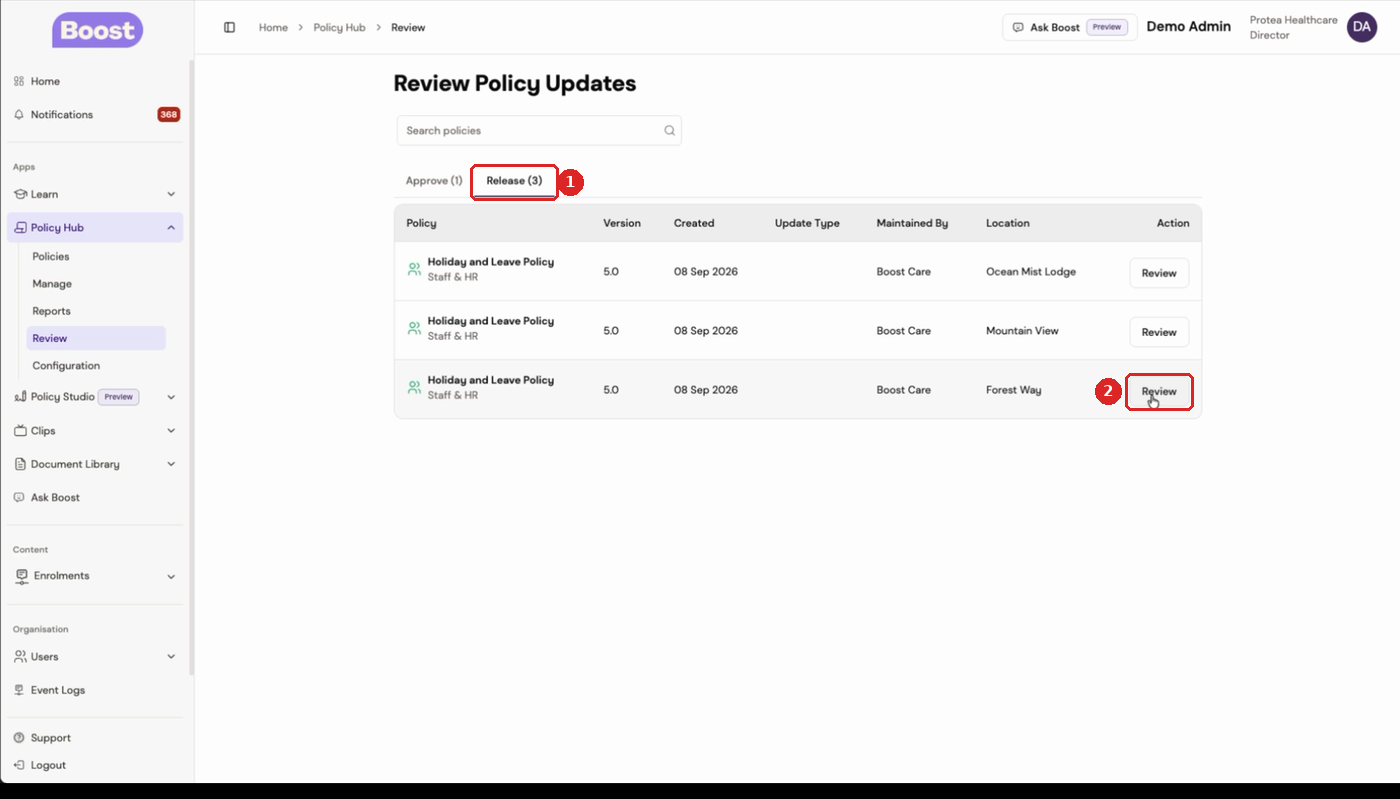
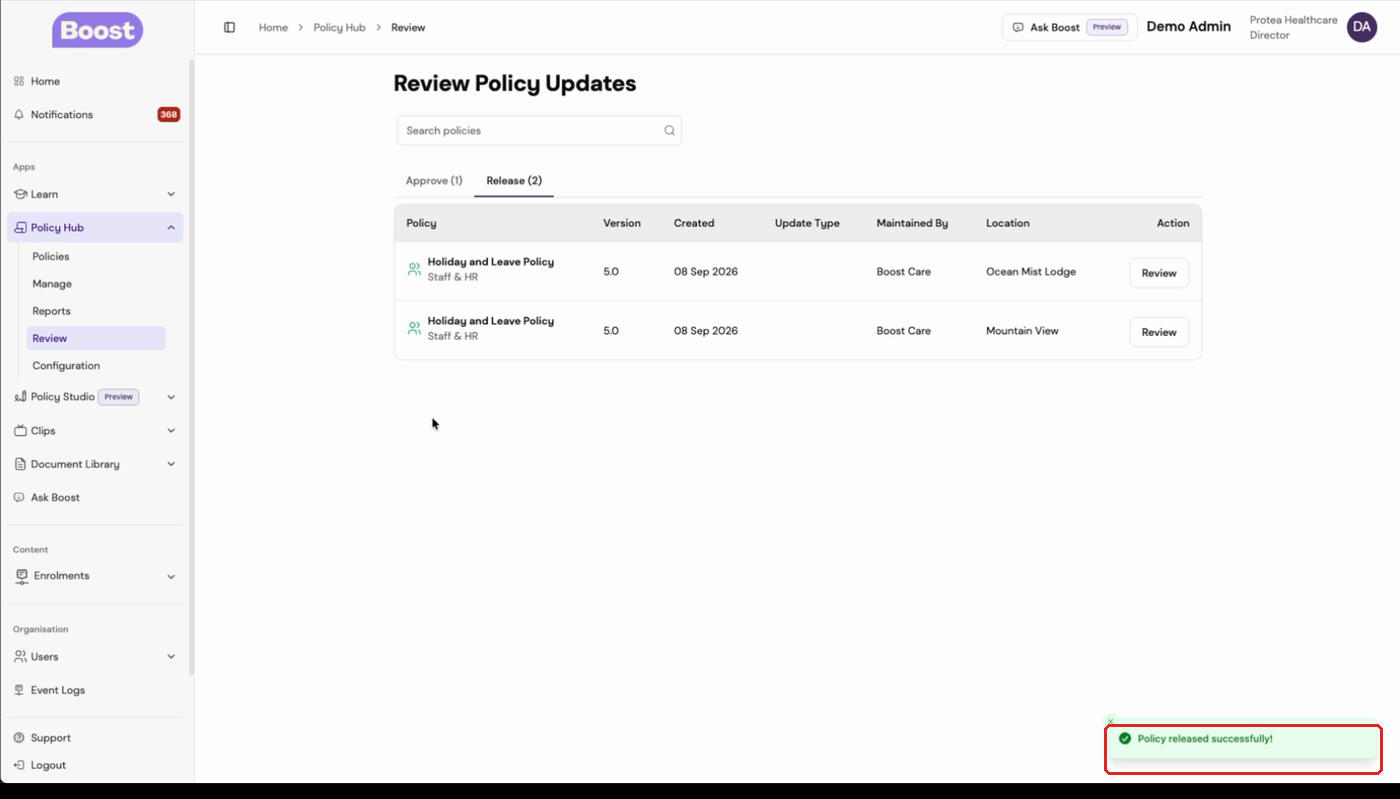
- Click the Release tab. The approved policy appears once for each of your locations.
- Click Review on the location you want to release it to.
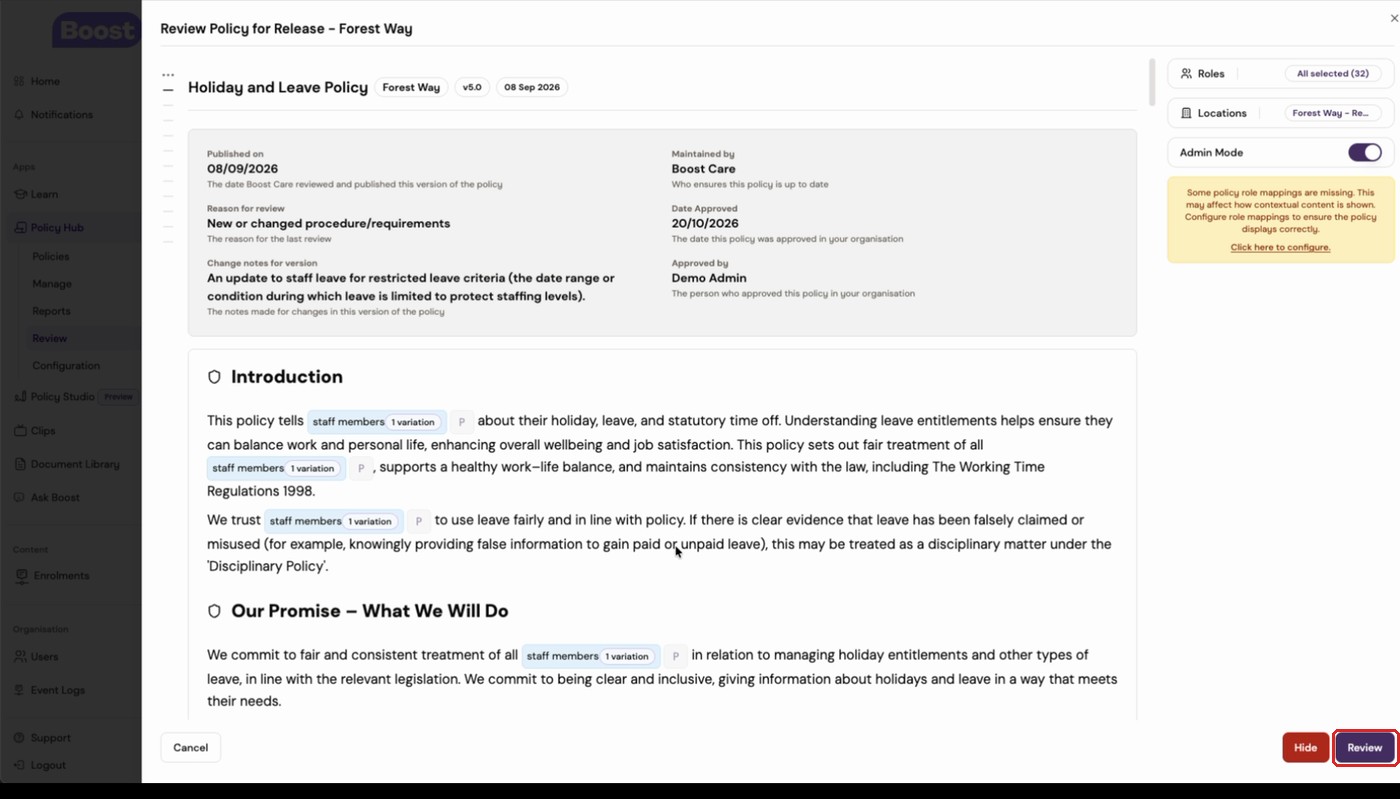
- Check the policy. The window title shows which location you're releasing to, and the summary shows who approved it and when.
- Click Review at the bottom right to release it.
A "Policy released successfully" message appears and that location drops off the list. The policy is now in that location's library. Repeat steps 6–8 for each remaining location.
Check it's live
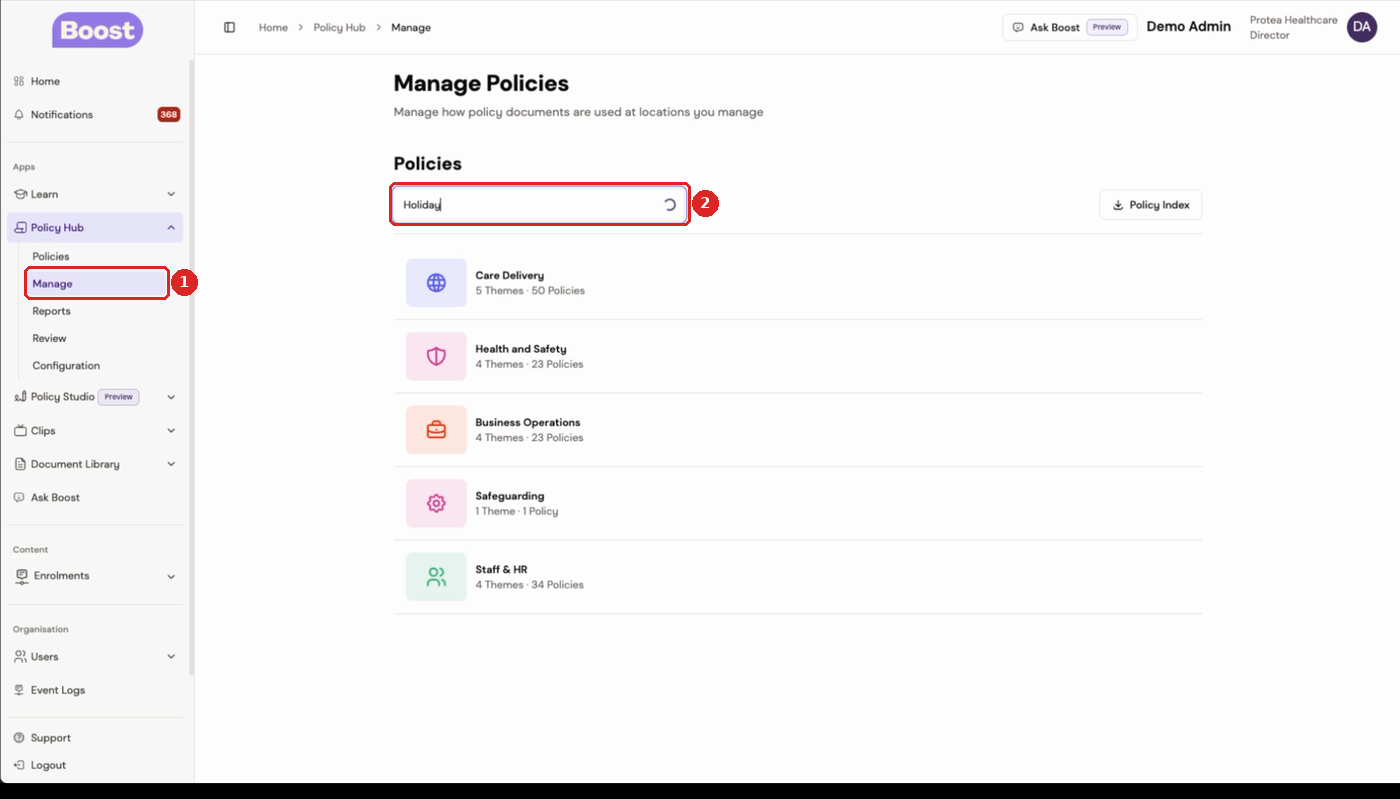
- In the left-hand menu, click Manage under Policy Hub, then search for the policy and select it.
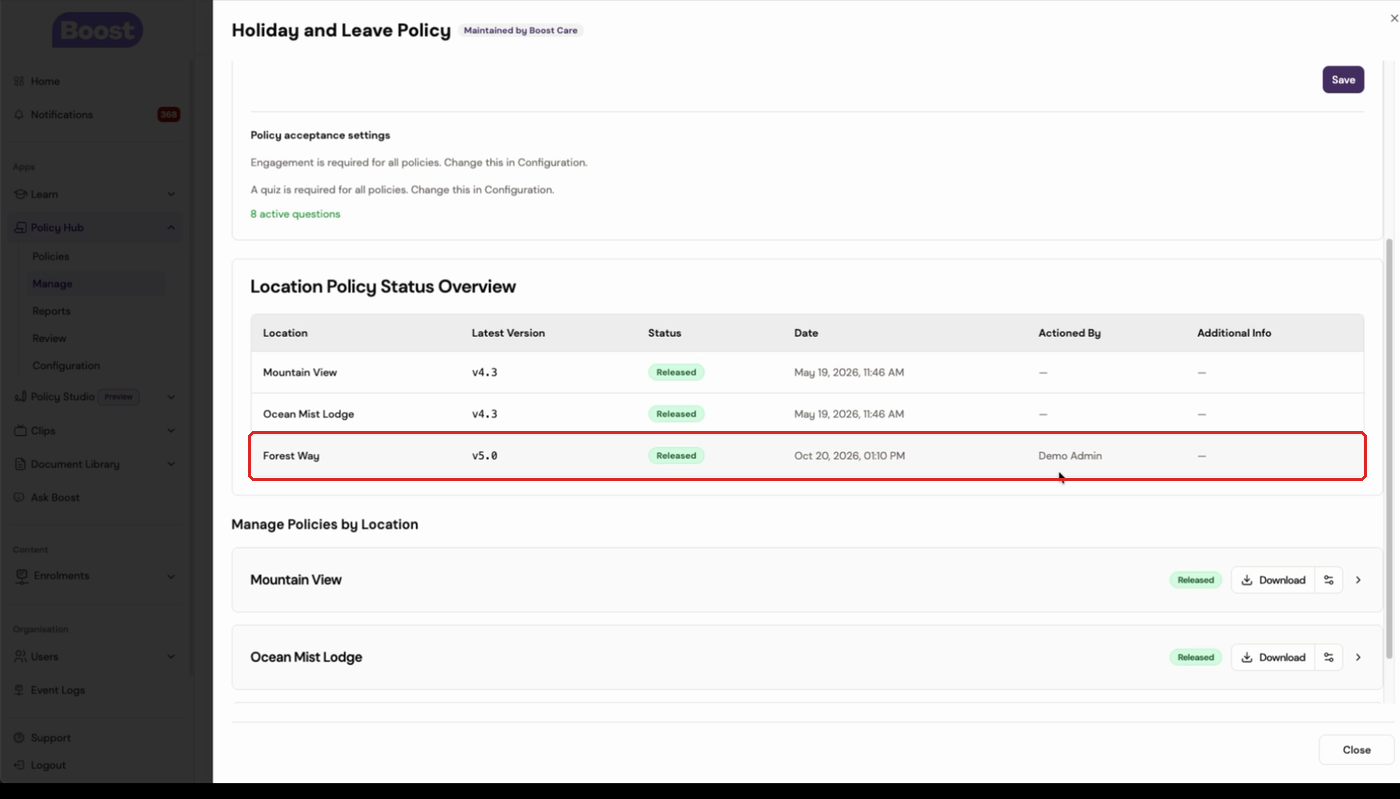
- Scroll to Location Policy Status Overview. Each location shows its latest version, its status and who released it.
To read the released policy in the library, see how to read a policy in the library.
Was this article helpful?
That’s Great!
Thank you for your feedback
Sorry! We couldn't be helpful
Thank you for your feedback
Feedback sent
We appreciate your effort and will try to fix the article