Step 1
From you platform go into courses on the left hand side then click onto the course you would like to add a video to

Step 2
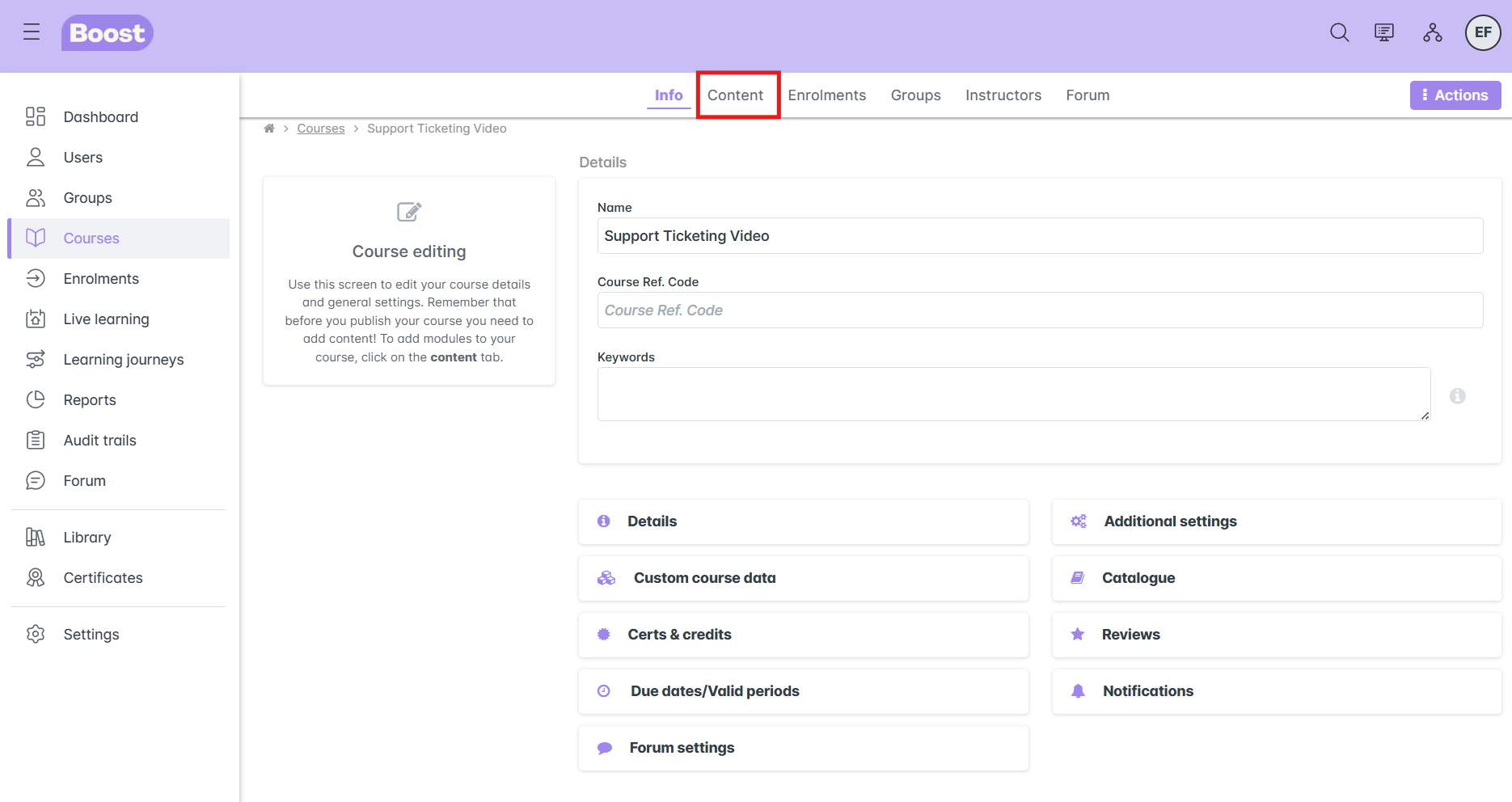
Once in the course screen select Content
Step 3
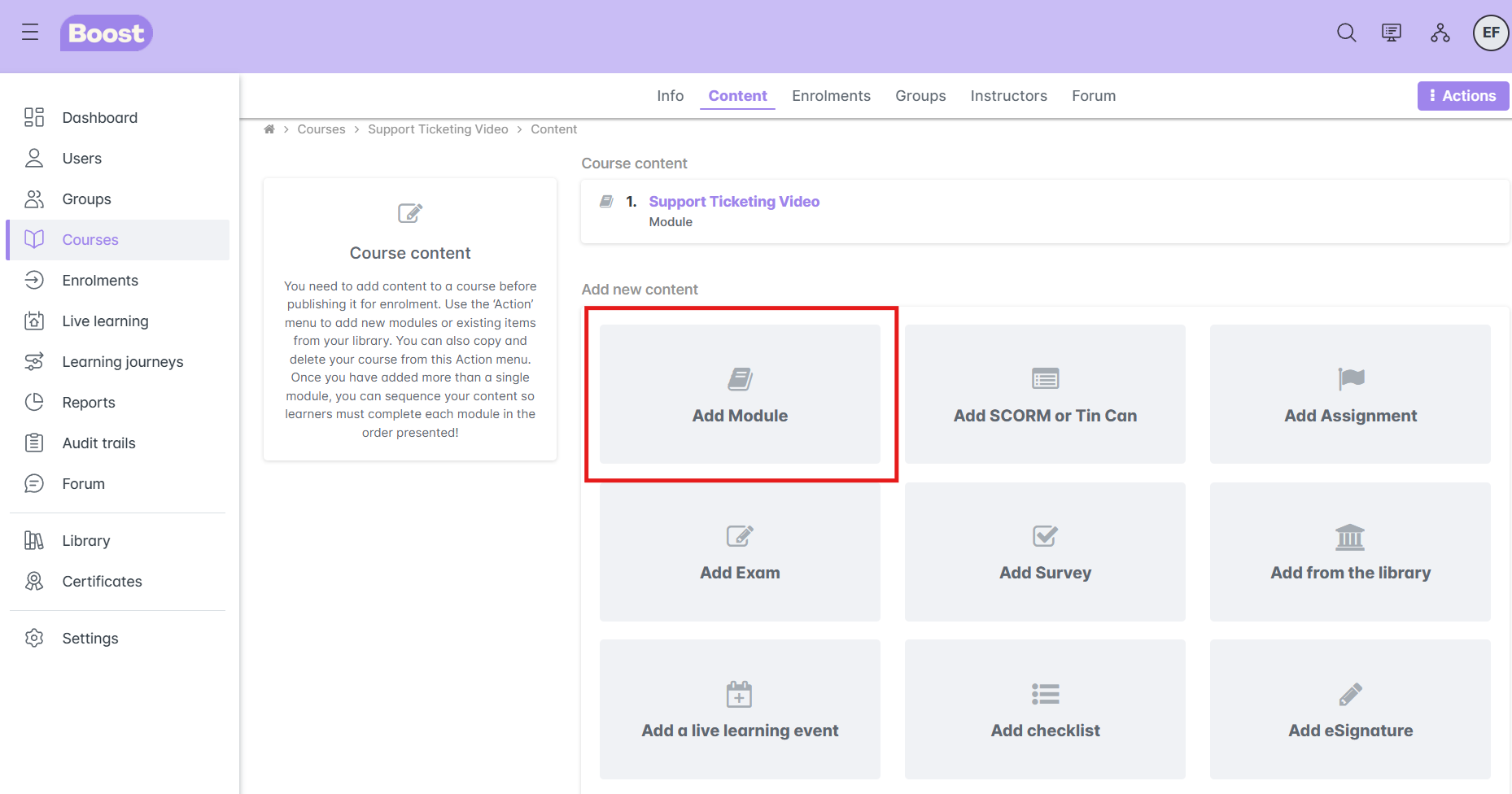
It will bring up the screen below with all the options - you want to choose Add Module so click into this and save
Step 4
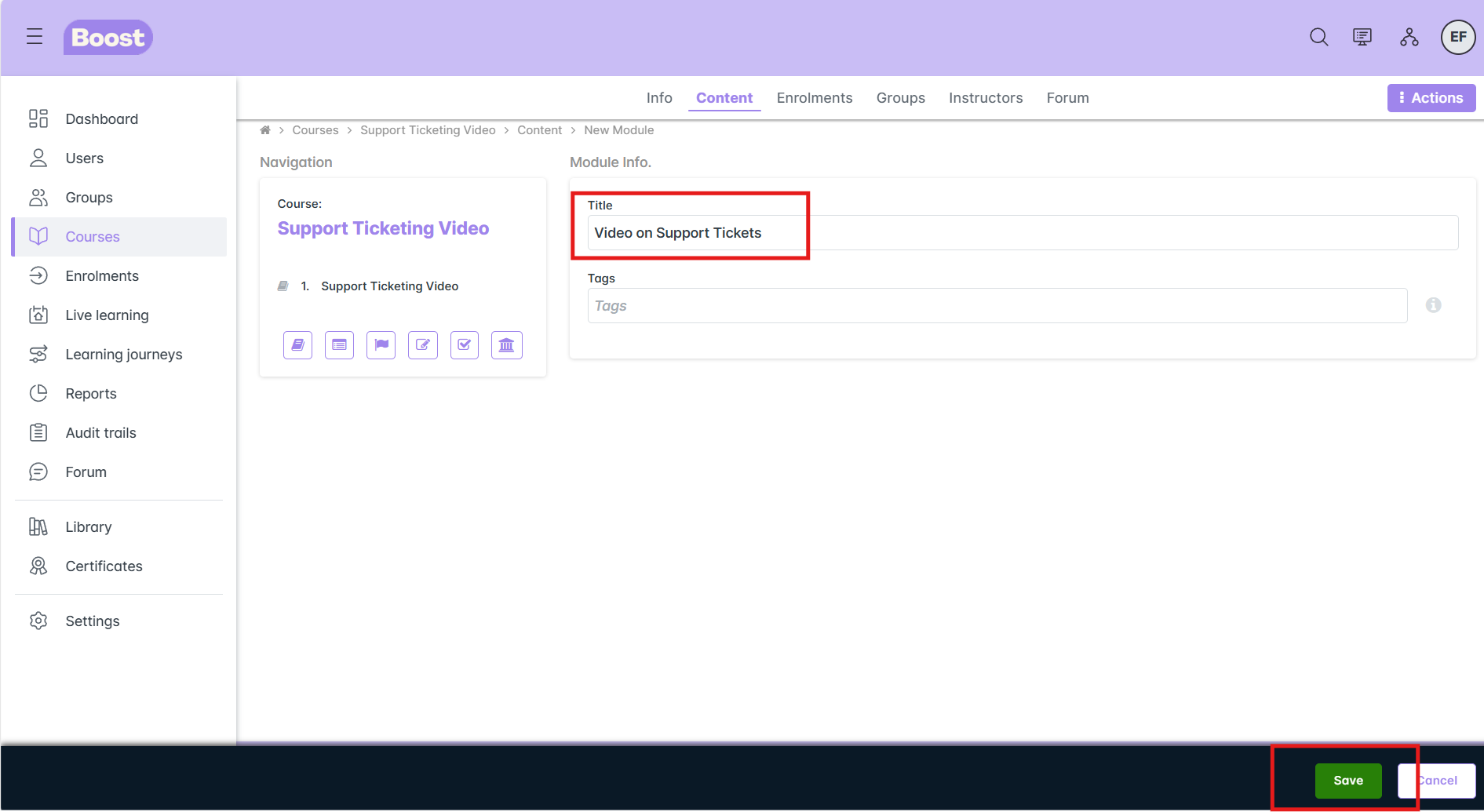
The screen below will appear and you will need to give your video a title then save. You can add tags and keywords if you wish too - that will help you tag and find the content when creating the course. You have a maximum of 255 characters to use for all the tags entered.
Step 5
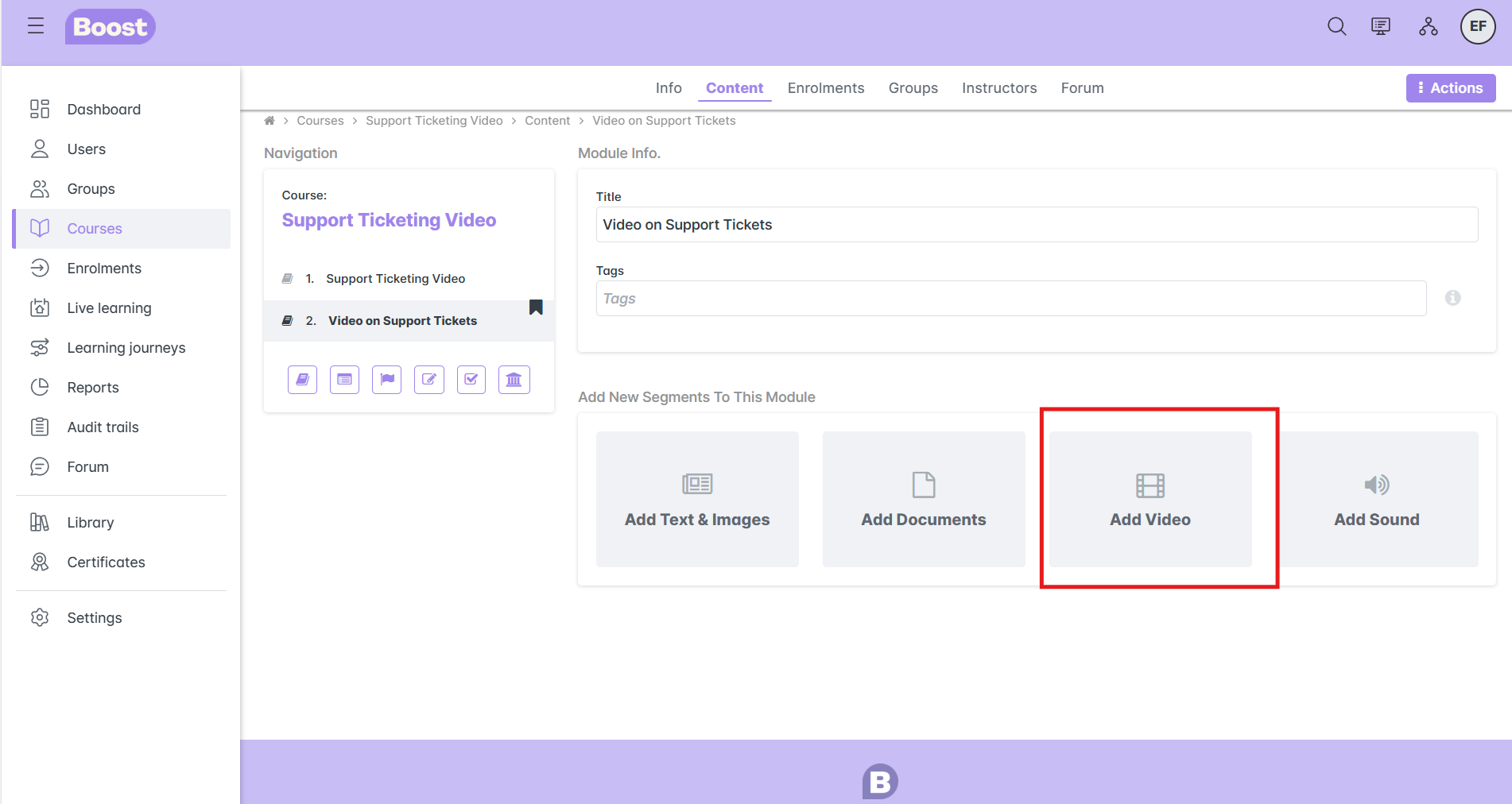
The screen below will appear and you need to click on Add Video
Step 6
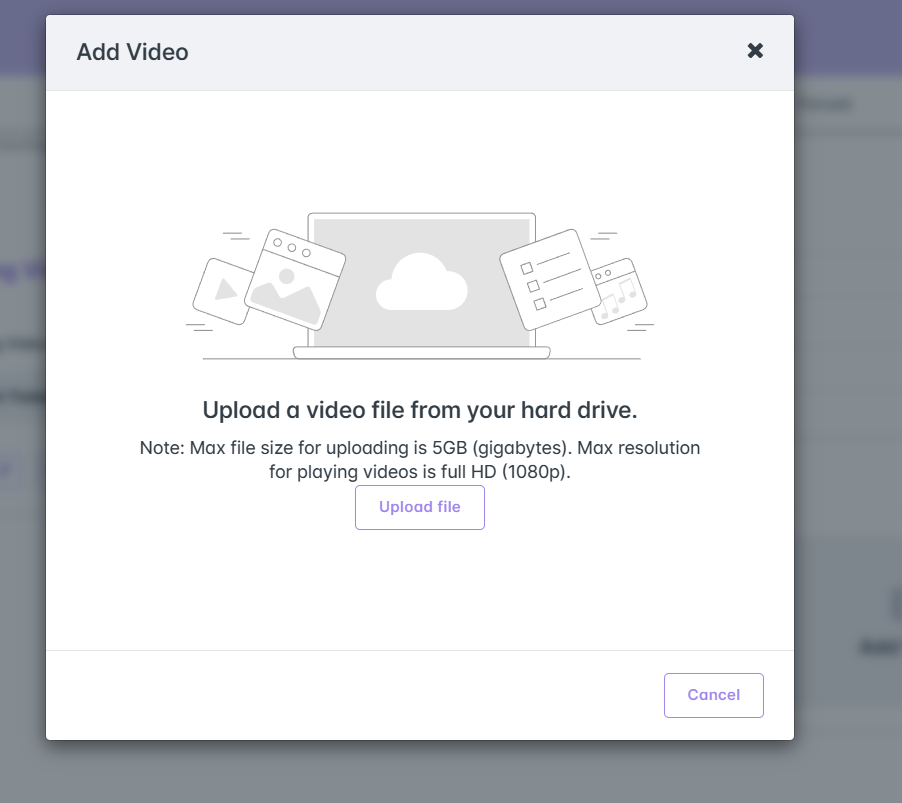
Once you see the below, you are now ready to upload the video - the guidlines on where to upload the video from and size are listed for you.
Step 7
Once you click Upload File, it will ask you to choose your video from your desktop. Once you click it will then upload your video and show you the message below.
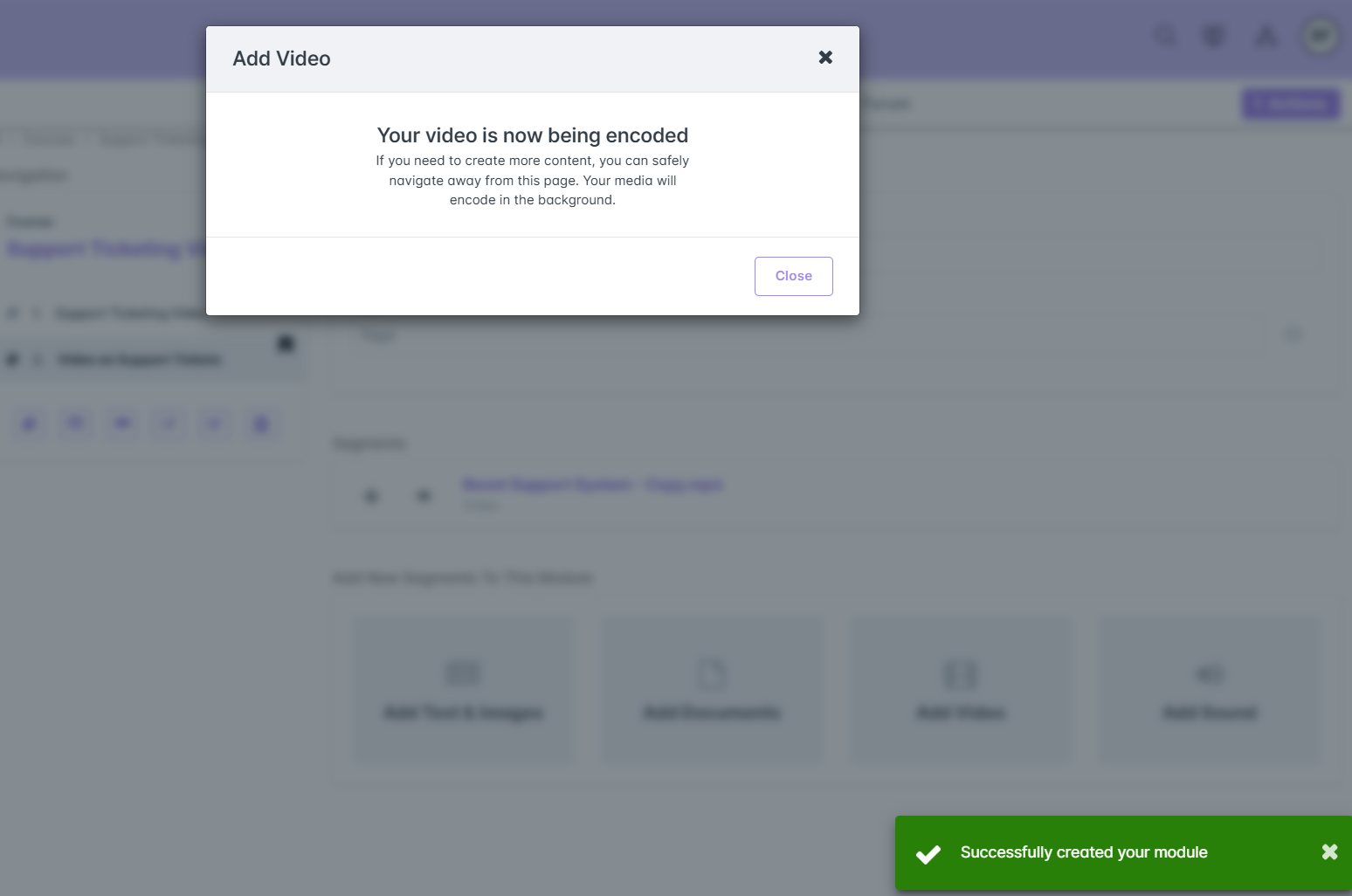
Your video is now in your course for your learners to watch.
Was this article helpful?
That’s Great!
Thank you for your feedback
Sorry! We couldn't be helpful
Thank you for your feedback
Feedback sent
We appreciate your effort and will try to fix the article