To print a Policy within the Boost Policy Hub, you will need to have the option of Manage Policies.
This is normally held by a Manager or Admin of the home that wants to print out the policy - downloading is restricted to locations you manage.
Step 1
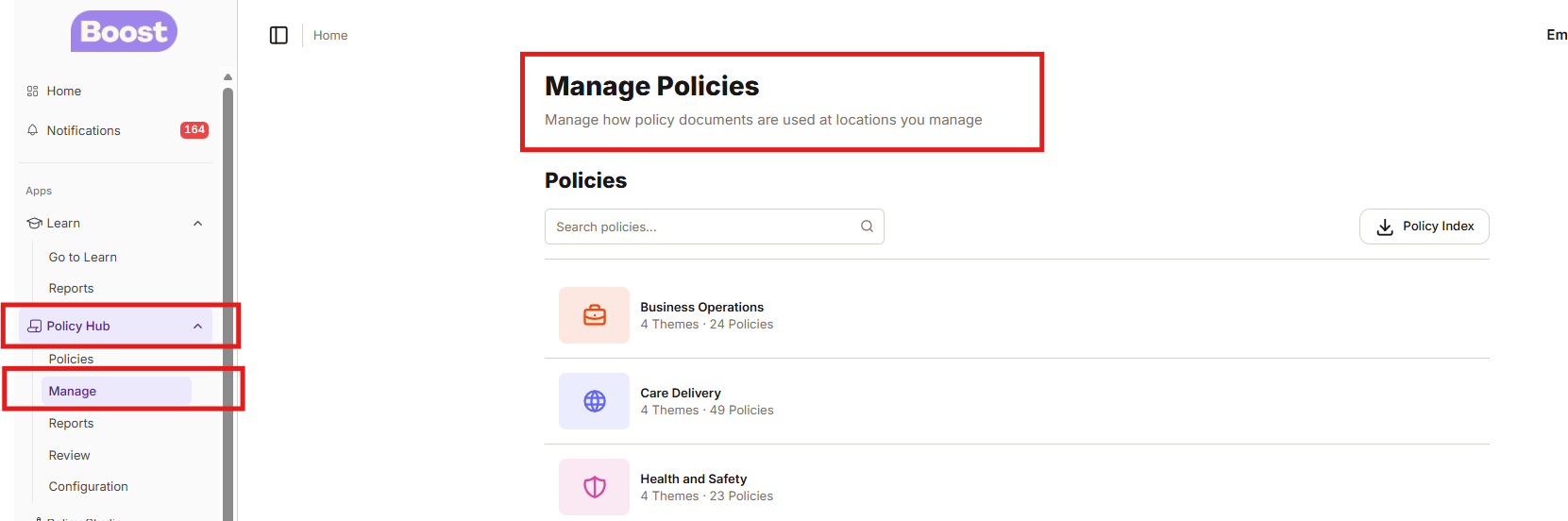
Log into your Dashboard and click on Policy Hub - then click on Manage
Step 2
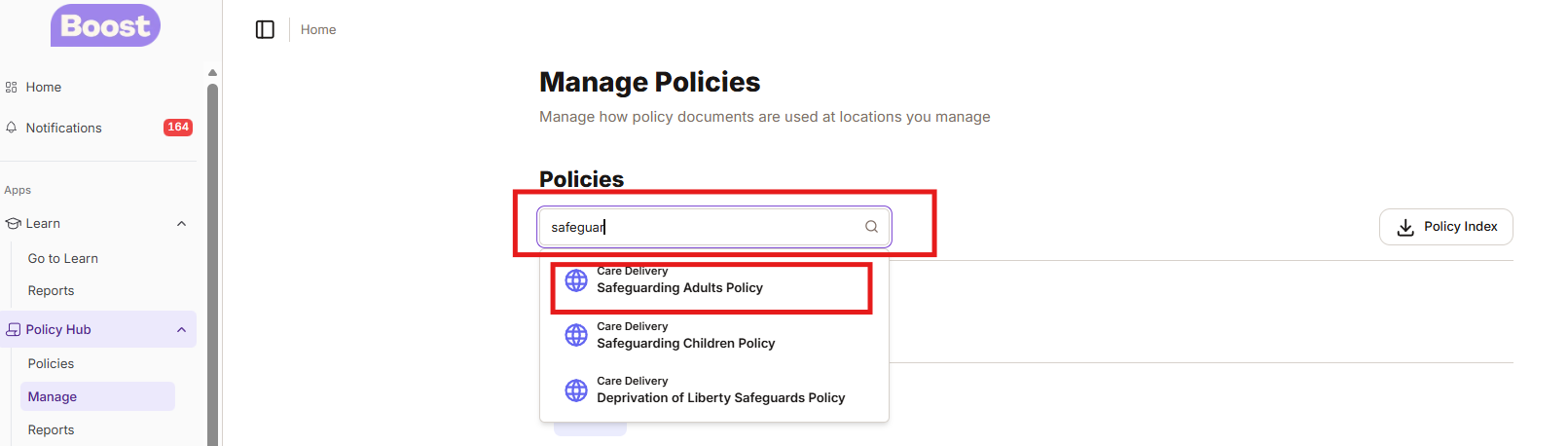
Under the heading Policies you will see a search bar, enter the policy you would like to print out
Step 3
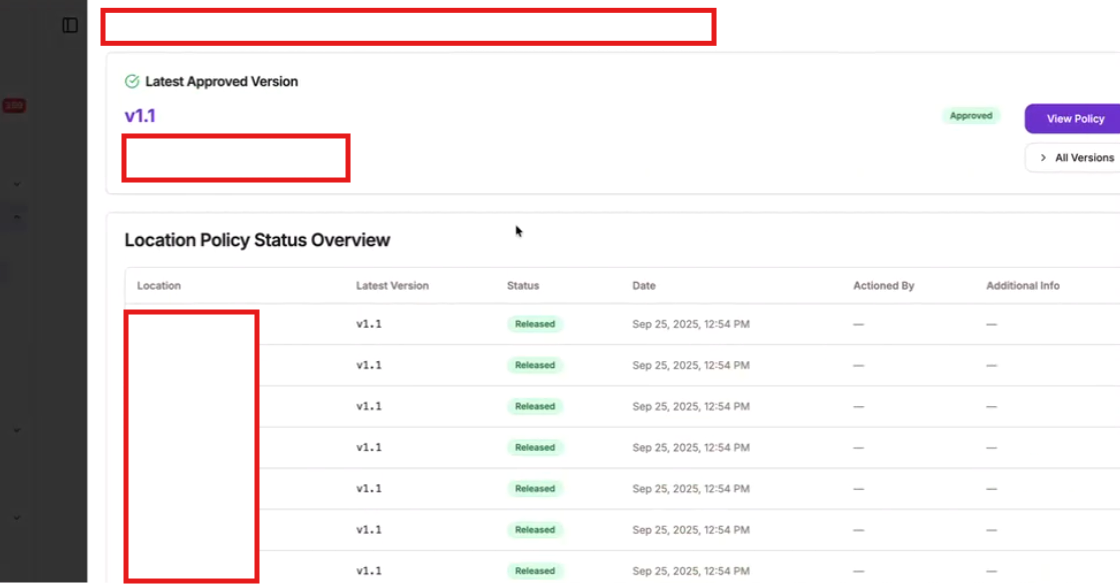
When you click onto the policy you want it will bring up the screen below listing all the homes (on the right hand side) that have the policy
Step 4
Find the home you want to print the policy for and click download

Step 5
Once the policy has been download you will then be able to click the download and print the policy to your local printer
Was this article helpful?
That’s Great!
Thank you for your feedback
Sorry! We couldn't be helpful
Thank you for your feedback
Feedback sent
We appreciate your effort and will try to fix the article