Step 1
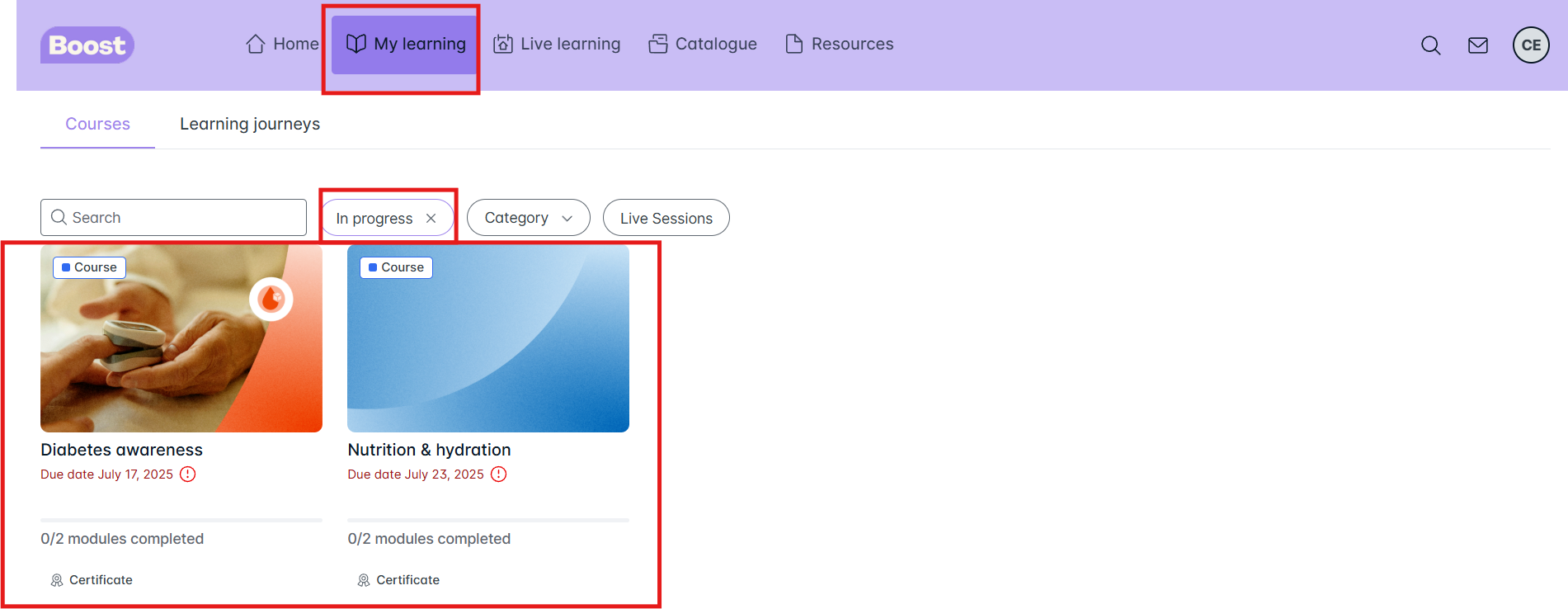
From the ‘home page’, select the course OR go to ‘My Learning’ and select In Progress or Not Started then select a course
Step 2
Click on the course icon or course name > then ‘Start Now’
Step 3
Once in the course, click the ‘Start’ button in the top right corner of the screen
Note: Progressing through the course:
- There are various types of courses, some are video based while others are more interactive. Click through the course to familiarise yourself with how to go back and forward between sections, open and close interactive elements, and watch videos
- Each course has various sections that you need to complete. You will need to view and interact with ALL elements in a section to complete it. This includes clickable icons, images, tabs, and more.
- You will know if you have completed a section if the progress bar at the top of the screen reaches all the way to the right-hand side. If the progress bar is not complete by the time you reach the bottom of the section, go back and make sure you’ve viewed and selected all the elements.
EXAMPLE 1:
The will be prompts in the course explaining how to move, some examples are below:
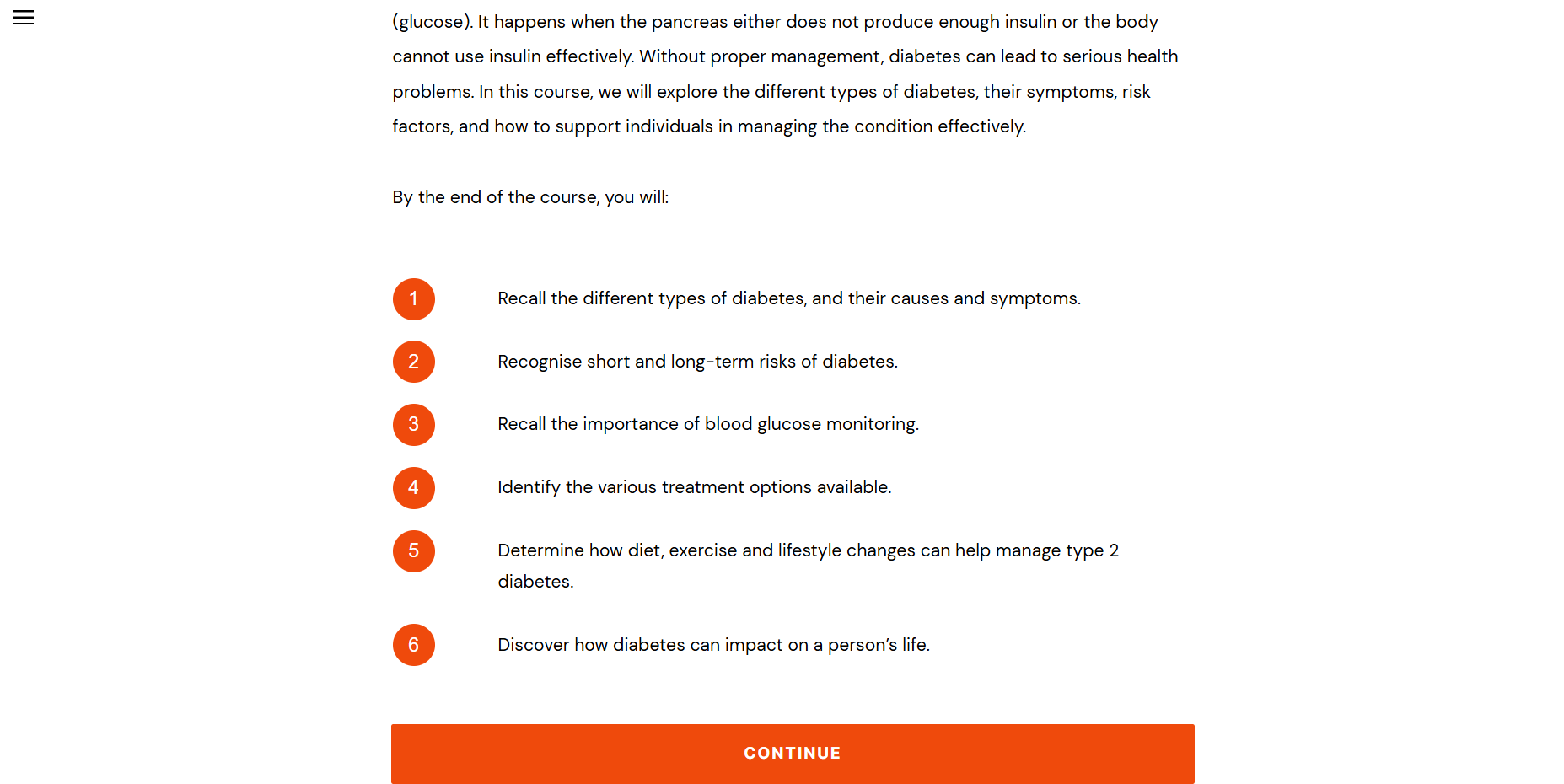
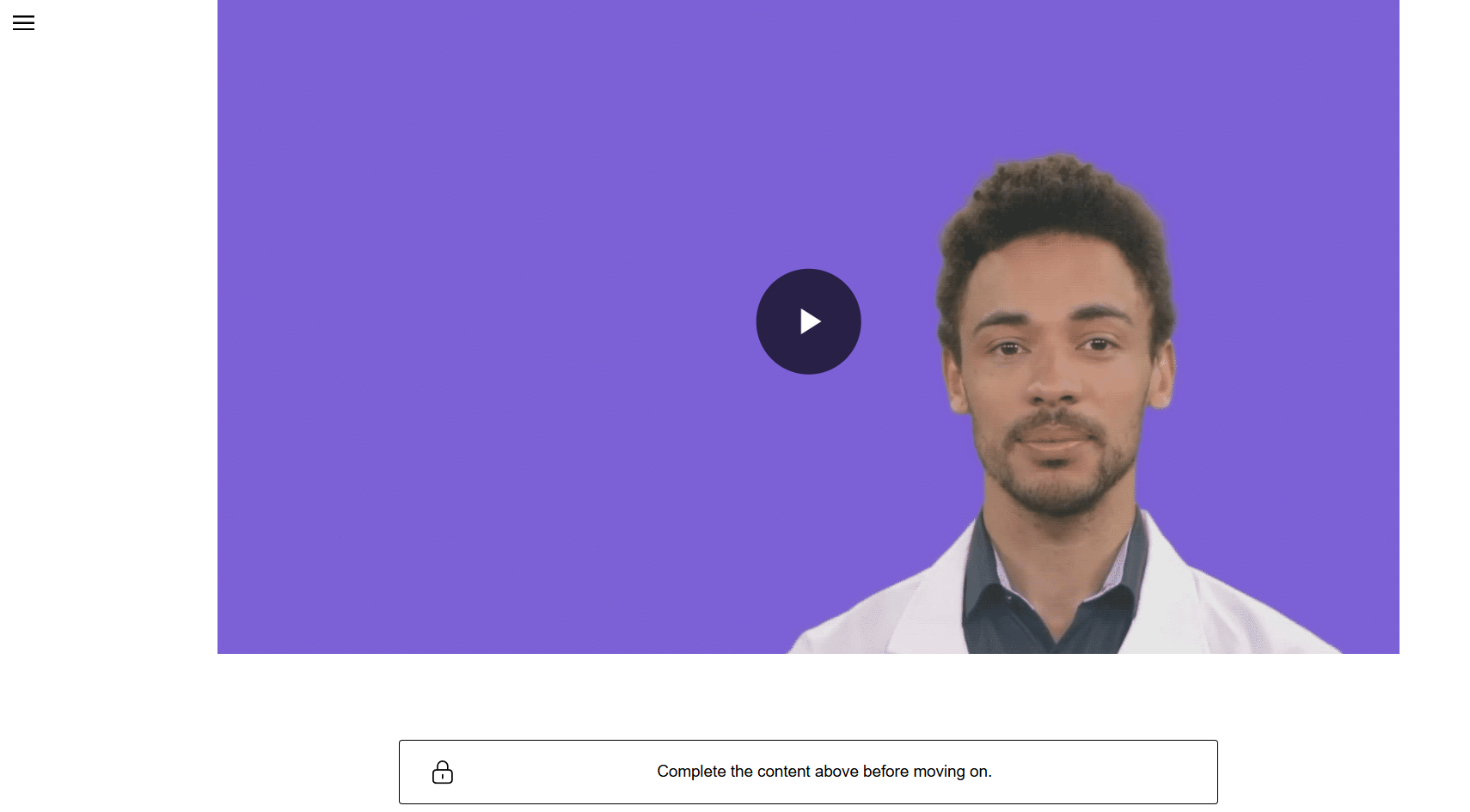
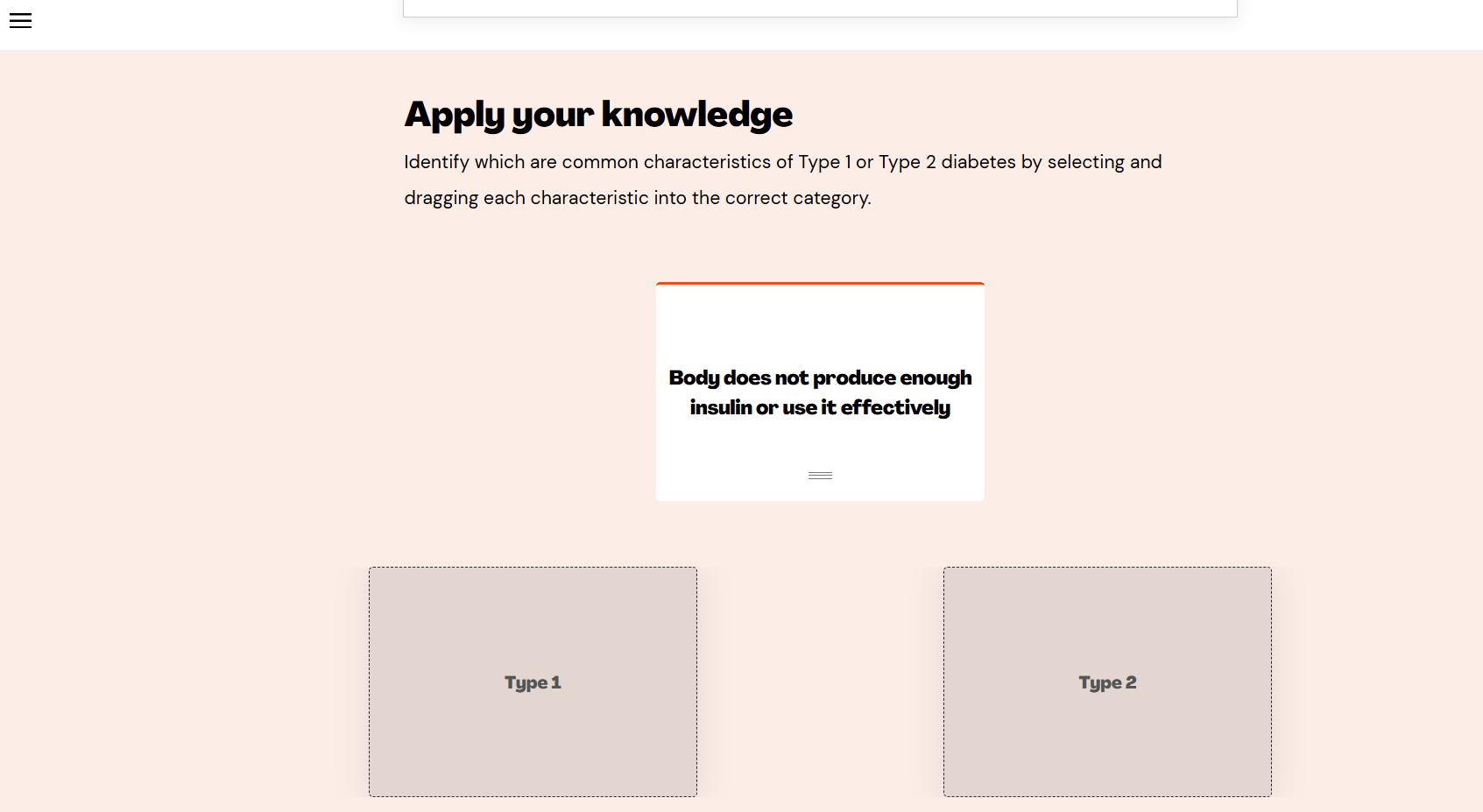
NOTE: To pause your learning or complete the course, click ’Save and exit’ in the top right corner of the screen. (If you have paused your learning, remember to return to complete the full course.)
Was this article helpful?
That’s Great!
Thank you for your feedback
Sorry! We couldn't be helpful
Thank you for your feedback
Feedback sent
We appreciate your effort and will try to fix the article