** To Add a new location for Live Learning please raise a Boost Support ticket as this function needs to be done by the Boost Team.
We will need to know the following information to add the locations:
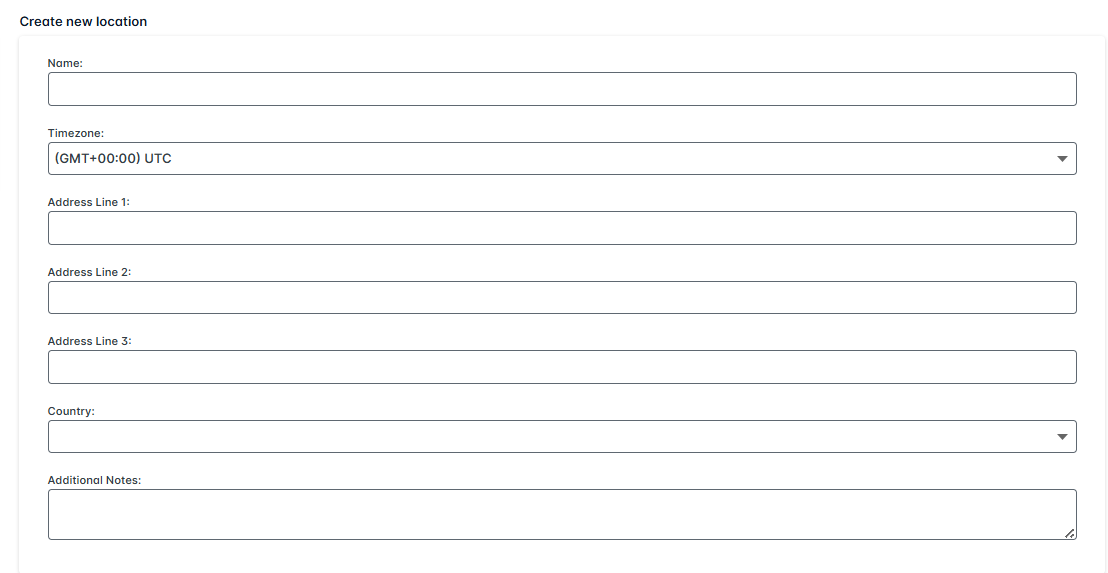
The Boost Support team will let you know when this has been actioned and you can then use the following steps to add the location to your Live Learning.
Step 1
Once the location has been added by Boost Support you can go to the Live Learning tab on the left hand side. Once you find the course you want to create the session for - go to the 3 dots on the right - click - go to Add Session
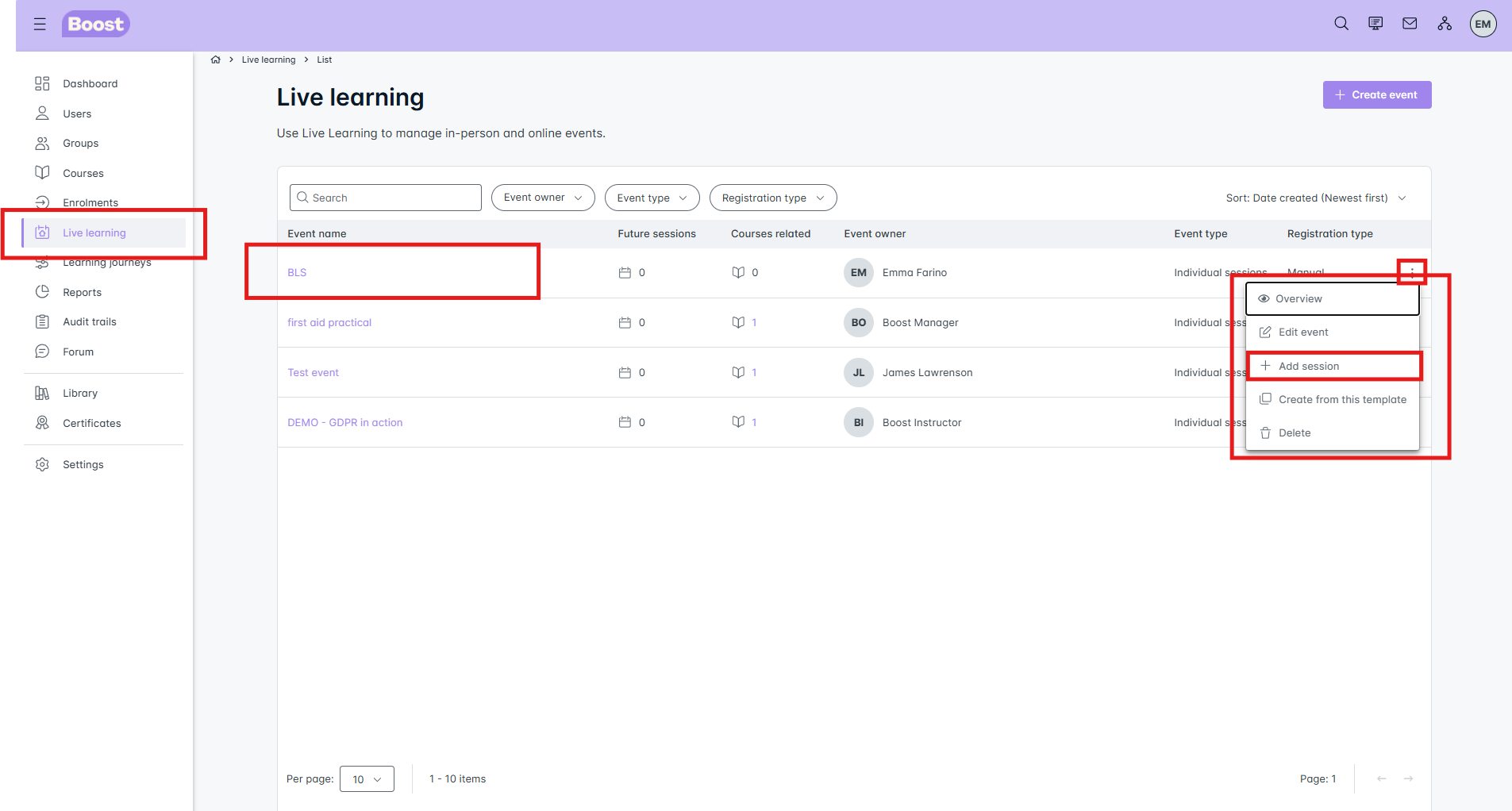
Step 2
Once you are in the course you want - click In Person - Go to the Location drop down box and click the arrow.
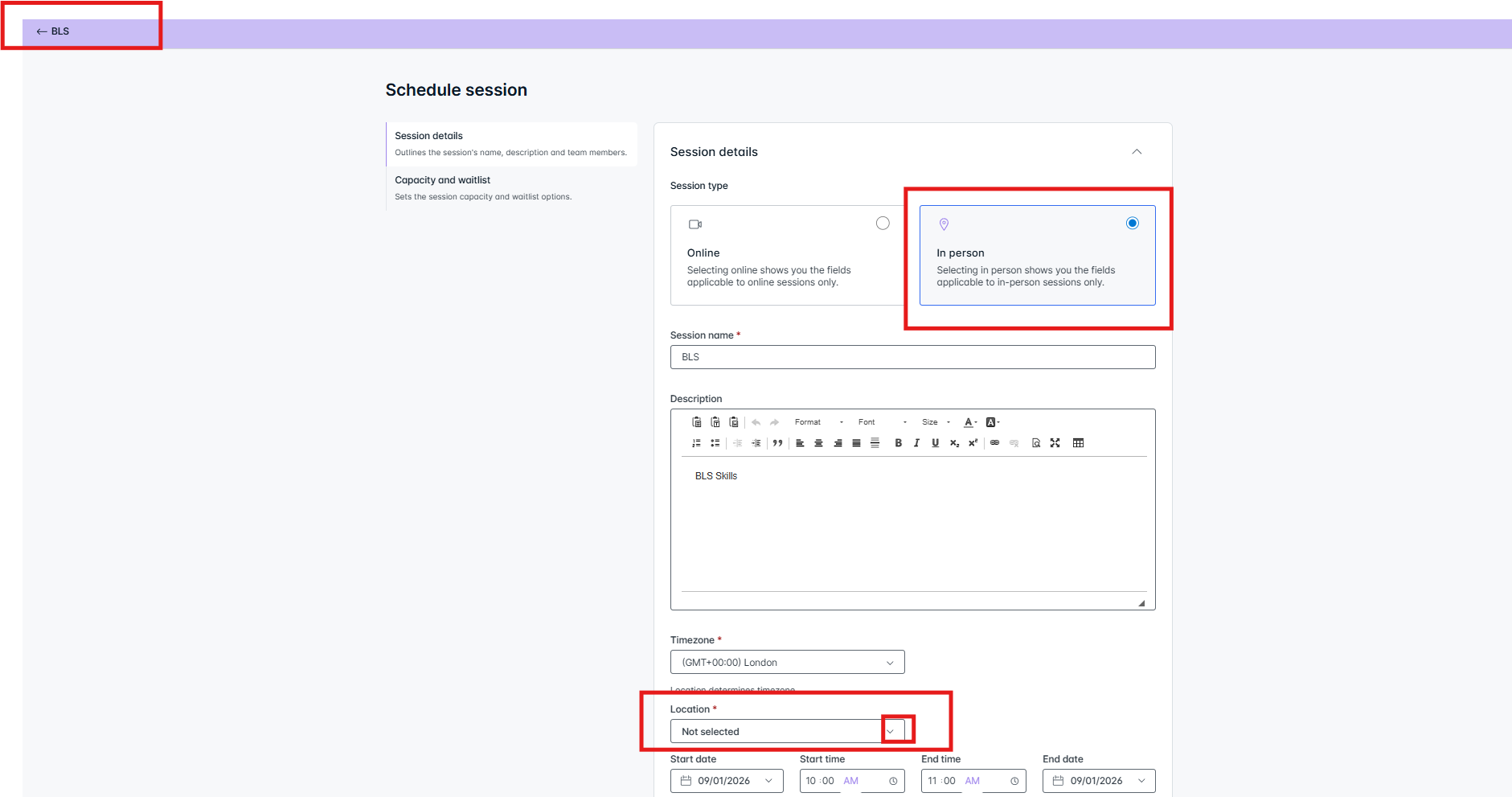
Step 3
Once you click the arrow all the locations will be listed for you.
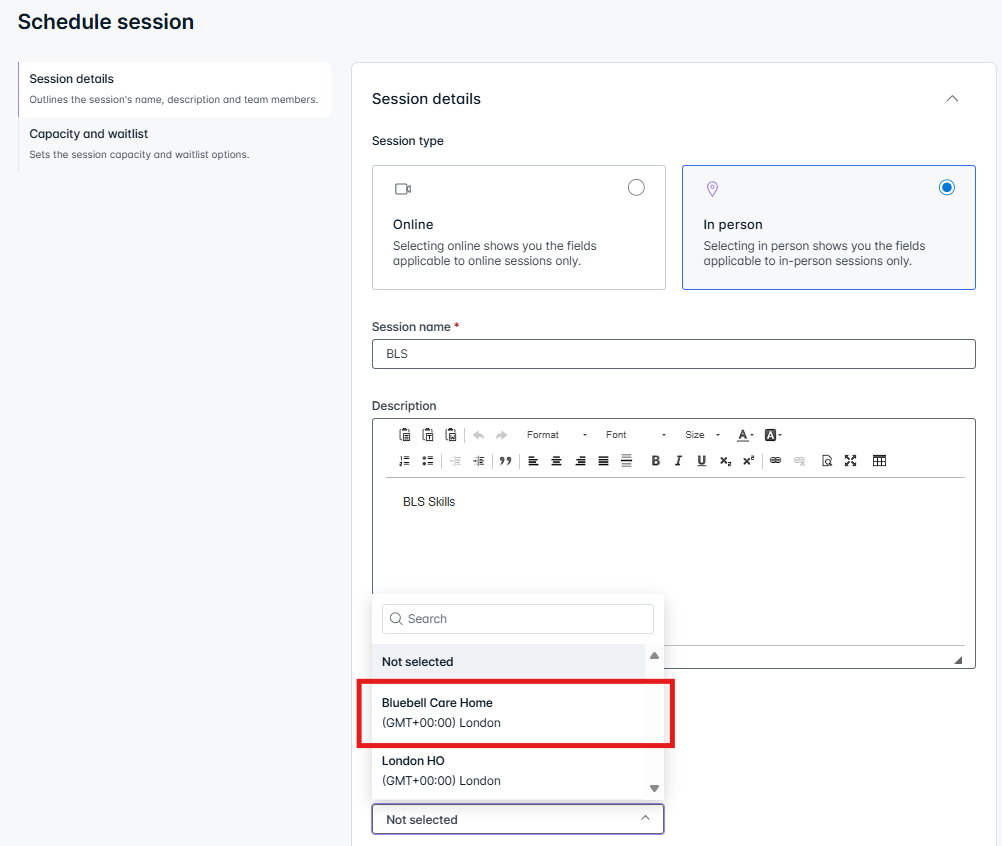
Was this article helpful?
That’s Great!
Thank you for your feedback
Sorry! We couldn't be helpful
Thank you for your feedback
Feedback sent
We appreciate your effort and will try to fix the article