In some circumstances, a learner may be required to repeat a course, even if they are already compliant. This may be:
As part of an action plan following an error
To support the learner’s personal development (at their request)
In these cases, the retraining request must be submitted directly to Boost via Support or your Account Manager.
A duplicate version of the course will be created with a revised title (for example, Medication Awareness – Retraining).
Please note:
The retraining course does not include re-enrolment.
It will not impact the learner’s existing eLearning within their assigned Learning Journey.
It will not affect original course validity dates or due dates.
It will not alter Historic Learning records or Certificates.
Once created, the retraining course can be allocated to the learner independently of their existing Learning Journey by following these steps:
Step 1
- Log onto your Boost Learn account
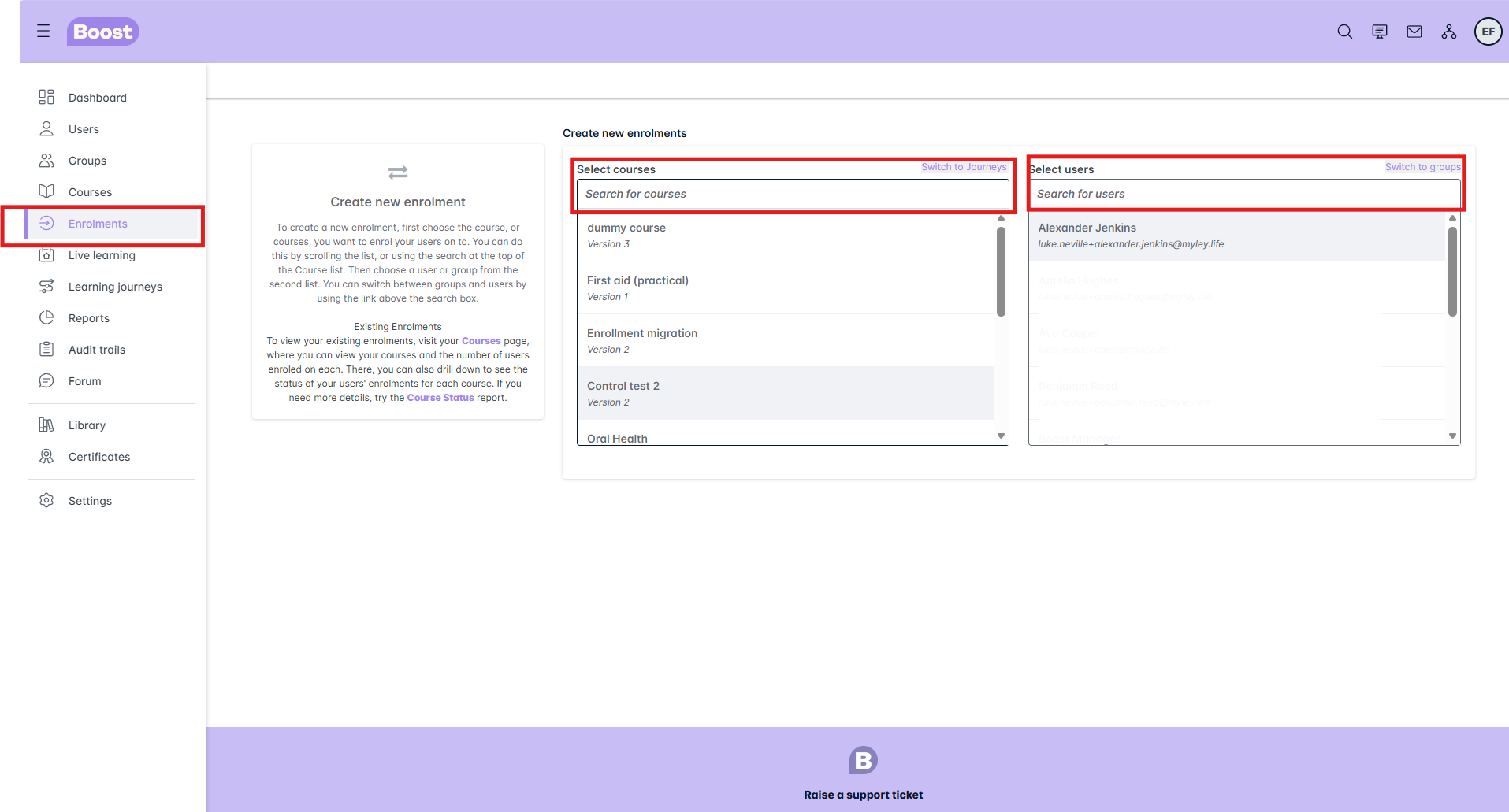
- On the left hand side of the screen, scroll down to the Enrolments tab and click on it
- It will bring up a screen where you can create new enrolments
Step 2
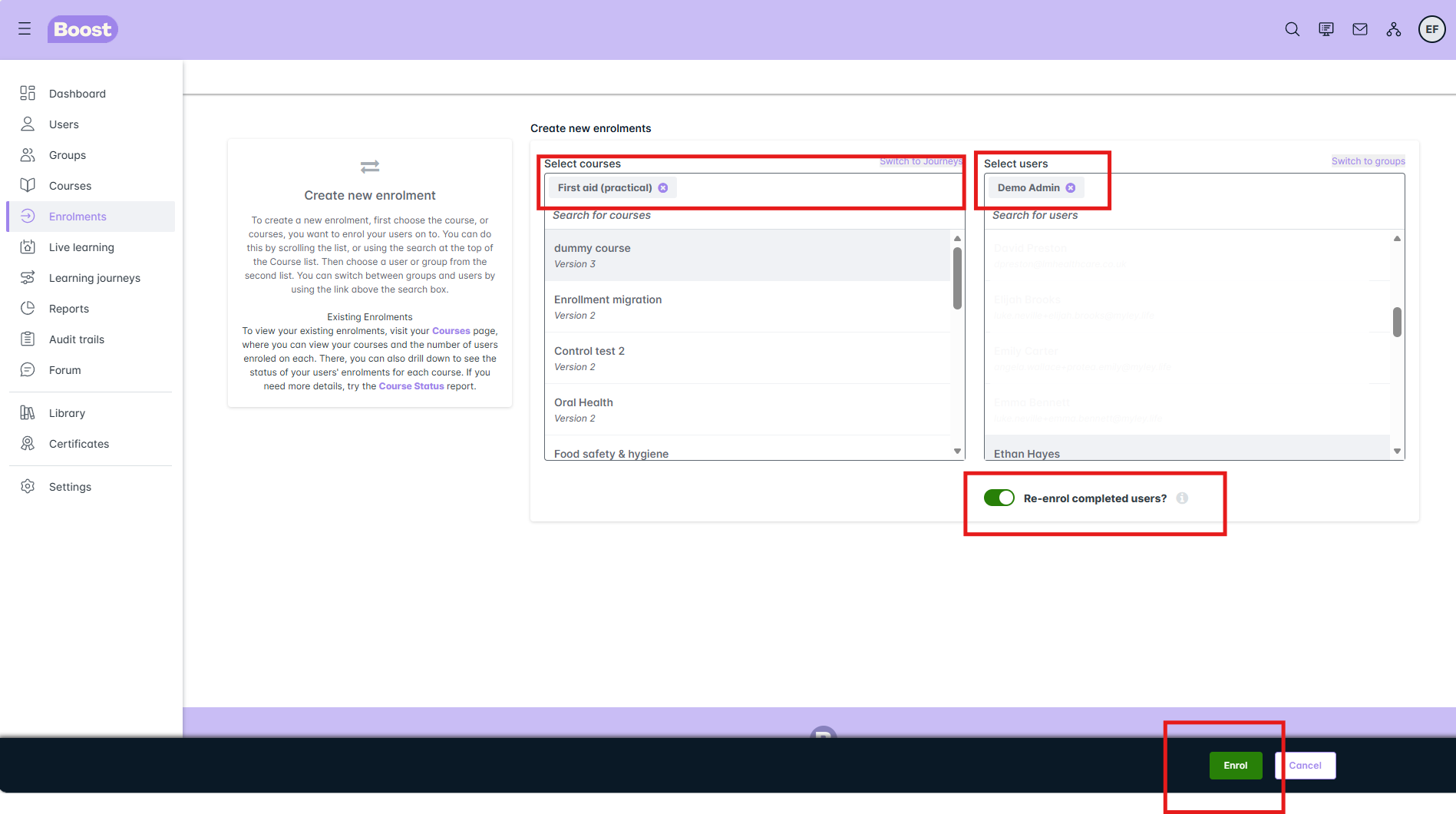
- Select the course you would like to allocate to the learner and click on it. It will then appear at the top of the bar in a grey background
- Select the learner you would like to enrol on the course and click on the name. The learner will then appear at the top of the bar in a grey background
- Then click the green Enroll button
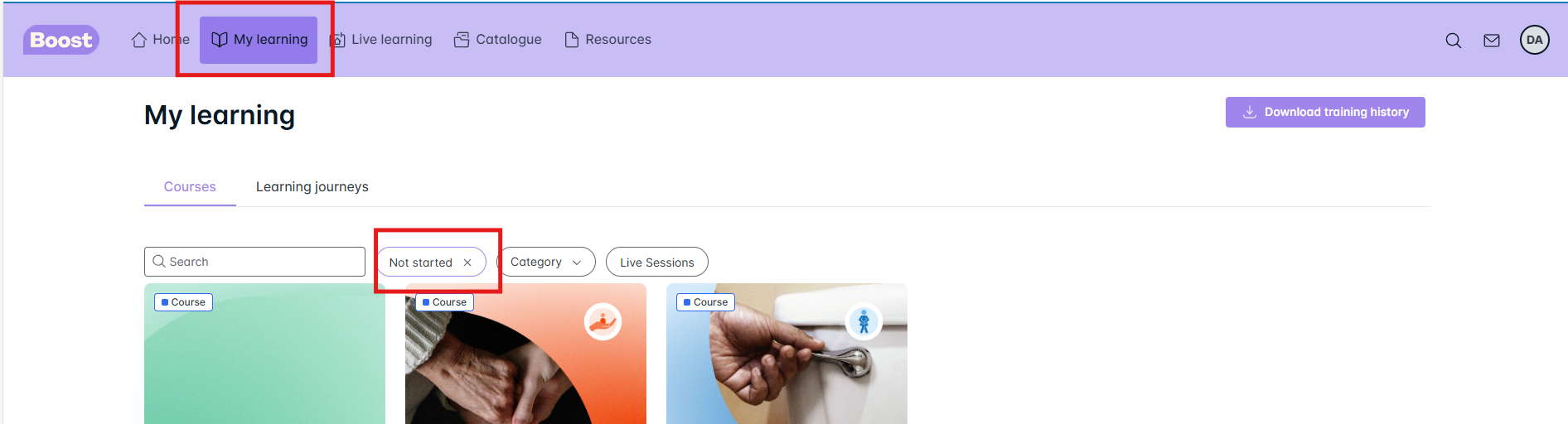
Your learner will be enrolled on the course again and need to complete this. It will show in their My Learning area as Not Started
Was this article helpful?
That’s Great!
Thank you for your feedback
Sorry! We couldn't be helpful
Thank you for your feedback
Feedback sent
We appreciate your effort and will try to fix the article