Overview
This guide covers two ways to download a policy as a PDF: directly from the Policy Hub or from the policy document itself.
Document download options include:
- Standard download – search for or navigate to a policy in the Policy Hub, then download it for the relevant location.
- Download from the policy document – open the policy and download it directly from the document viewing page, without needing to search or select a location.
| Note: Downloading from the policy document is not a standard feature. If you do not have this feature enabled and would like it for your organisation, contact a Boost agent to arrange it. |
How to download from the Policy Hub
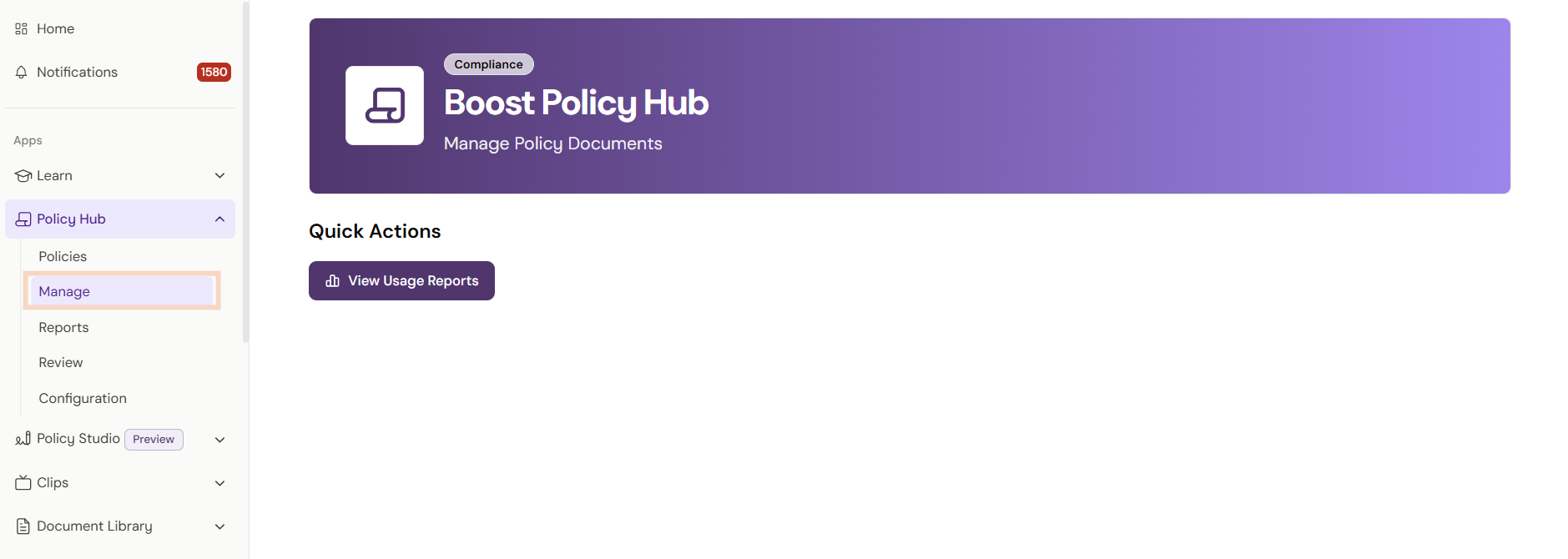
To find the document that you would like to print, go to Policy Hub and select Manage.
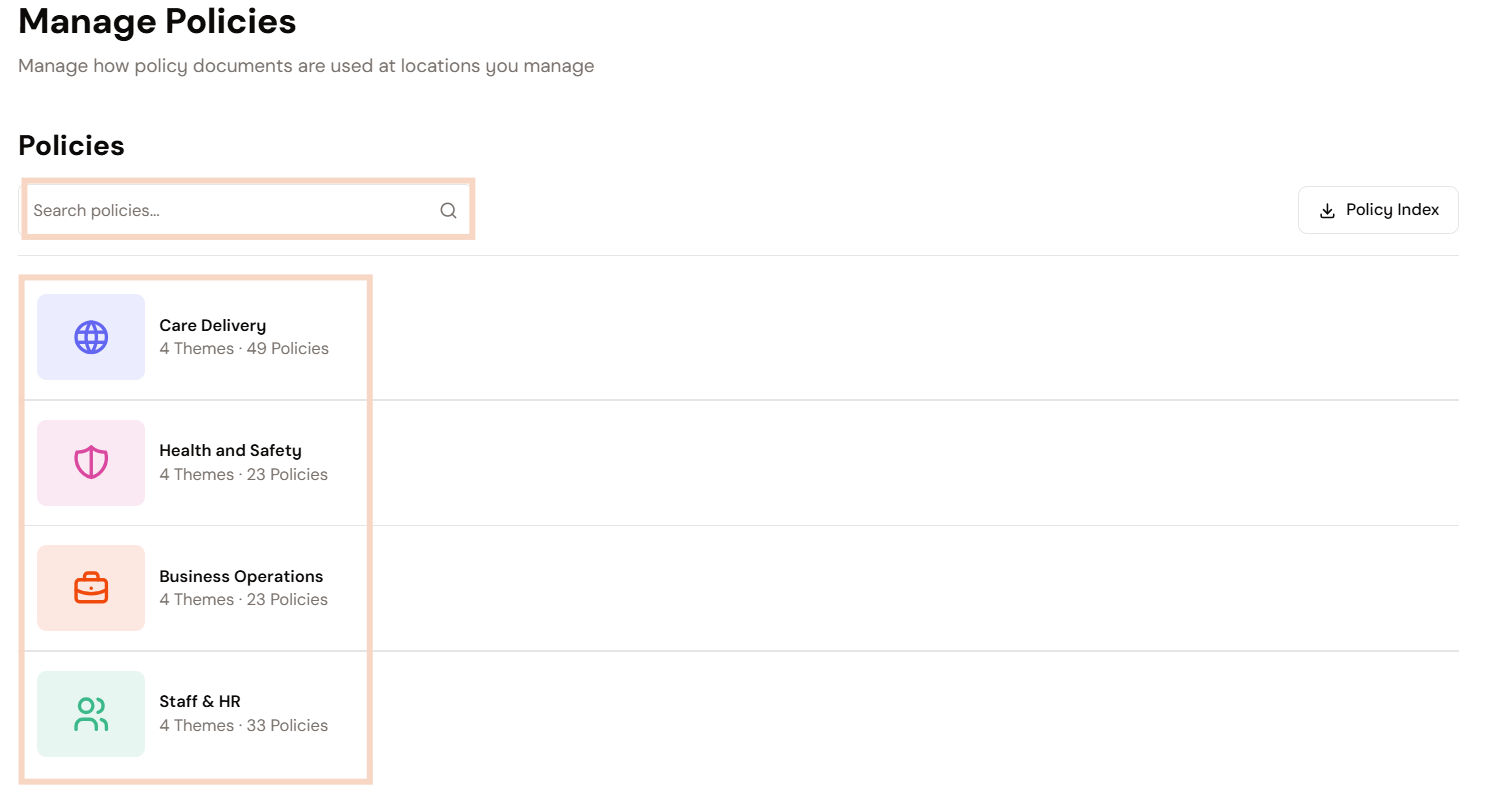
From this screen, there are two ways to find a policy:
- Use the search function: Use the search bar at the top of the screen, under the heading Policies, to find a policy by name.
- Use the categories: Select the category related to the policy that you would like to find. These are displayed below the search bar in folders by category.
Searching for and downloading a policy
If you know the name of the policy that you would like to print:
- Select Policy Hub to expand a list of options, then select Manage from the dropdown list provided.
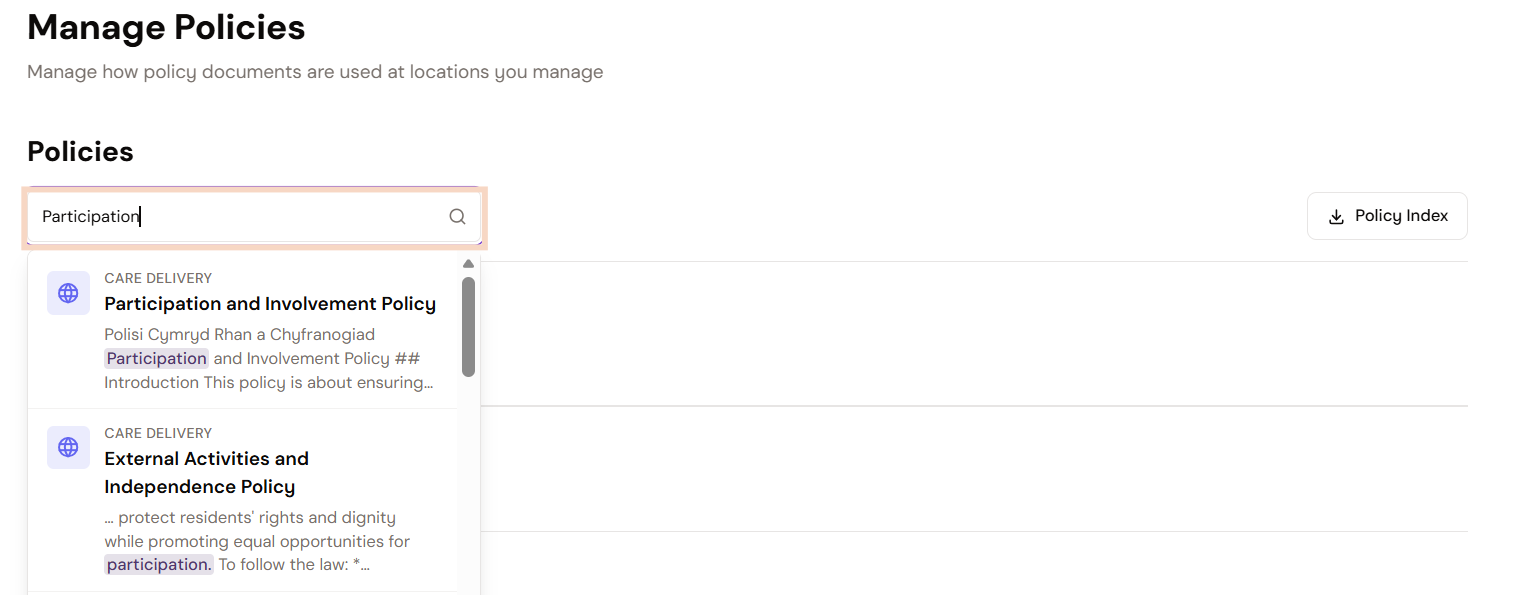
- Go to the search bar, indicated with a search icon, under Policies, and enter the name of the policy.
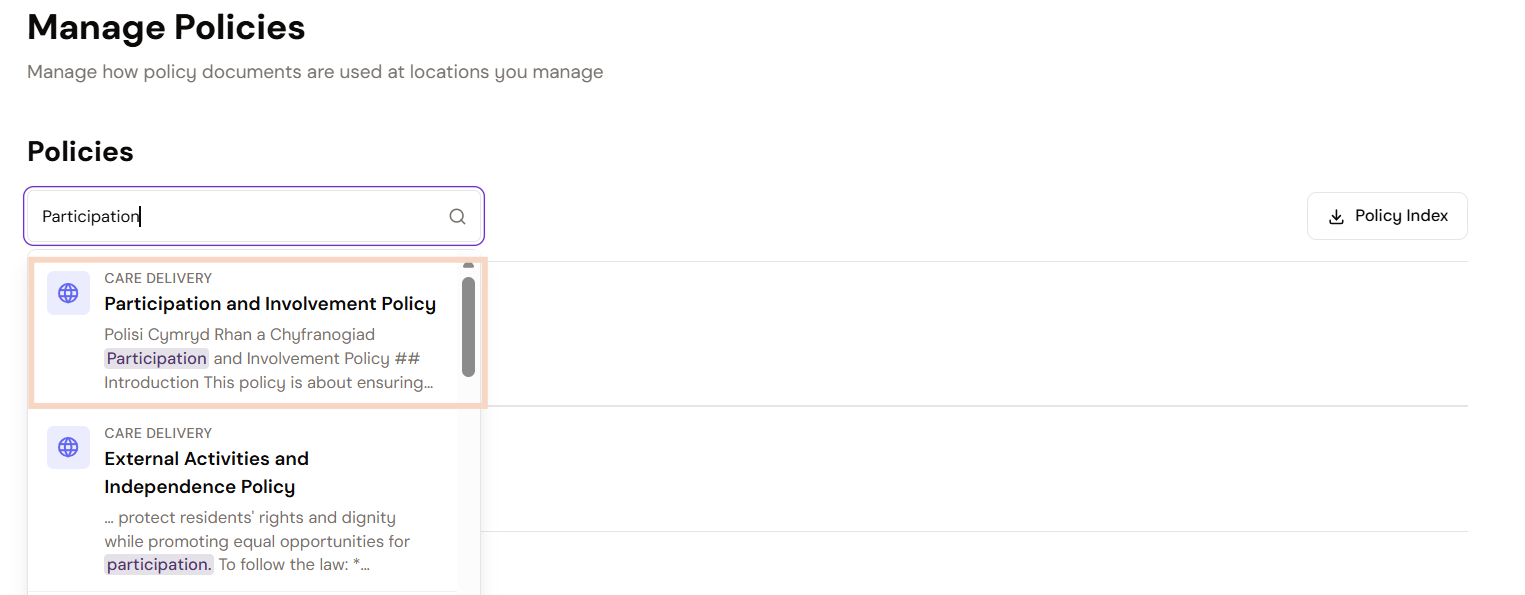
- Select the correct policy from the dropdown list provided below the search bar.
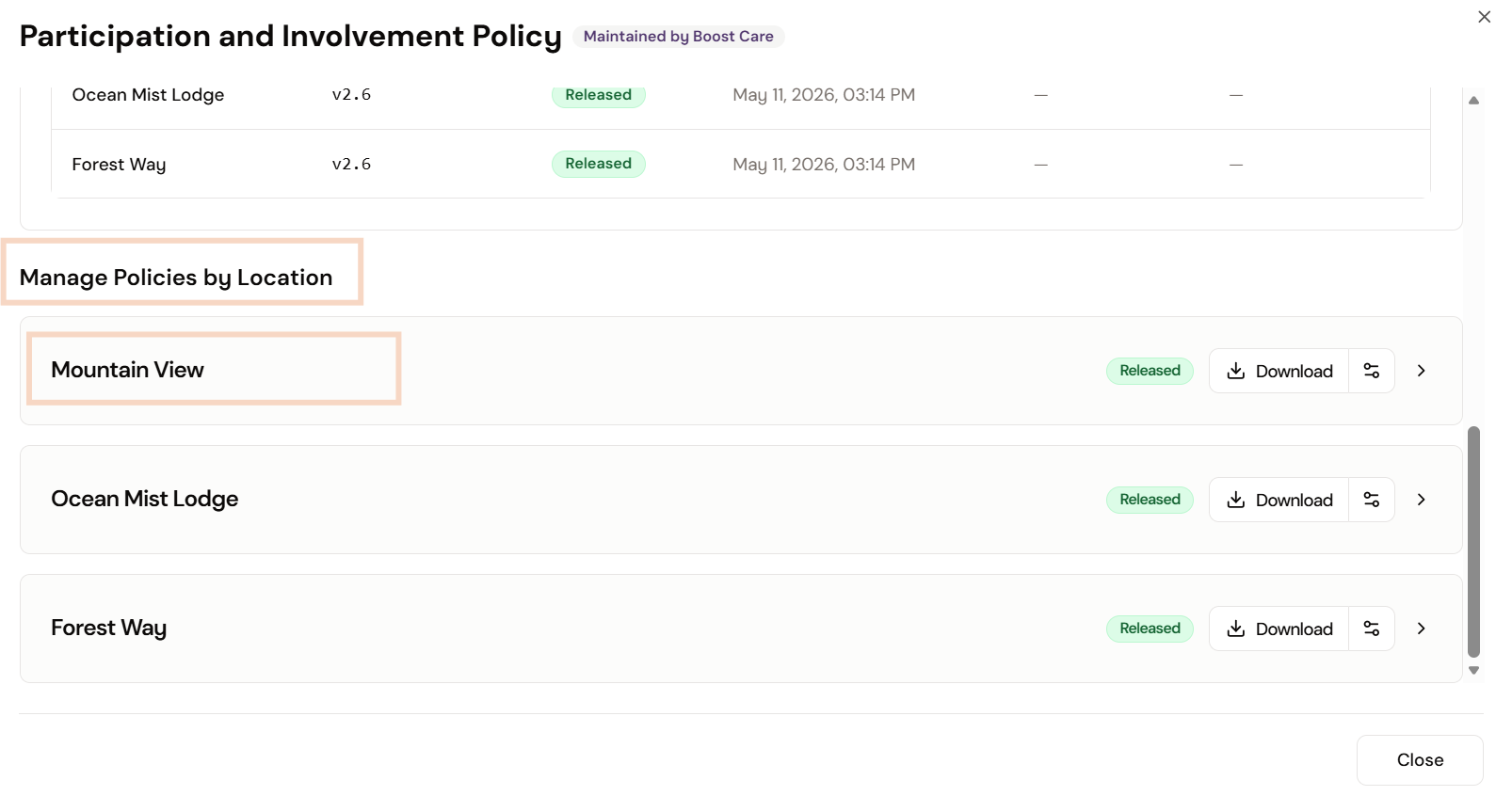
- A panel will open on the right of the screen, and it will provide you with a list of options. Scroll down the page to the section Manage Policies by Location.
- In the Manage Policies by Location section, you will see a list of homes allocated to your organisation. Find the home for the policy that you would like to download.
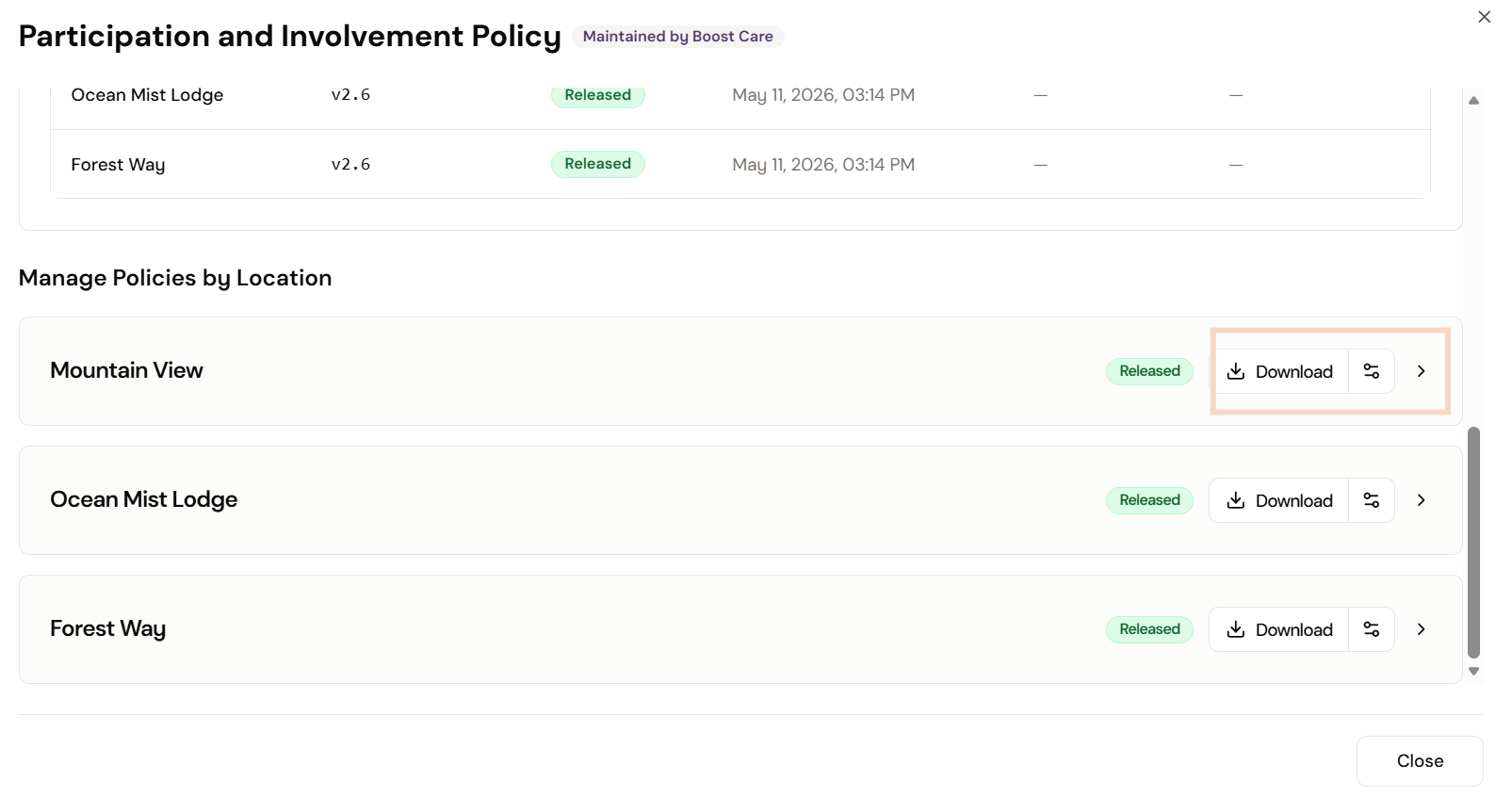
- On the right of the page, you will see three buttons. Select the Download button.
- The document will start downloading and the PDF file will be in your download folder.
Browsing by category and downloading a policy
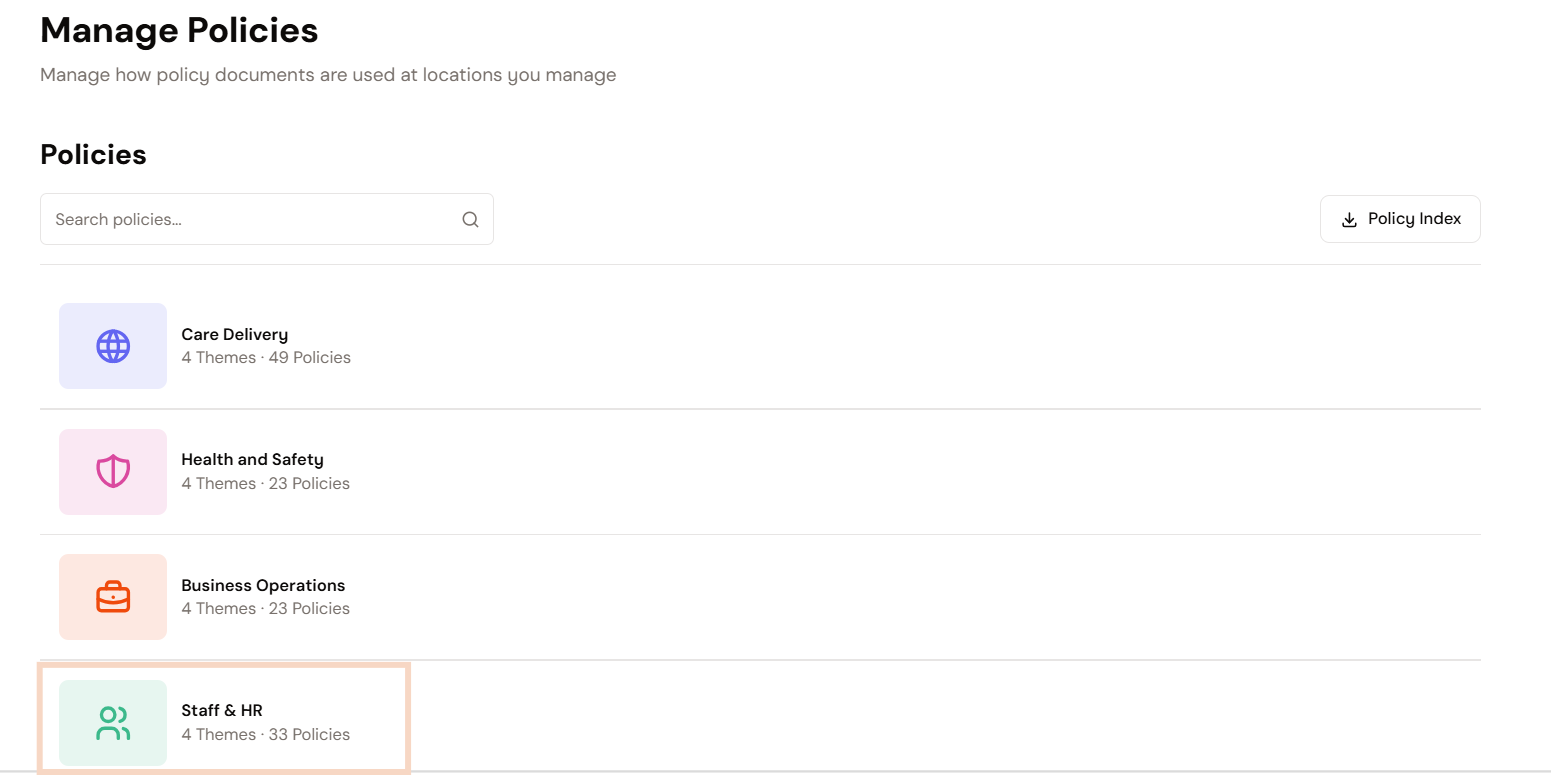
- Select the category for the policy group you would like to view
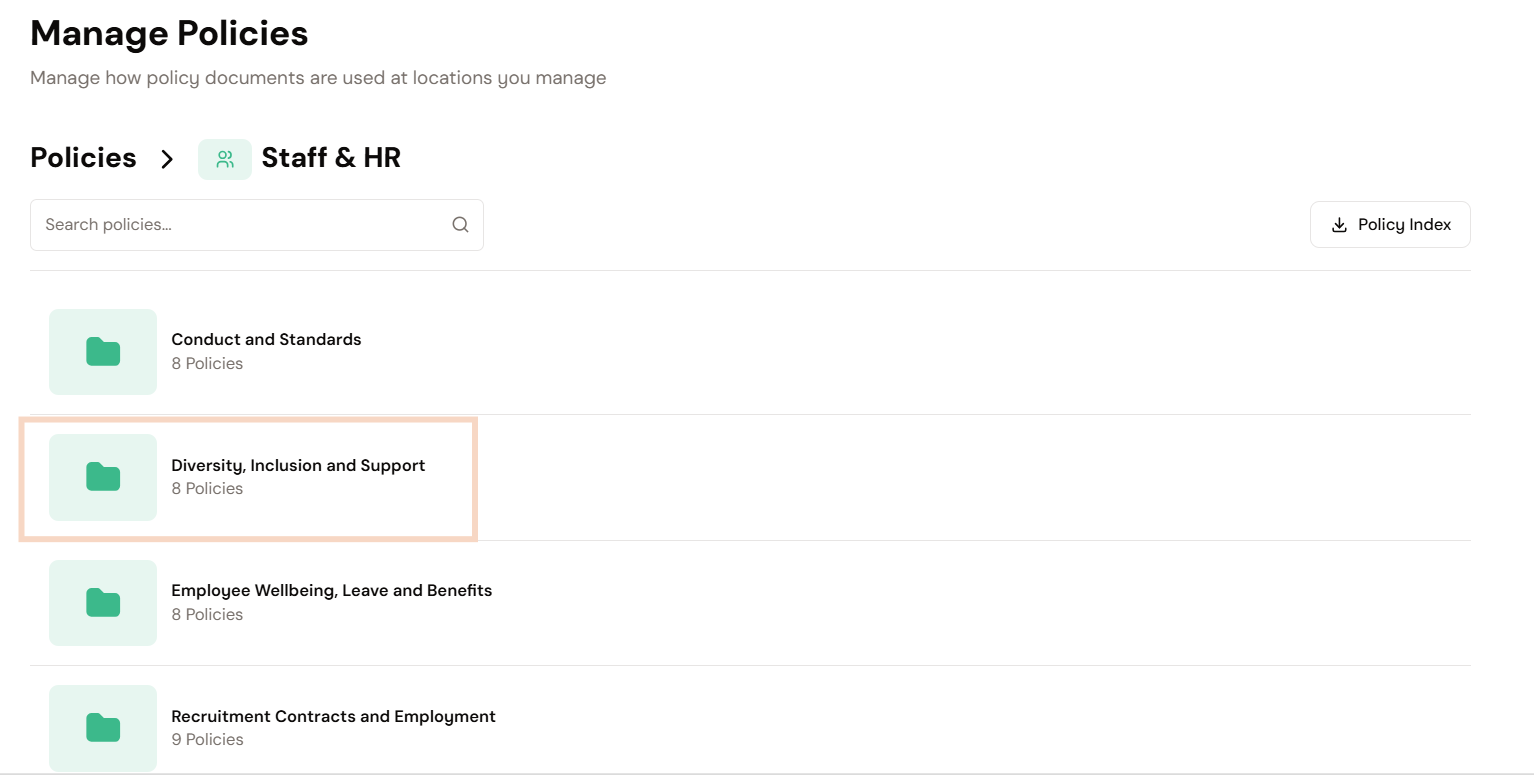
- Each folder will have themes related to function or an area of knowledge. Select the theme related to your policy.
- Once you have opened a theme folder, find the policy you would like to print.
- Select the Manage button to the right of the policy.
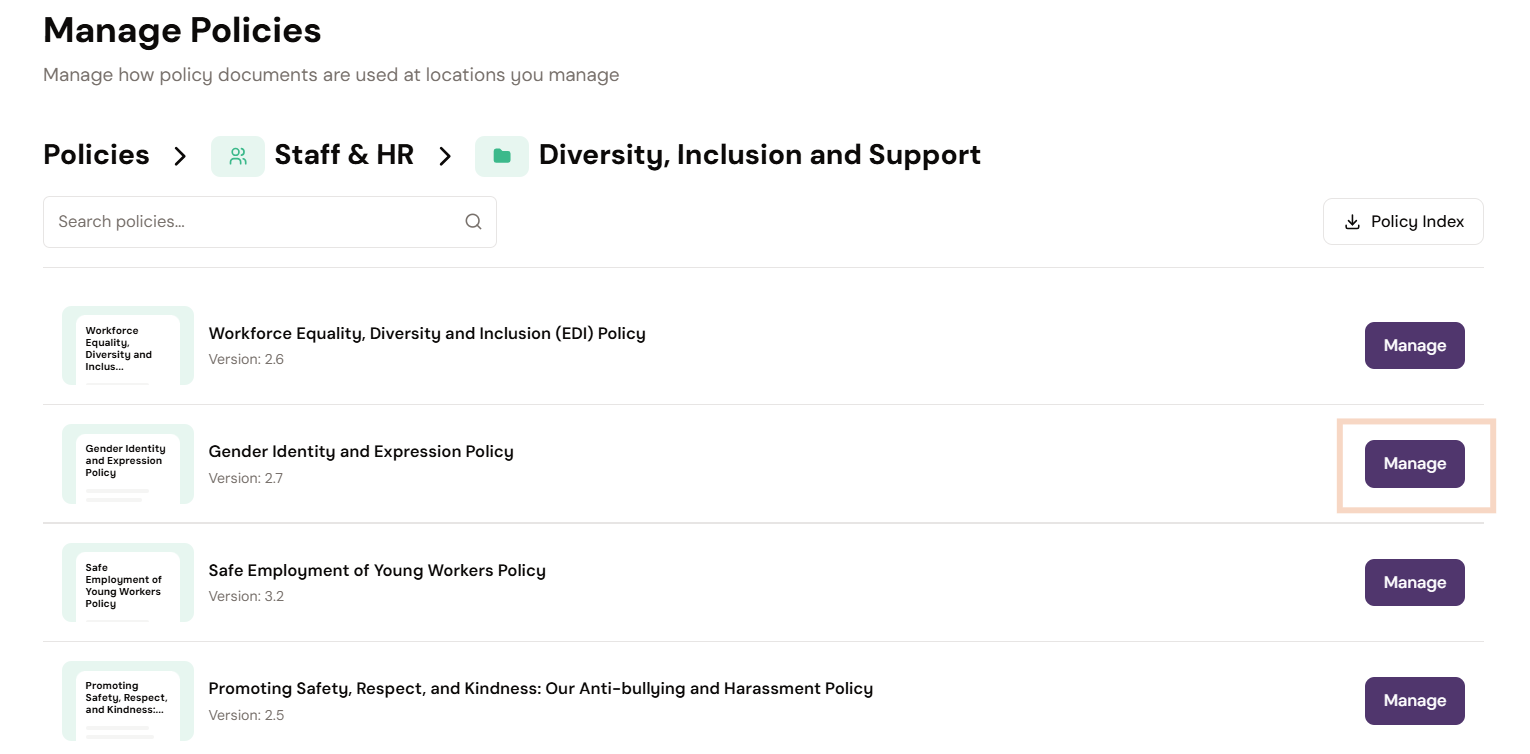
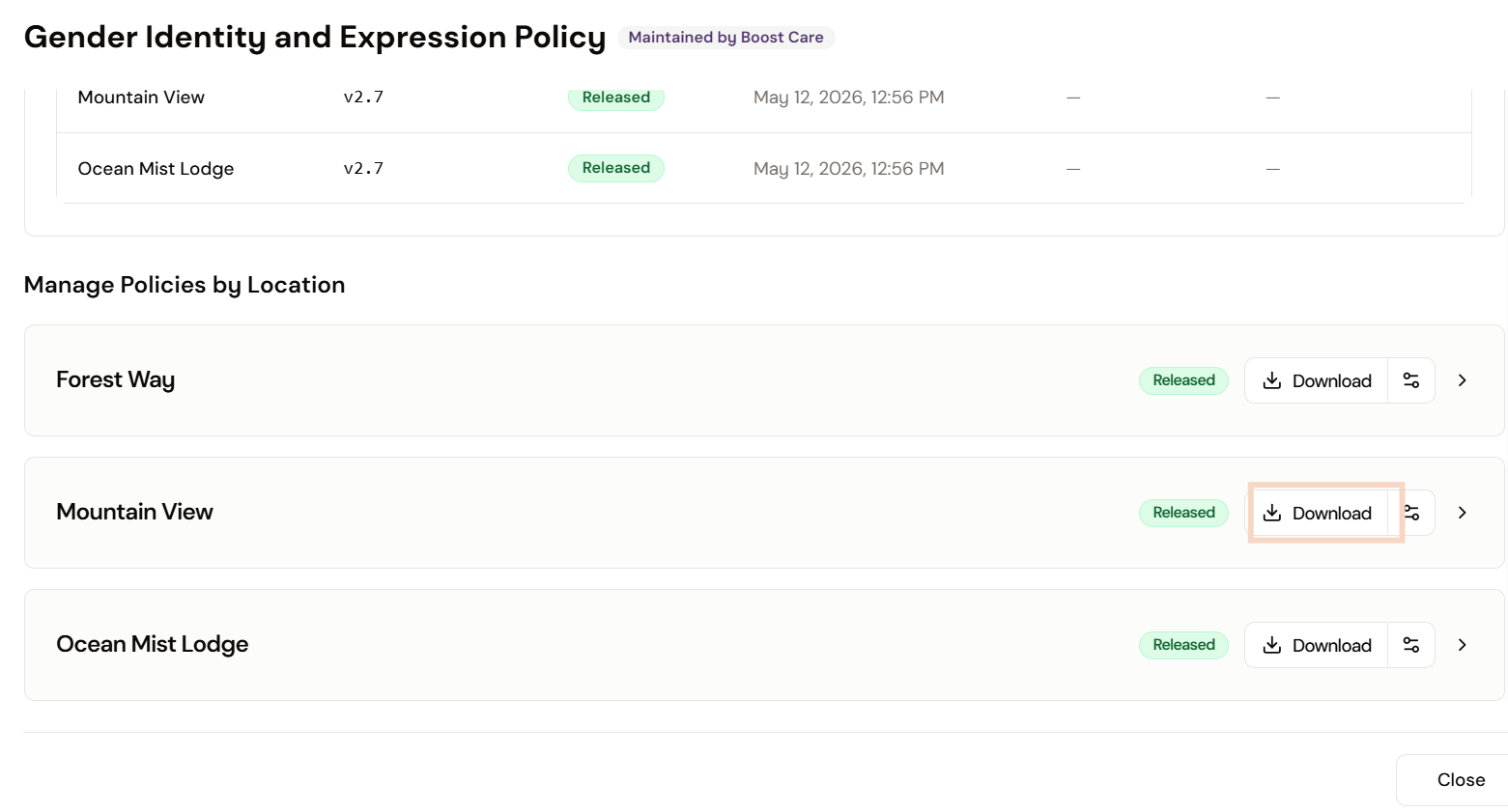
- A side panel will open on the right. Scroll down to Manage Policies by Location.
- Find the home for the policy you would like to download and select the Download button on the right.
Downloading from the policy document
You may also download a policy directly from the document viewing page.
| Note: Downloading from the policy document is not a standard feature. If you do not have this feature enabled and would like it for your organisation, contact the Boost support team to arrange it. |
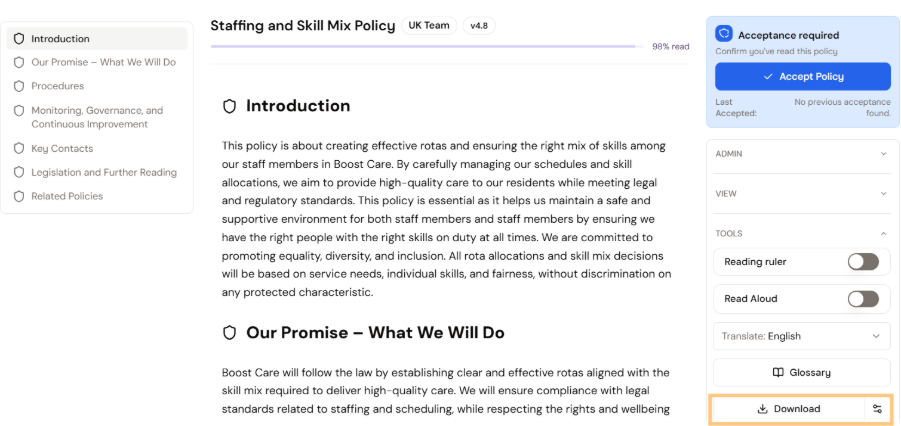
- Open your policy and look to the right for a panel of options. Go to the bottom of the list, where you will find the Download button.
- Select the Download button, indicated with a down arrow. The document will start downloading as a PDF file.
Was this article helpful?
That’s Great!
Thank you for your feedback
Sorry! We couldn't be helpful
Thank you for your feedback
Feedback sent
We appreciate your effort and will try to fix the article