Using the Policy Reports Page
Overview
The Policy Reports page gives managers a single view of how staff are engaging with policies. It shows who has opened and accepted the latest version of each policy, which policies are being read most, and how compliant each user is with the policies they are enrolled on. You can filter the report by location, role, and policy, and download any table to Excel or CSV.
This guide is intended for Home Managers, Regional Trainers and senior leadership teams.
Permissions: To see the Policy Reports page, you must be a manager of the users you want to report on, and you must have the permission to view users’ reports enabled. If you cannot see the Reports option under Policy Hub, or the report is missing users you expect to see, contact your administrator. |
Opening the Policy Reports Page
Step 1: Go to Reports in the Policy Hub
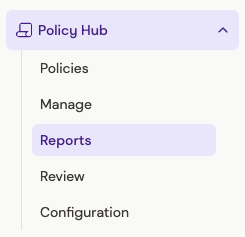
From the Boost home screen, use the menu on the left-hand side. Click Policy Hub to expand it, then click Reports.
Step 2: Filter the report
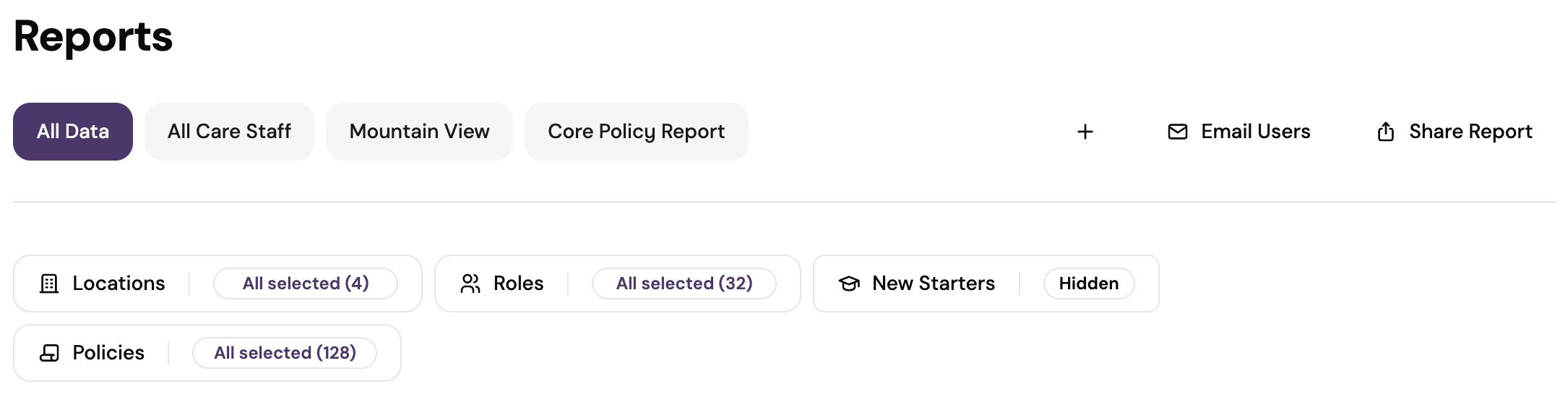
At the top of the page are filters that control which data appears in every section of the report. Each filter shows how many options are currently selected (for example, All selected (4)). Click a filter to change what is included.
- Locations – Choose which homes or locations to include.
- Roles – Choose which job roles to include.
- New Starters – Choose whether new starters are shown or hidden in the report.
- Policies – Choose which policies to include.
Policy Acceptance Summary
Below the filters is a row of summary cards. These give you a quick picture of policy engagement across the users and policies you have filtered to.
- Users – The number of users included in the report.
- Opened Latest Version – The percentage of assigned policies where users have opened the latest version.
- Accepted Latest Version – The percentage of assigned policies where users have accepted the latest version.
- Unaccepted Latest Version – The percentage of assigned policies where users have not yet accepted the latest version.
To see exactly how a figure is calculated, click the information icon (ⓘ) in the top-right corner of the card.

Top 10 opened and Top 10 accepted
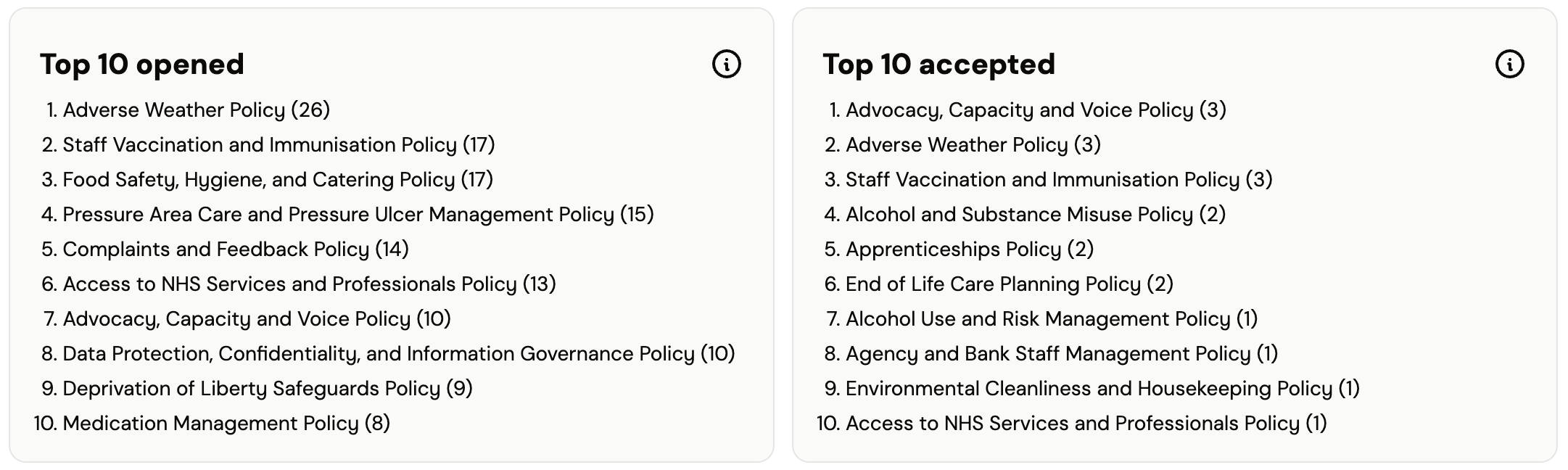
The Top 10 opened and Top 10 accepted boxes list the policies that have been opened and accepted most within your home, region or organisation. The number in brackets next to each policy is its count. Click the information icon on either box for a full explanation.
Compliance
The Compliance section at the end of the page shows how up to date users are with the policies they have been enrolled on. It is separate from the acceptance figures above: acceptance tracks the latest version of every assigned policy, while compliance tracks enrolled policies and their due dates.
Note: The Compliance section is currently marked as Preview. It may change as we continue to develop it. |
Compliance summary cards
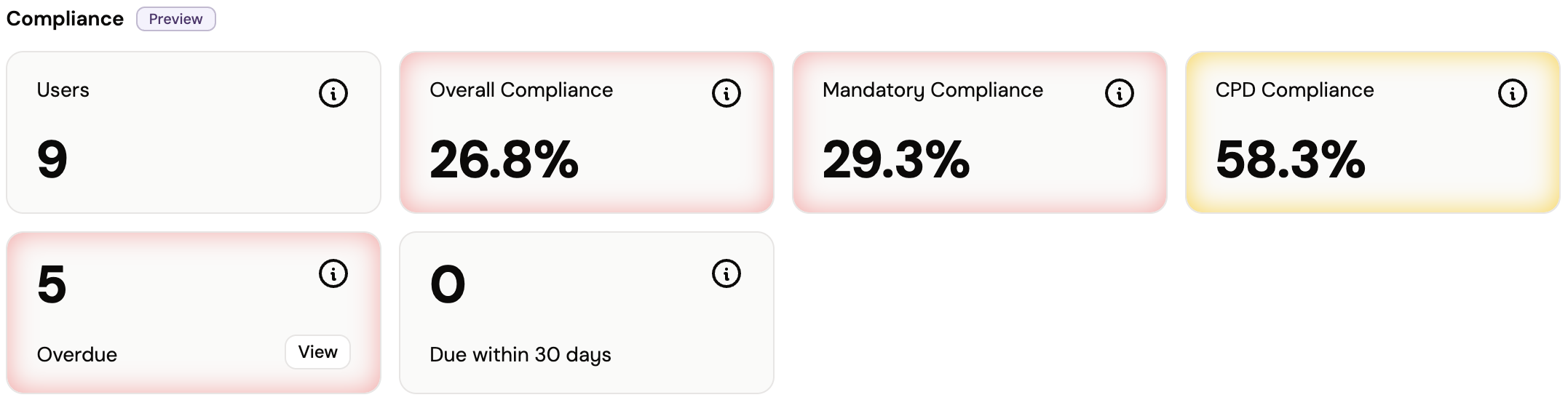
- Users – The number of users included in the compliance figures.
- Overall Compliance – The percentage of all enrolled policies that users are compliant with.
- Mandatory Compliance – The percentage of enrolled Mandatory policies that users are compliant with.
- CPD Compliance – The percentage of enrolled CPD policies that users are compliant with.
- Overdue – The number of enrolled policies that have passed their due date without being completed. Click View to see the overdue items.
- Due within 30 days – The number of enrolled policies that are due in the next 30 days.
Click the information icon (ⓘ) on any card for a detailed explanation of the figure.
Compliance Matrix
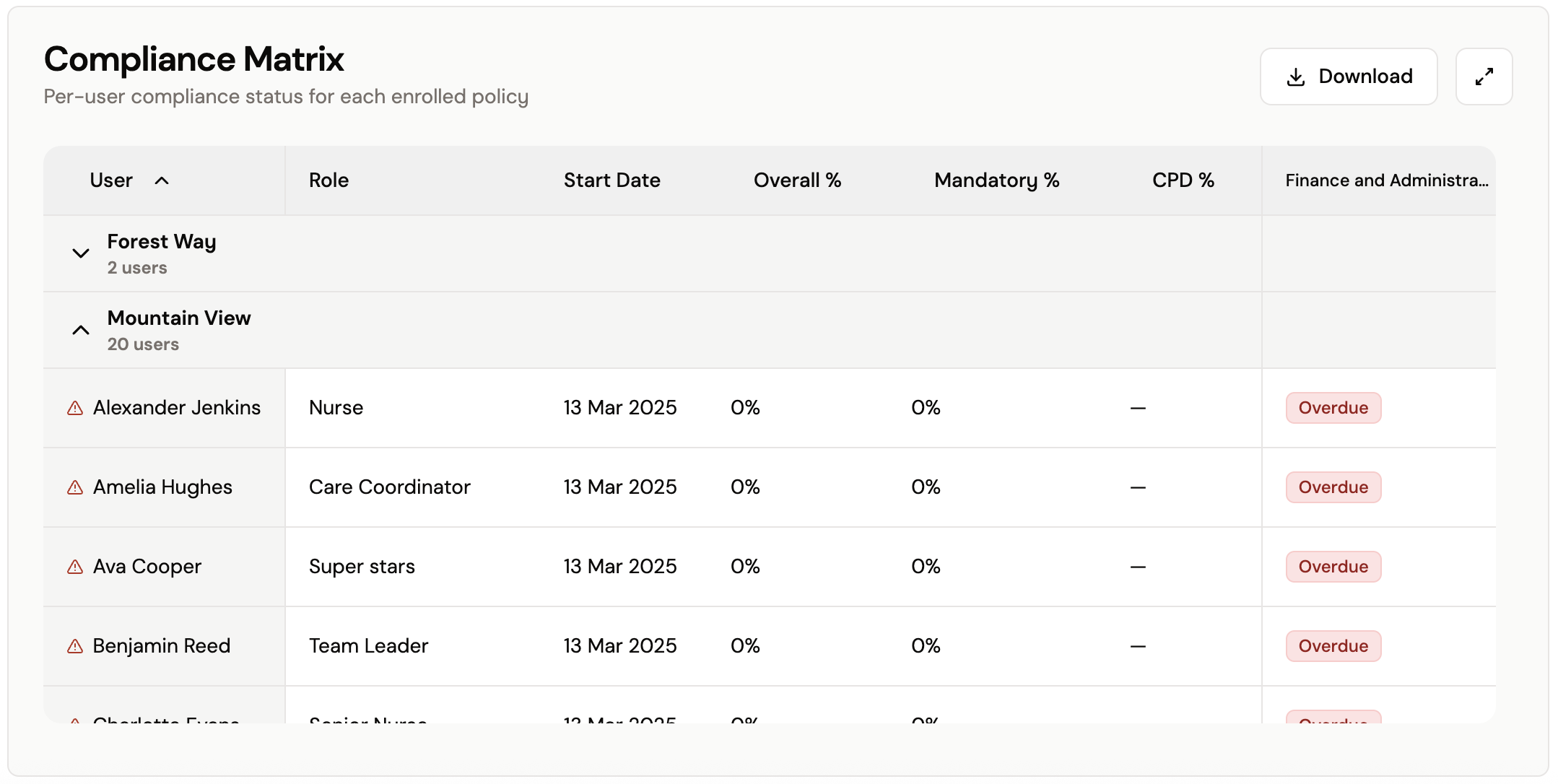
The Compliance Matrix shows each user’s compliance status for every policy they are enrolled on. Users are grouped by team or location. Click a group name to expand or collapse its list of users; the number of users in each group is shown under its name.
The matrix includes the following columns:
- User – The user’s name. Click the column heading to sort the list.
- Role – The user’s job role or roles.
- Start Date – The date the user started.
- Overall % – The user’s compliance across all of their enrolled policies.
- Mandatory % – The user’s compliance across their enrolled Mandatory policies.
- CPD % – The user’s compliance across their enrolled CPD policies. A dash (—) means the user is not enrolled on any CPD policies.
- Policy columns – One column for each policy, showing the user’s status for that policy, for example Compliant, Enrolled or Not enrolled. Scroll right to see all policies.
Policy Matrix
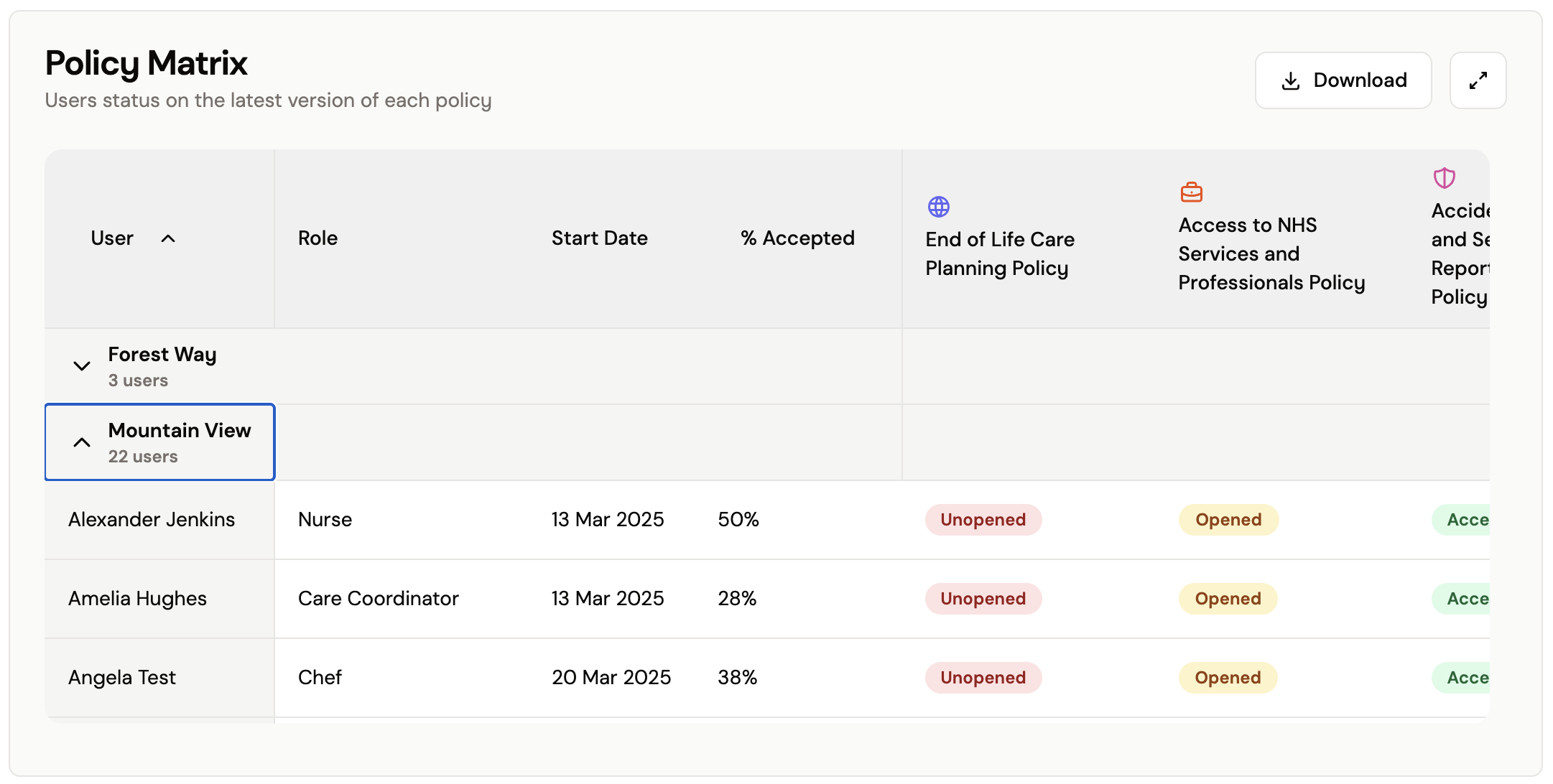
The Policy Matrix shows each user’s status on the latest version of each policy. It lists each user’s Role, Start Date and % Accepted, followed by one column per policy.
If you manage a single home, you will only see your home in the Policy Matrix. If you look after multiple homes, or you are a regional manager, you will see a list of all the homes you look after.
Policy Role Acceptance
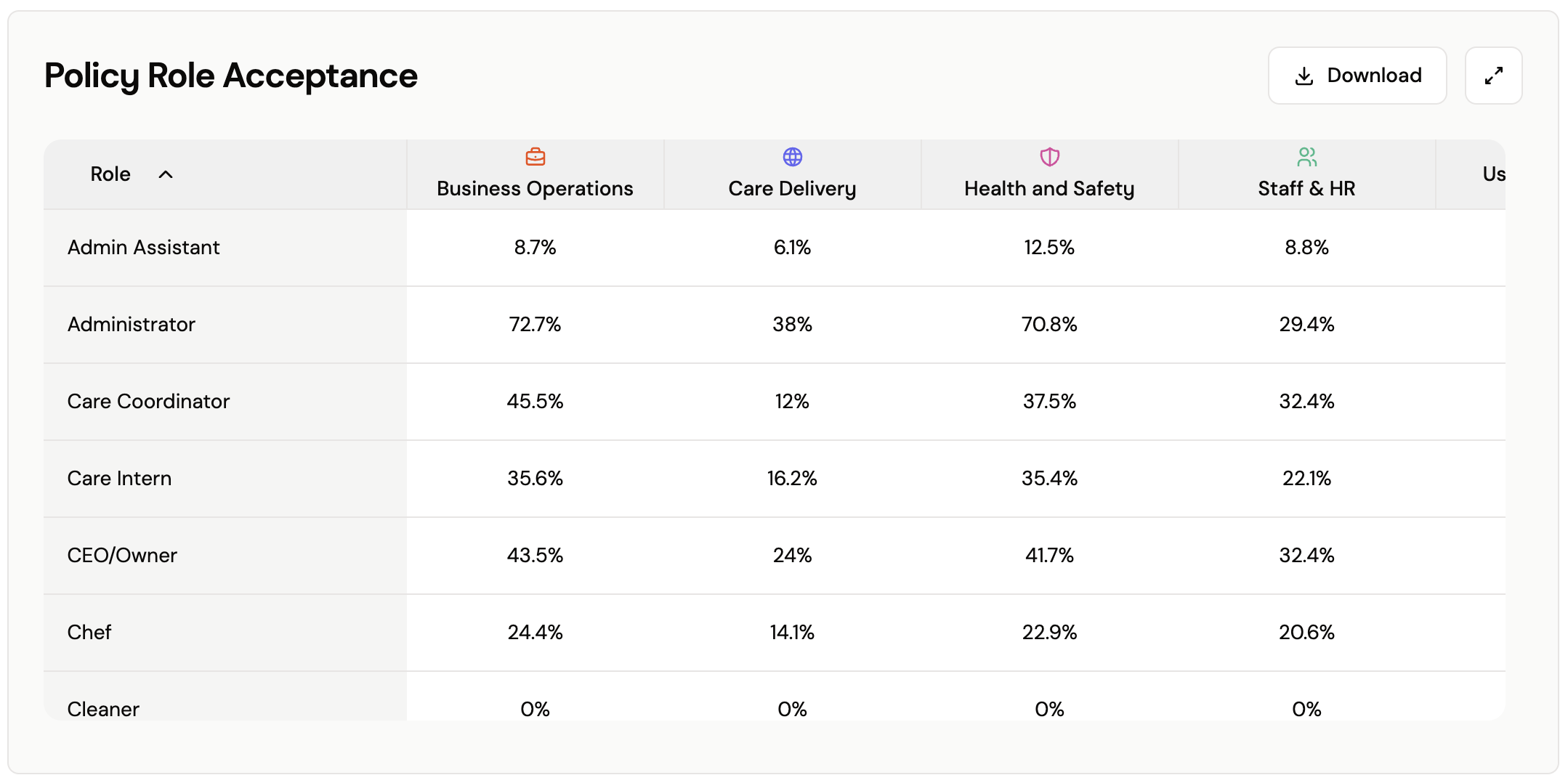
The Policy Role Acceptance table shows policy acceptance by job role. For each role, it shows the User Count, the Overall Accepted percentage, and the acceptance percentage for each policy category (for example, Business Operations, Care Delivery and Health and Safety). Use this table to find roles where acceptance is falling behind.
Policy Status
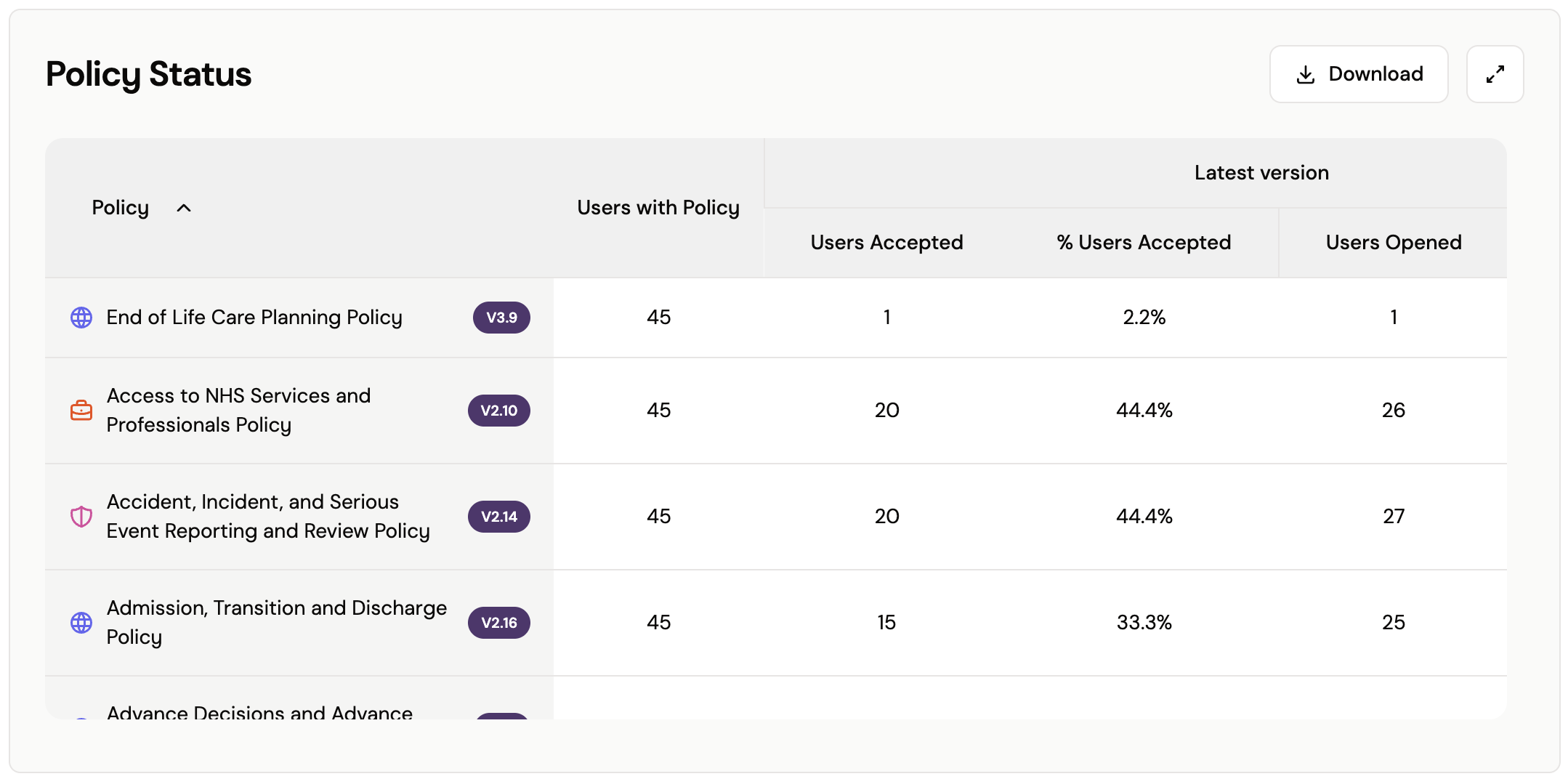
The Policy Status table shows acceptance by policy rather than by user. For each policy, it shows the current version number, the number of Users with policy, and for the latest version, the number of users who have opened it, the number who have accepted it, and the percentage of users who have opened it.
Downloading and Expanding Tables
Each table on the page has two buttons in its top-right corner:
- Download – Download the table as an Excel or CSV file, so you can filter it further or share it with others.
- Expand (the diagonal arrows icon) – Open the table in a larger view, which makes wide tables easier to read.
Note: The filters at the top of the page apply to every section of the report. Check your Locations, Roles, New Starters and Policies filters before downloading, so the file contains the data you expect. |
Was this article helpful?
That’s Great!
Thank you for your feedback
Sorry! We couldn't be helpful
Thank you for your feedback
Feedback sent
We appreciate your effort and will try to fix the article