Overview
Enables your organisation to upload a logo and configure a colour scheme for generated policy PDFs. This does not apply to policies provided by Boost.
How to brand your policy documents
- Select Settings in the left-hand panel.
- Select Brand from the list.
- This opens the Policy Document Branding page.
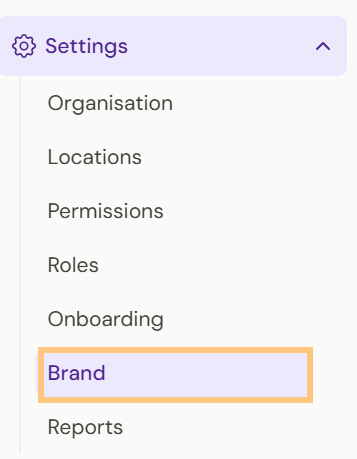
This opens the Policy Document Branding page. From here, there are two sections to complete:
Section 1: Setting your organisation's colours
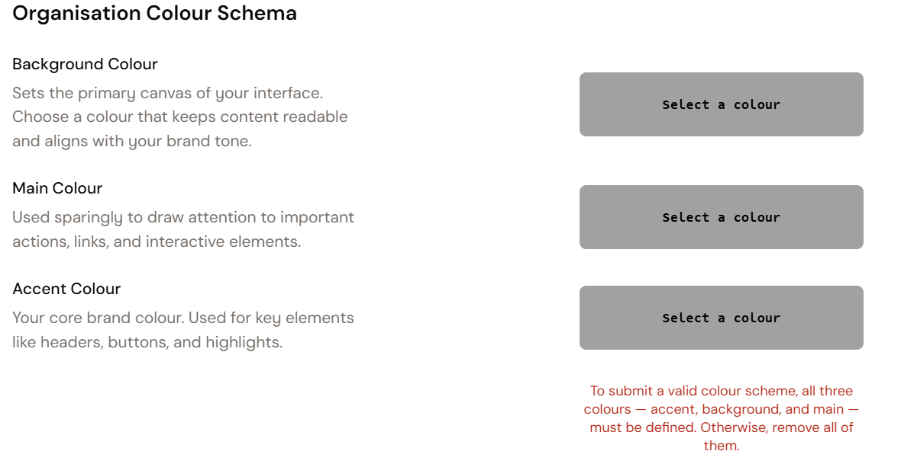
The first section lets you set the colours used to brand your policy documents. All three colours must be set to save a valid colour scheme:
- Background colour sets the primary canvas of your interface.
- Main colour is used sparingly for actions, links, and interactive elements.
- Accent colour is your core brand colour, used for headers, buttons, and highlights.
To add your colour scheme:
- Under Organisation Colour Schema, select the grey box next to the colour group you want to set.
- In the colour picker, select a colour on the colour wheel, or enter a hex code in the field below it.
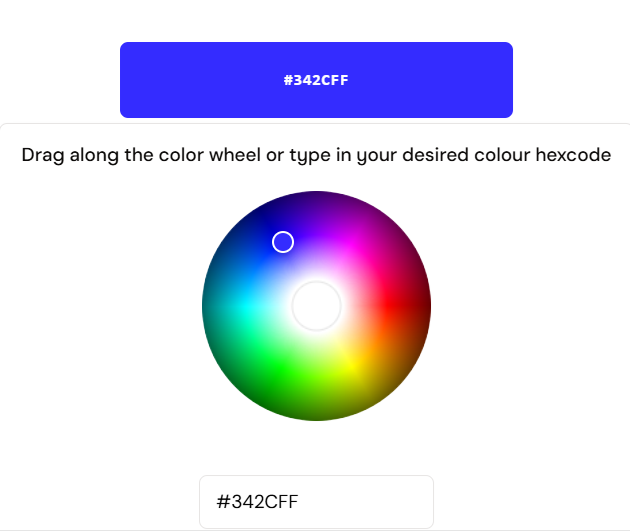
- Repeat until all three colours have been added.
Section 2: Adding your organisation's logo
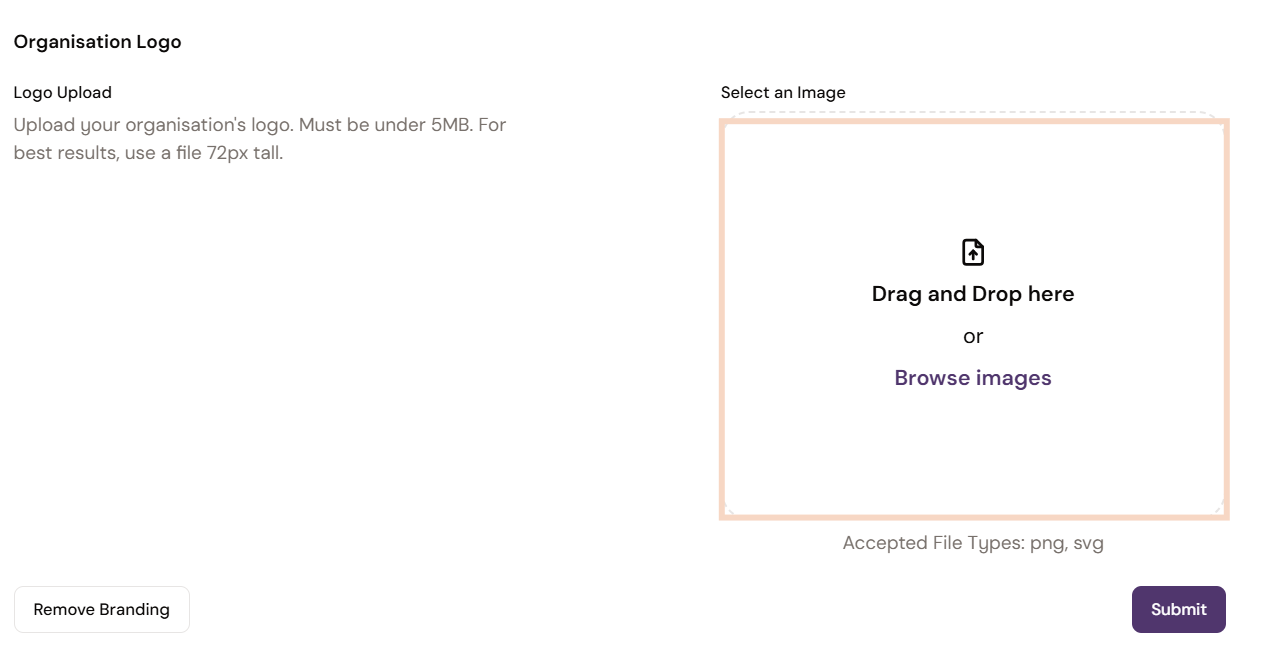
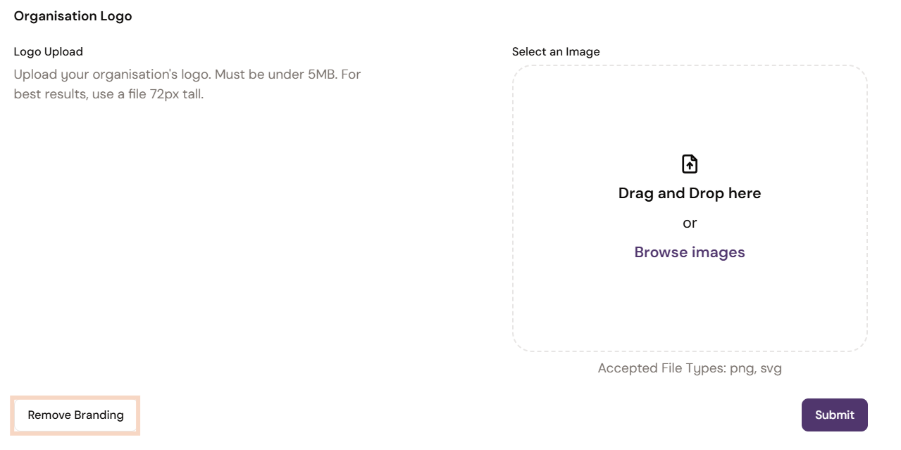
In this section, you can upload your organisation's logo.
| Note: Your logo file must be under 5MB, in PNG or SVG format, and ideally 72px tall for the best fit. |
- Under Organisation Logo, either Drag and Drop your logo into the upload area or select Browse images to upload it from your computer.
- Once your colours and logo are set, select Submit to save your branding.
Removing or replacing your branding
To remove your current branding, or replace it with new colours or a logo:
- Select Remove Branding in the bottom-left corner of the screen.
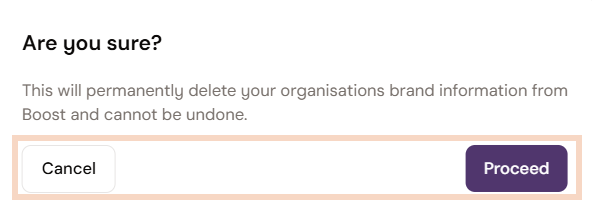
- In the pop-up, select Proceed to remove the branding, or Cancel to keep it.
- To add new branding, repeat the steps above.
Was this article helpful?
That’s Great!
Thank you for your feedback
Sorry! We couldn't be helpful
Thank you for your feedback
Feedback sent
We appreciate your effort and will try to fix the article