Overview
The Enrolments page gives you a single view of every enrolment on the platform, whether it was created manually or through an auto-enrolment rule. From here you can filter and search existing enrolments, and open any individual enrolment to review its details or override its settings – for example, to change its requirement type, adjust its due date, or mark it as manually completed.
| Permissions: To view this page you need the View Enrolments permission. To make any changes – editing an enrolment's settings, marking it complete, or deactivating it – you also need the Manage Enrolments permission. (Creating or editing auto-enrolment rules is covered by a separate permission, Manage Auto Enrolment Rules, and a separate guide.) If you can't see the Enrolments section, or can see it but can't make changes, contact your administrator to confirm you have the correct permissions. |
Navigating to enrolments
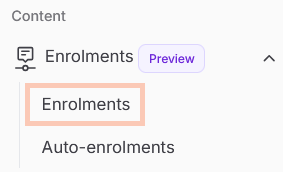
In the left-hand navigation bar, expand the Enrolments section, then select Enrolments (the first sub-tab).
The enrolments table
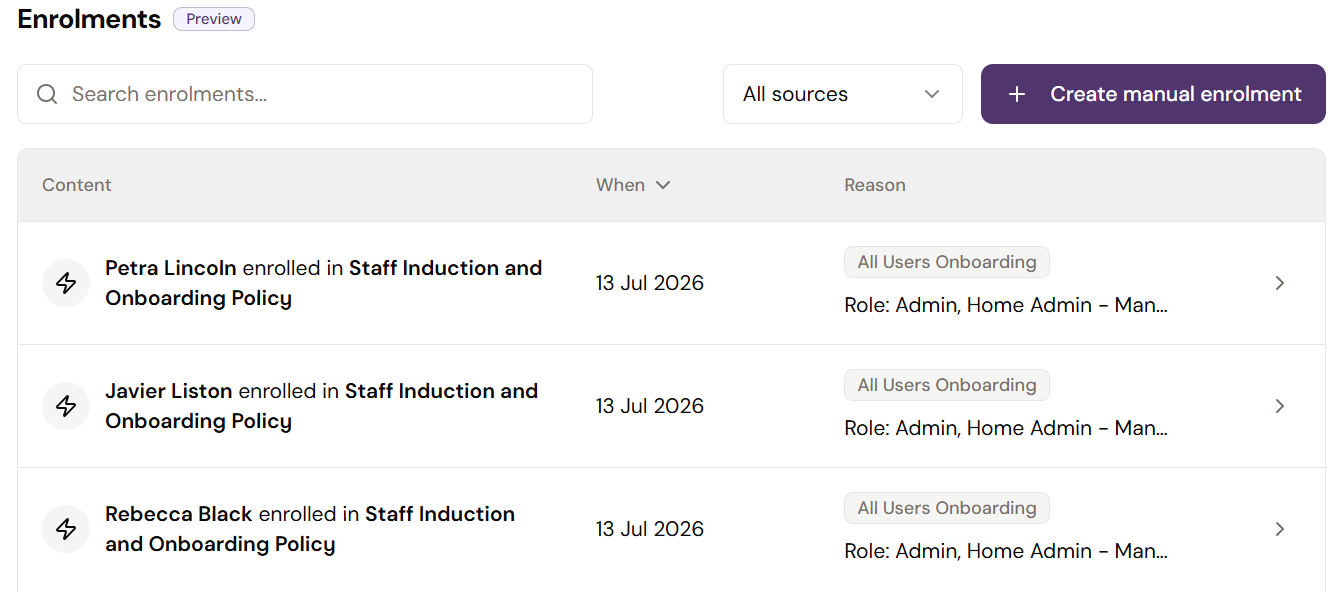
The Enrolments page displays a table with three columns:
- Content – Shows the user, the content (or policy) they were enrolled into, and whether the enrolment was created via an auto-enrolment rule, indicated by a lightning bolt icon.
- When – Shows when the user was enrolled. By default, the table is sorted by this date. Select the column header to sort by this column.
- Reason – Shows the reason given for the enrolment. For auto-enrolments, the specific rule that created it is displayed in a badge.
Filtering and searching
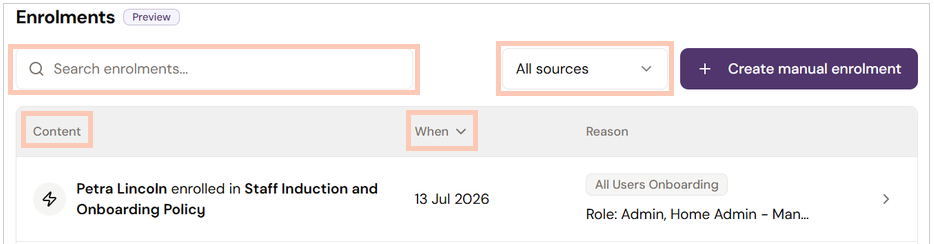
- Select the column header titled Content or When to sort the table by that column.
- Select All sources above the table to filter by source. A drop-down menu will appear indicating all sources, manual enrolments or auto-enrol rule (referring to enrolments only created by auto-enrolment rules).
- Use the search bar above the table to find enrolments associated with a specific user.
Editing an enrolment
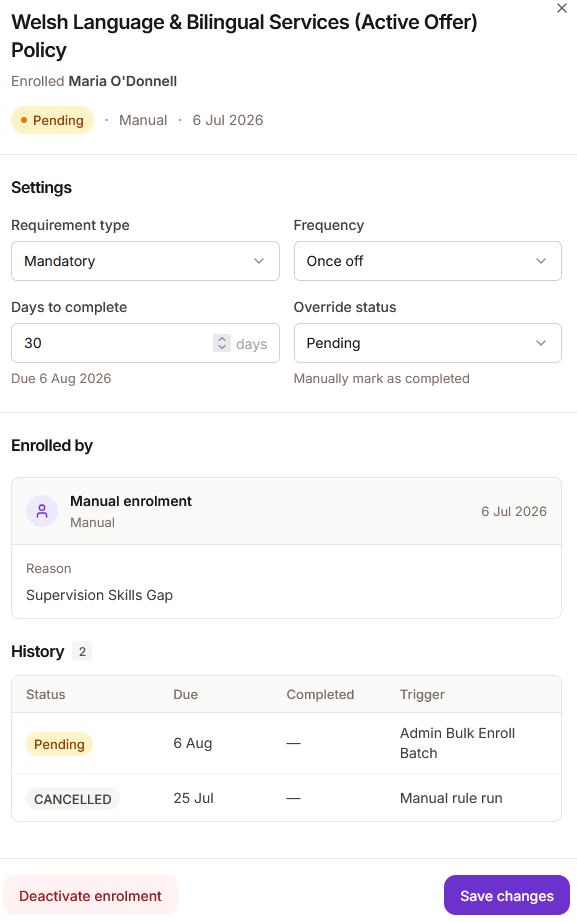
Select any row in the table to open its details sheet. This sheet shows comprehensive information about the enrolment and lets you override or change its settings:
- The header displays the:
- enrolled content,
- enrolled user,
- current status (e.g. Pending, In Progress, Overdue, Completed and Cancelled),
- source (whether the enrolment was created automatically or manually), and
- enrolment date.
- The Settingssection, which can be edited, displays the:
- requirement type (Mandatory or CPD),
- the frequency (Once-off or Repeating),
- the number of days the user has to complete the content, and
- the override status. (You can override the status to mark the enrolment as manually completed, which lets you set a completion date and a valid-until date.)
- The Enrolled by section shows exactly how the user was enrolled. You can view the reason provided when the enrolment was created.
- The History section shows the history of this user's enrolments for this piece of content, including how many times they've completed it in the past.
| Note: Deactivating an enrolment, found at the very bottom of the details sheet, completely removes it from the system. This can't be undone from the enrolment itself, so use it only when the enrolment should never have existed or is no longer relevant – for a completed or expired requirement, consider whether overriding the status instead better preserves the user's history. |
Was this article helpful?
That’s Great!
Thank you for your feedback
Sorry! We couldn't be helpful
Thank you for your feedback
Feedback sent
We appreciate your effort and will try to fix the article