You unenrol a learner from a course on the Enrolments tab of their profile. It takes nine steps and you'll be asked to confirm before anything changes.
Find the learner
- In the admin dashboard, click Users in the left-hand menu.
- Click the search icon (magnifying glass) at the top right of the user list.
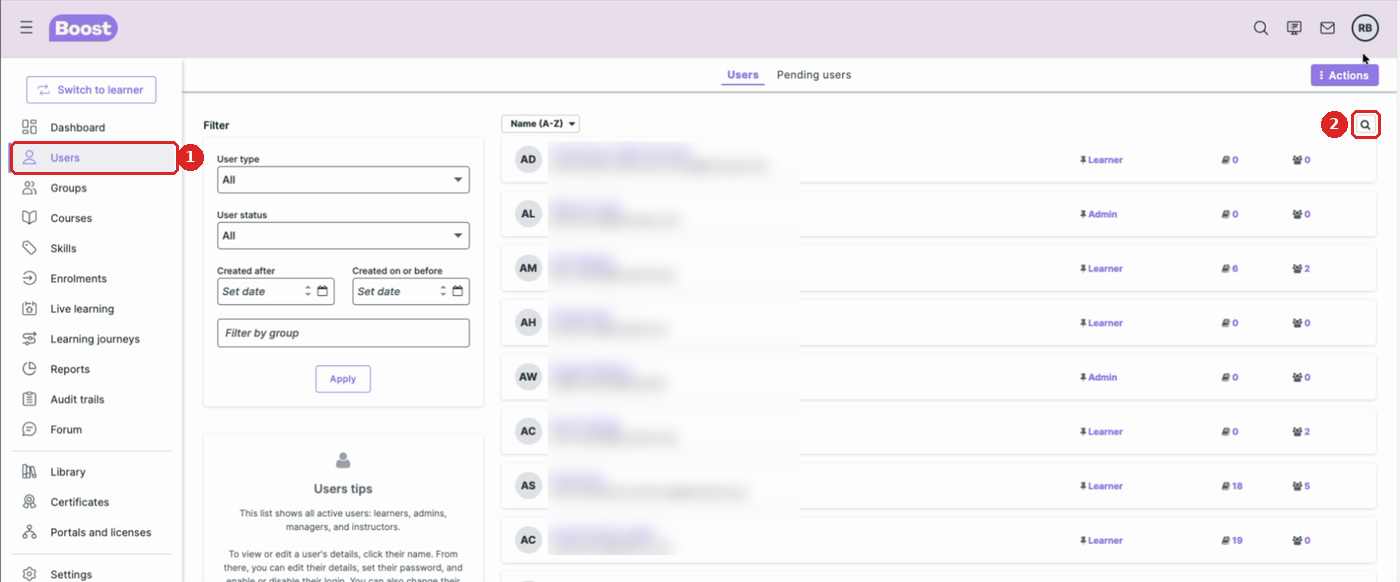
- In the Search pop-up, type the start of the learner's name, email or username and click Search. Turn on Advanced search to match text anywhere in those fields.
Open their enrolments
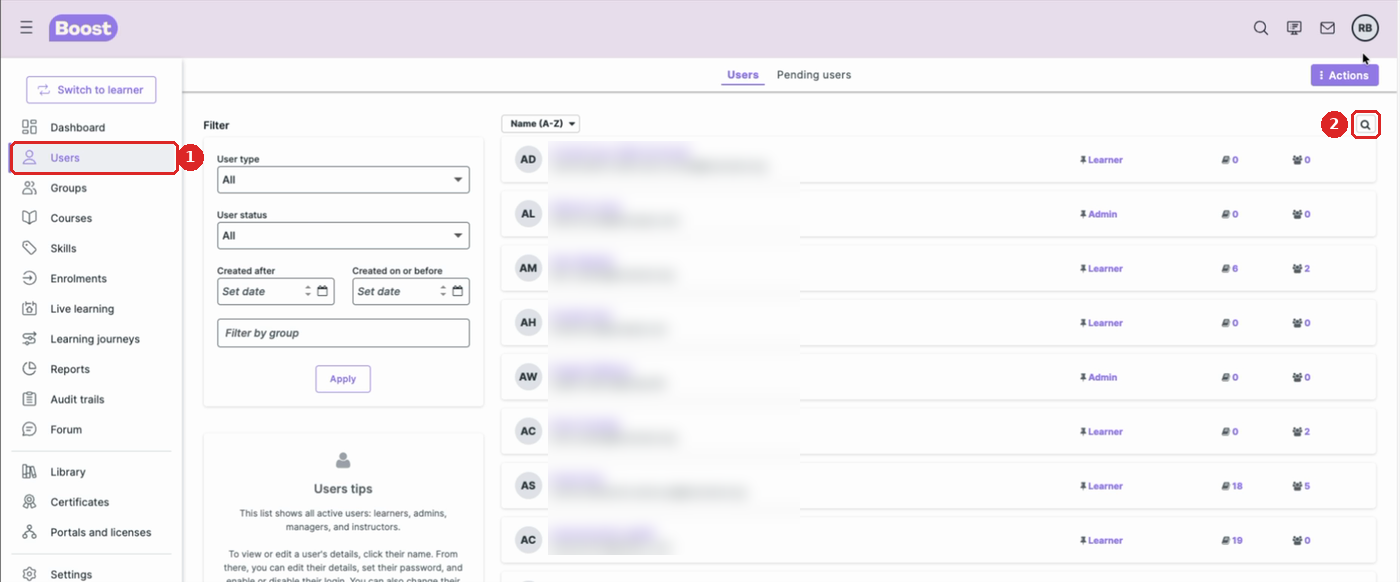
- In the results, click the learner's name to open their profile.

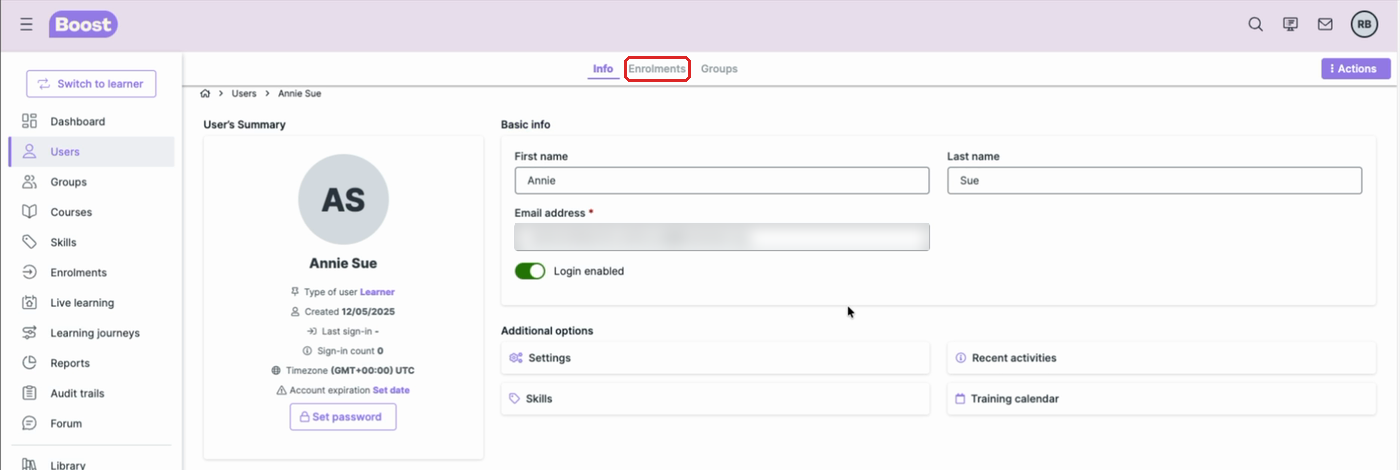
- At the top of the profile, click the Enrolments tab. This lists every course the learner is enrolled on.
Unenrol them from the course
- Find the course you want to remove them from. If the list is long, use the search icon at the top right of the enrolments list.
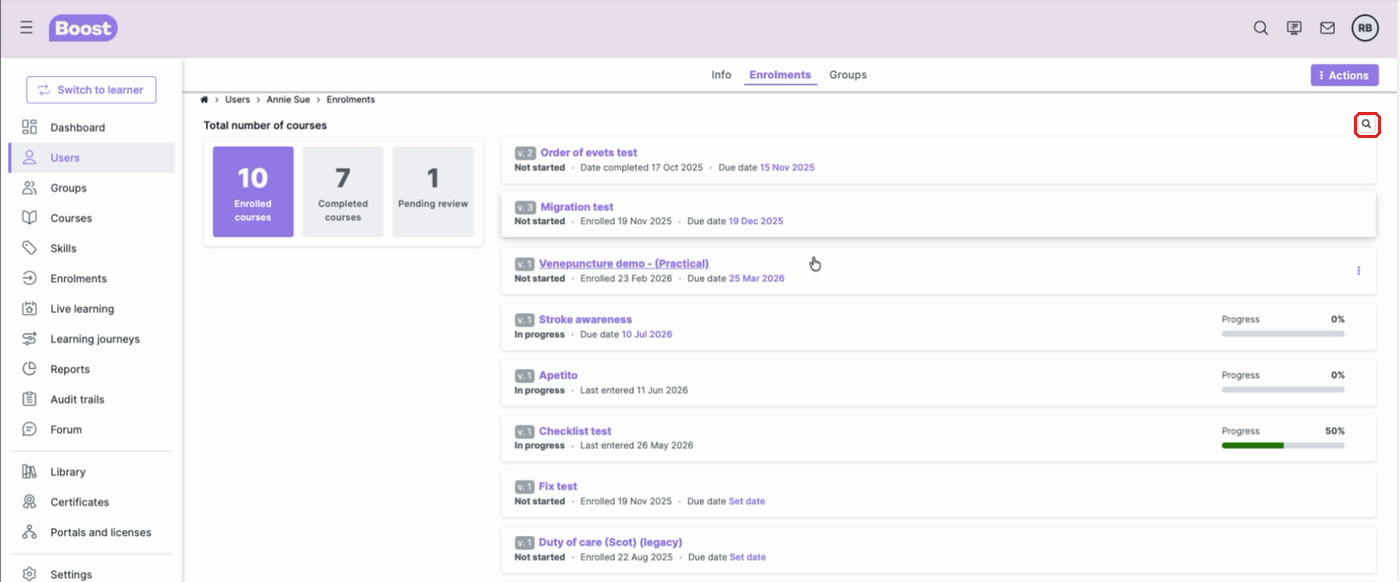
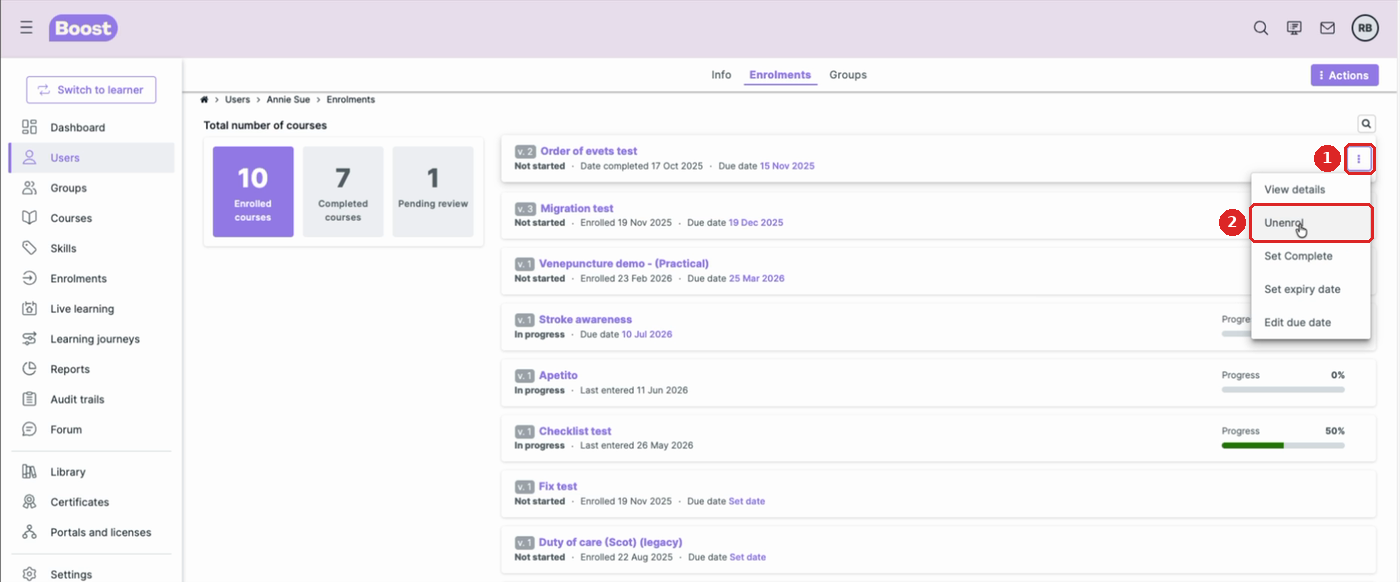
- Hover over that course and click the three-dot menu on the right of its row.
- Click Unenrol.
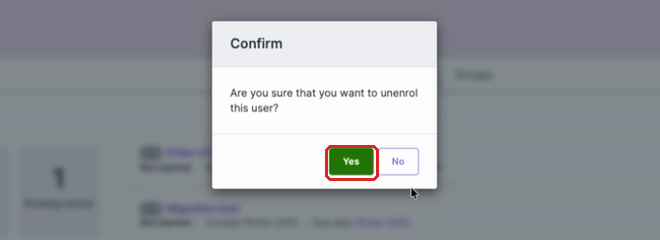
- In the Confirm pop-up, click Yes. Click No if you picked the wrong course.
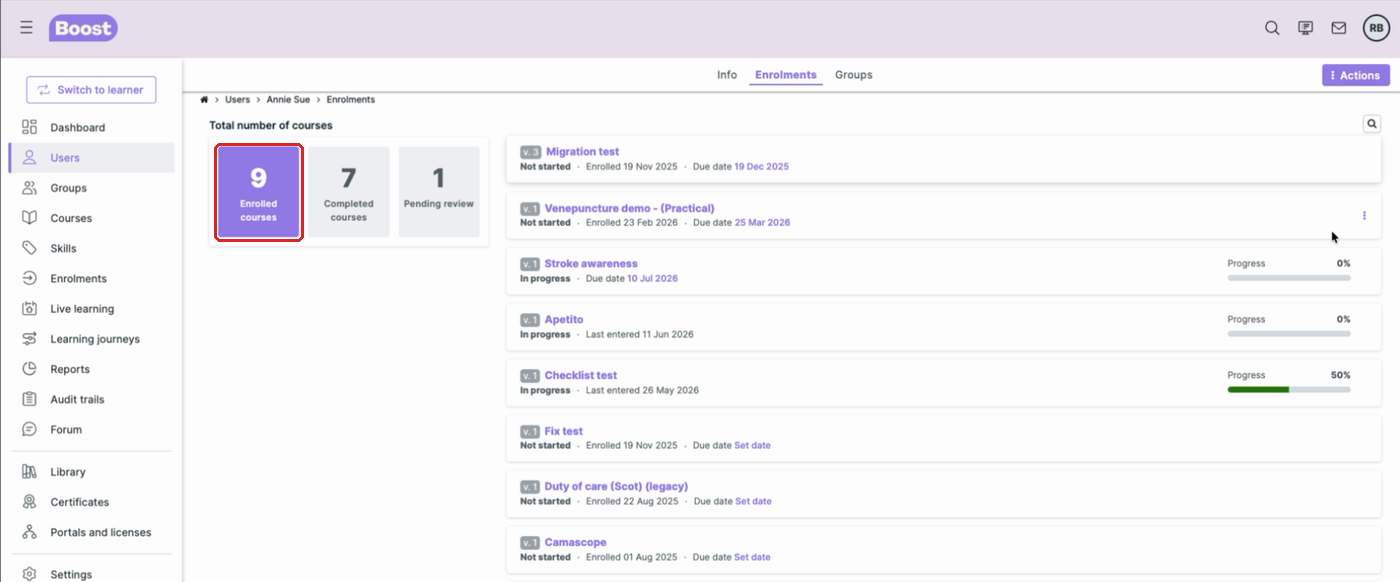
The course drops off the list and the Enrolled courses count goes down by one. To unenrol them from another course, repeat steps 6–9.
Was this article helpful?
That’s Great!
Thank you for your feedback
Sorry! We couldn't be helpful
Thank you for your feedback
Feedback sent
We appreciate your effort and will try to fix the article