OverviewAuto-enrolments allow you to define ongoing enrollment rules that apply automatically across your organisation. Rather than manually enrolling users one at a time, you configure a rule once and the system handles enrollment automatically, both for current users and for anyone who joins or changes role in the future.
Auto-enrolments are best suited for mandatory, repeating enrollments – the content that specific groups of users must always remain compliant in.
| Note: The Enrolment System is currently in preview. While fully functional, the user interface and some features may change as we continue to develop it. You should expect the system to work as described in this guide. |
How auto-enrolment rules workAn auto-enrollment rule defines two things:
- What content users should be enrolled into
- Who triggers the rule (based on role, department, location, or country)
The system then handles enrolment in two stages:
- Initial run: When you first save the rule, any users who currently match the target group are immediately enrolled into the specified content.
- Ongoing: Whenever a new user is added to the platform, or an existing user's role, department, or location changes, all rules are automatically re-evaluated. This means you configure your organisation's enrolment requirements once, and the system keeps everything up to date automatically. The system will:
- Cancel any enrolments the user no longer needs (because they no longer match the rule's criteria)
- Create any new enrolments the user now requires (because they now match a rule).
Creating auto-enrolments
- In the left-hand navigation bar, expand the Enrolments section.
- Select Auto Enrolments (the second sub-tab).
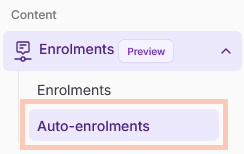
When you first visit this page, you will see an empty table and a Create auto-enrolment button.

Select Create auto-enrolment. A panel will open on the right-hand side to guide you through the setup.
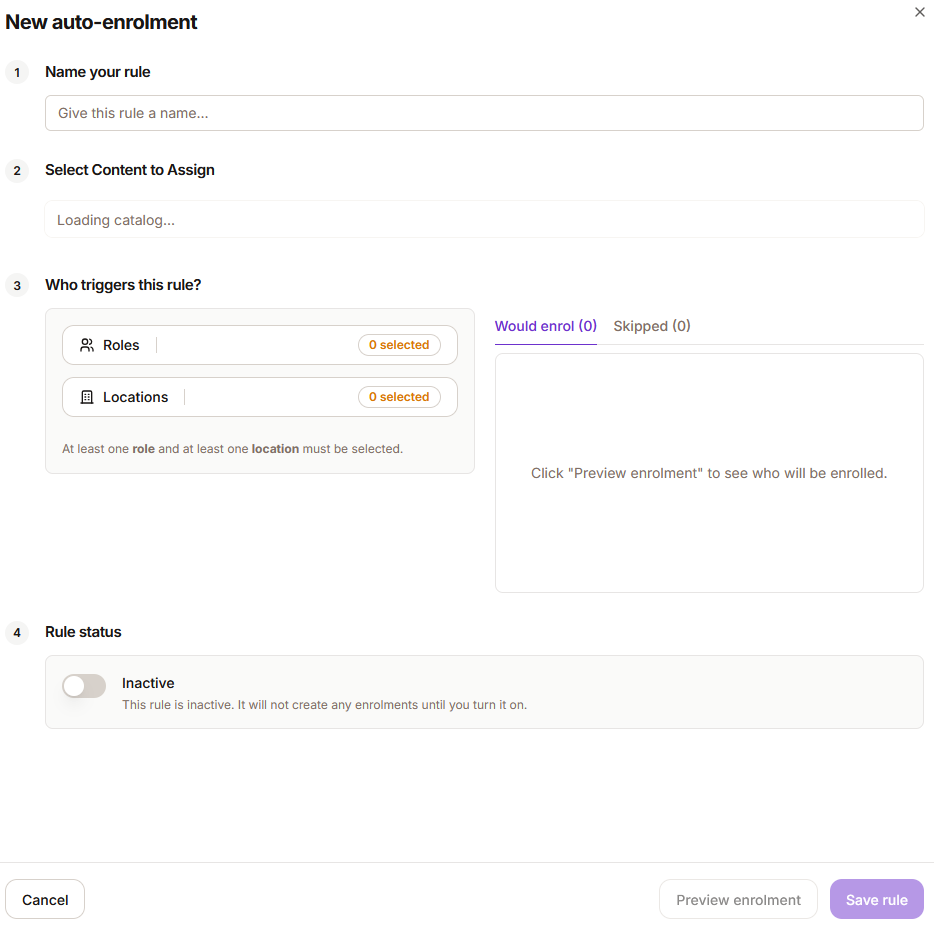
Step 1: Name your rule
Enter a clear, descriptive name for the rule. This name is displayed in the rules table and is the primary way you will identify the rule later.
| Note: Use a name that makes the rule's intent obvious, for example: "All Care Workers – Safeguarding Policy (Annual)" or "Housekeeping – COSHH Awareness (All Sites)". |

Step 2: Select the content
Select the search bar to search for and select the content that will be assigned to users who match this rule. You can assign one or more pieces of content to a single rule.
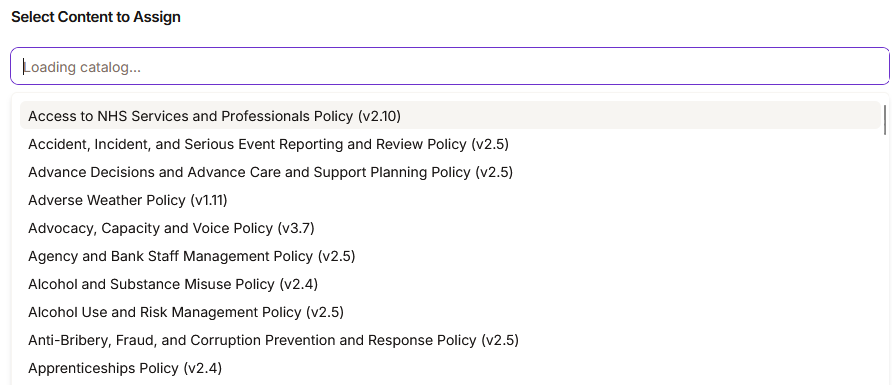
Step 3: Configure the enrolment settings
Once you have selected your content, Select the relevant enrolment settings:
- Type – Choose Mandatory or CPD
- Frequency – Choose Once-off or Repeating (We strongly recommend Repeating for most auto-enrolment rules, as this ensures users remain continuously compliant over time.)
- Days to Complete – Override the default due period if required. This sets how many days users must complete the enrolment after it is triggered.

Step 4: Define who triggers the rule
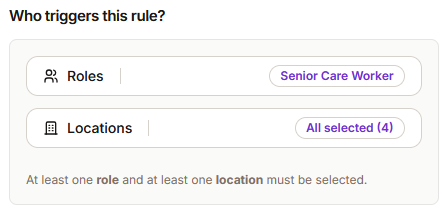
Specify the criteria that determine which users this rule applies to. You can filter by any combination of:
- Role or department
- Location or country
Any user who matches the defined criteria will be enrolled into the selected content. This is re-evaluated whenever a user's profile changes.
For example, to ensure all care workers at every site are always enrolled in the Safeguarding Policy, set the role filter to "Senior Care Workers" and the location filter to "All Locations".
Step 5: Save the rule
Select Save Rule. The system will immediately run the rule for the first time, enrolling all current users who match the defined criteria.
Managing existing rules
Once a rule has been saved, it will appear as a row in the auto-enrolments table. Each row shows:
- A lightning bolt icon indicating it is an active auto-enrolment rule
- The rule name
- The number of pieces of content included in the rule
- The status – Active or Paused
- The filter group – a summary of the user criteria that triggers the rule

Available actions
On the right-hand side of each rule row, you have four options:
 | Deactivate makes a rule inactive, which means that if you no longer want a rule to run you can turn it off and the system will ignore it. You can turn it back on later using the same button. |
 | Edit opens the rule panel so you can modify any part of the rule, including the name, the assigned content, the enrolment settings, and the user group. Changes take effect immediately upon saving. |
 | Rerun triggers the rule immediately on demand, re-evaluating all users against the current criteria and creating any missing enrollments. This is useful if you have made changes to the rule or want to ensure all users are up to date right now. |
 | Delete gives you two options. The first option is to permanently delete the rule but keep existing enrolments. With this option, existing enrolments that were created by the rule will not be automatically cancelled, but no new enrollments will be created going forward. The second option is to cancel pending enrolments, which means cancelling enrolments that the user has not yet accessed. |
Was this article helpful?
That’s Great!
Thank you for your feedback
Sorry! We couldn't be helpful
Thank you for your feedback
Feedback sent
We appreciate your effort and will try to fix the article