Overview
A manual enrolment allows you to directly enrol one or more users into a specific piece of content. This is useful for targeted, ad-hoc situations – for example, enrolling a group of staff in a course following an incident, or assigning content to a specific individual.
Manual enrolments are best for one-off or exceptional scenarios. For ongoing, organisation-wide enrolment requirements (e.g. all care workers must always be enrolled in the Safeguarding Policy), use Auto-enrolments instead.
| Note: The Enrolment System is currently in preview. While fully functional, the user interface and some features may change as we continue to develop it. You should expect the system to work as described in this guide. |
Navigating to enrolments
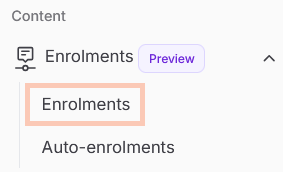
- In the left-hand navigation bar, locate and expand the Enrolments section.
- Select Enrolments (the first sub-tab).
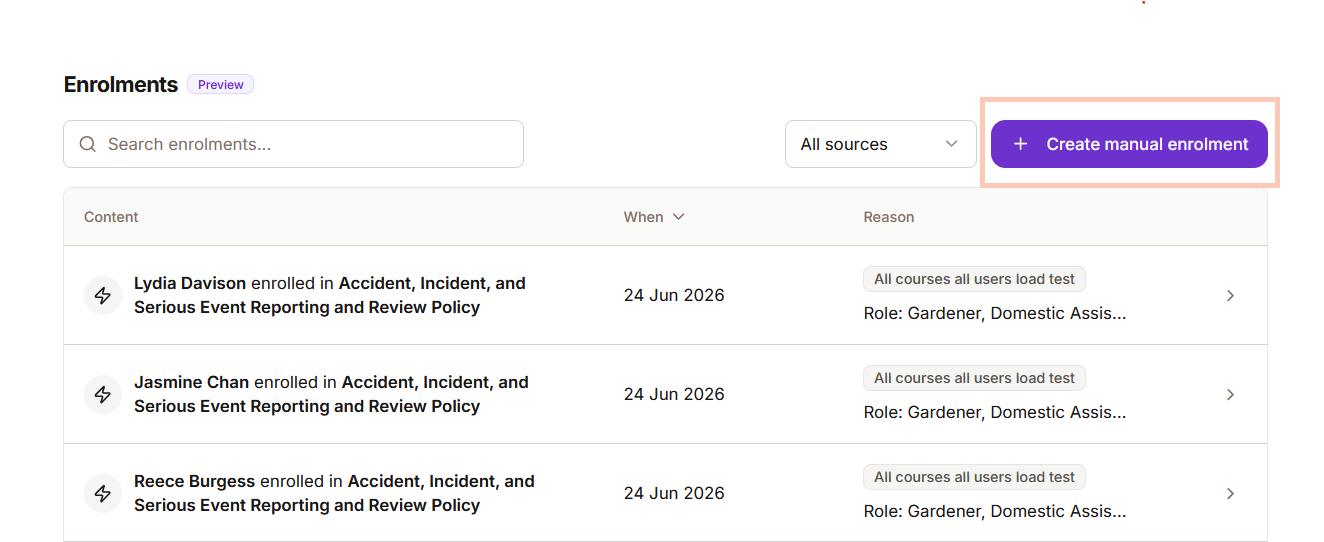
You will see a table listing all enrolments created on the platform, along with a Create manual enrolment button at the top right.
Creating a manual enrolment
Select the Create manual enrolment button.
This will open a guided multi-step form:
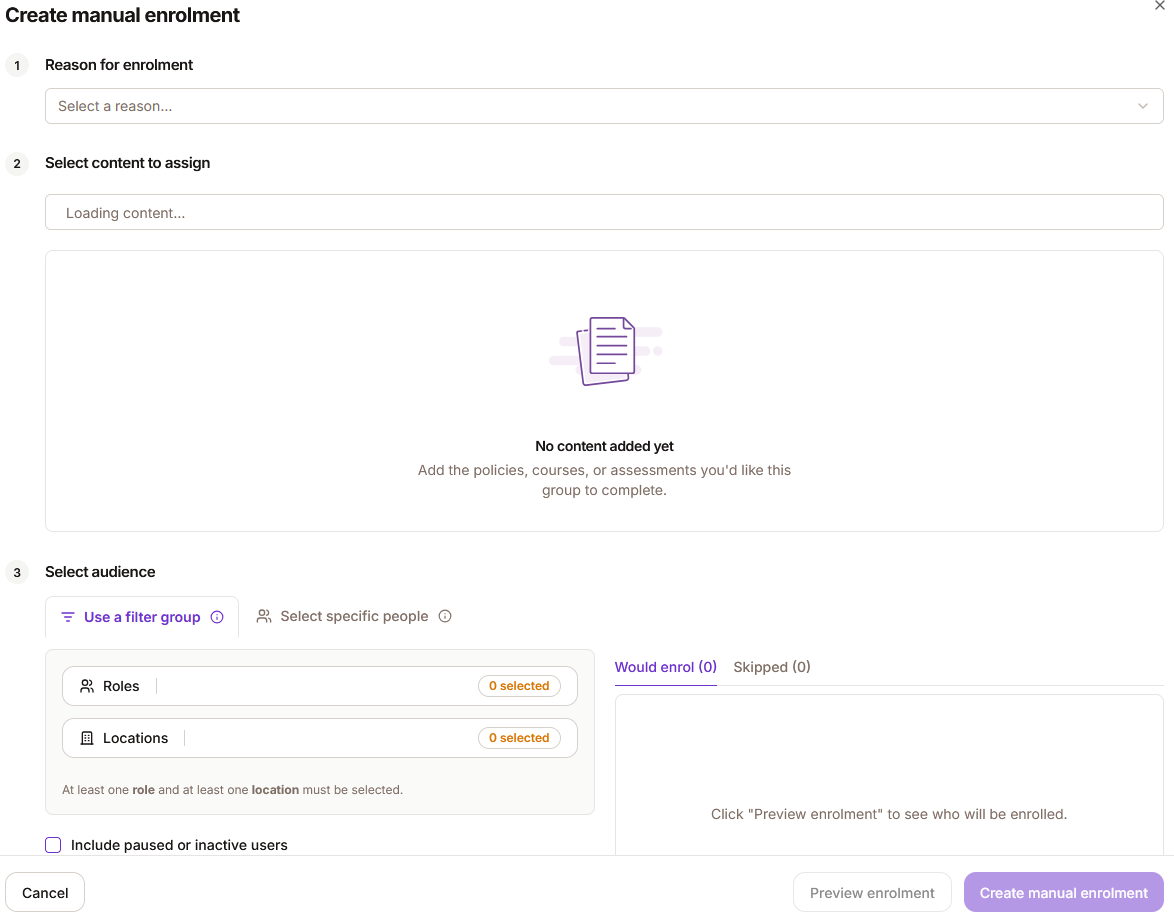
Step 1: Select a reason
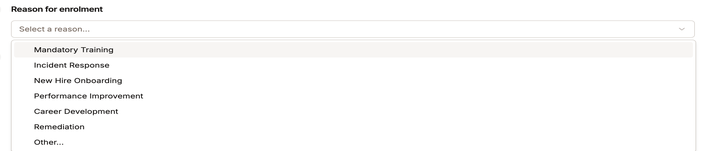
Choose a reason for creating this enrolment. This helps create an audit trail and explains the intent behind the enrolment.
- Select a pre-defined reason such as Incident Response or Creative Development, or
- Select Other and type your own custom reason.
Step 2: Select the content
Select the search bar to browse the available content on the platform. Select the piece of content you want to enrol users into.
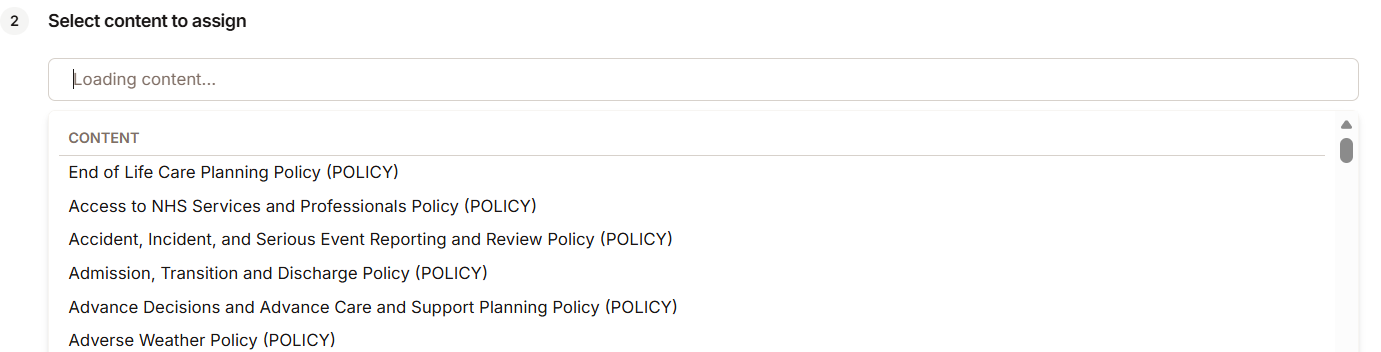
Step 3: Customise the enrolment details
Once you have selected your content, select Advanced to view the enrolment settings.

Select the enrolment settings:
- Type – Choose Mandatory or CPD
- Frequency – Choose Once-off or Repeating
- Days to Complete – Set the number of days users have to complete the enrolment after it is created. This will determine the due date for each user enrolled.

Step 4: Choose your target audience
You have two options for selecting who to enrol, either select a filtered group or select specific individuals.
Option 1: Select a filtered group
Select Use a filter group. You can then filter users by their:
- Role or department
- Location or country
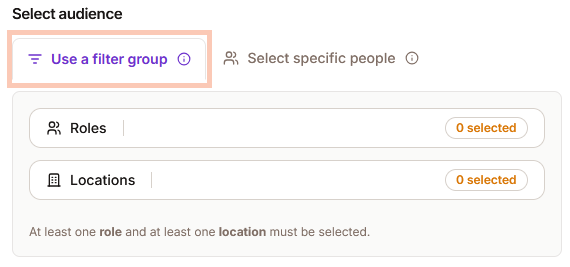
Here are two examples:
| Goal | Role selection | Location selection |
| Enrol all care workers across the whole organisation | Care workers | All locations |
| Enrol housekeepers at one specific site | Housekeepers | [Specific site/location name] |
| Note: You must select at least one role and at least one location. This ensures the enrolment applies only to the intended users at the correct sites. |
Option 2: Select specific individuals
Select the Select specific people option and use the search bar to find and select one or more individual users by name or email address.
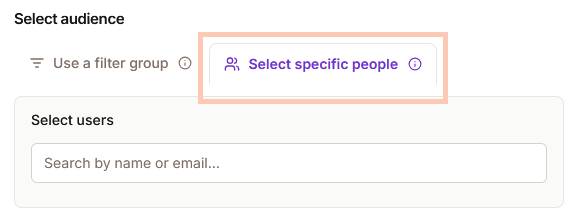
Step 5: Advanced options
Before running the enrolment, you have two optional advanced settings:
- Include paused or inactive users: Enrols users whose accounts are paused or inactive. These users will not receive notifications, but the enrolment will be created against their account.
- Re-enrol users who have completed this content: By default, users who already hold a valid completion for the selected content will be skipped – because they are already compliant, re-enrolling them is unnecessary. Enabling this option overrides that behaviour and creates a new enrolment regardless of existing valid completions. This option is useful in situations such as a critical incident where all relevant staff must re-read a policy immediately, even if their previous completion is still technically valid.
Select the relevant box, if applicable.
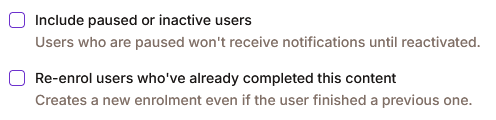
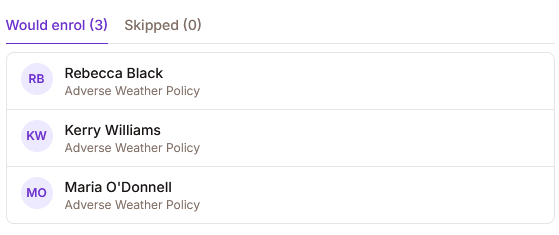
Step 6: Preview the enrolment
Before the enrolment is finalised, you must select Preview enrolment. This runs a simulation of the enrolment without making any actual changes.
The preview will show you:
- Would enrol – A list of the users who meet your criteria and will receive the enrolment
- Skipped – A list of users excluded from the enrolment, along with the reason why (e.g. they already hold a valid completion)
Review these results carefully to confirm your settings are correct before proceeding.
| Note: You cannot complete the enrolment until you have run this preview step. |
Step 7: Confirm and enrol
Once you are satisfied with the preview results, select Enrol users. This will:
- Create the enrolments for all listed users
- Notify those users so they can go and complete the relevant content
The enrolments will now appear in the enrolments table and can be tracked from there.
Was this article helpful?
That’s Great!
Thank you for your feedback
Sorry! We couldn't be helpful
Thank you for your feedback
Feedback sent
We appreciate your effort and will try to fix the article