Overview
This guide explains how to update an existing qualification record, for example to mark a qualification as complete or to record a withdrawal. You will need the Manage Qualifications permission to edit records.
Opening a record for editing
- From the Qualifications Manager, locate the record you want to update. Use the filters or expand the relevant location group if needed.
- Select the three dots (⋯) to the right of the record.
- Select Edit.
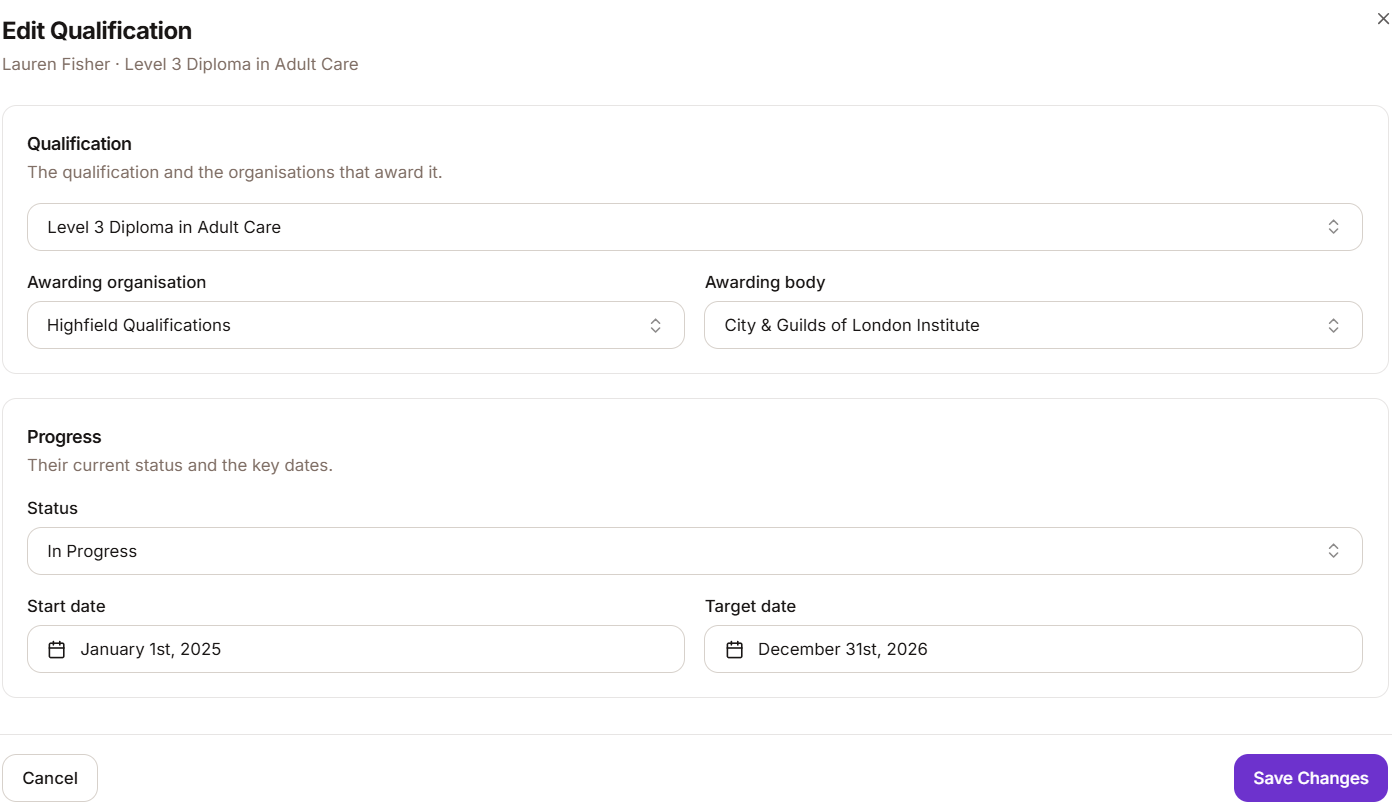
- The Edit side sheet will open, showing the current details of the record.
What you can edit
From the edit view, you can update:
- The Qualification.
- The Awarding organisation.
- The Awarding body.
- The Progress status and associated dates.
Marking a qualification as complete
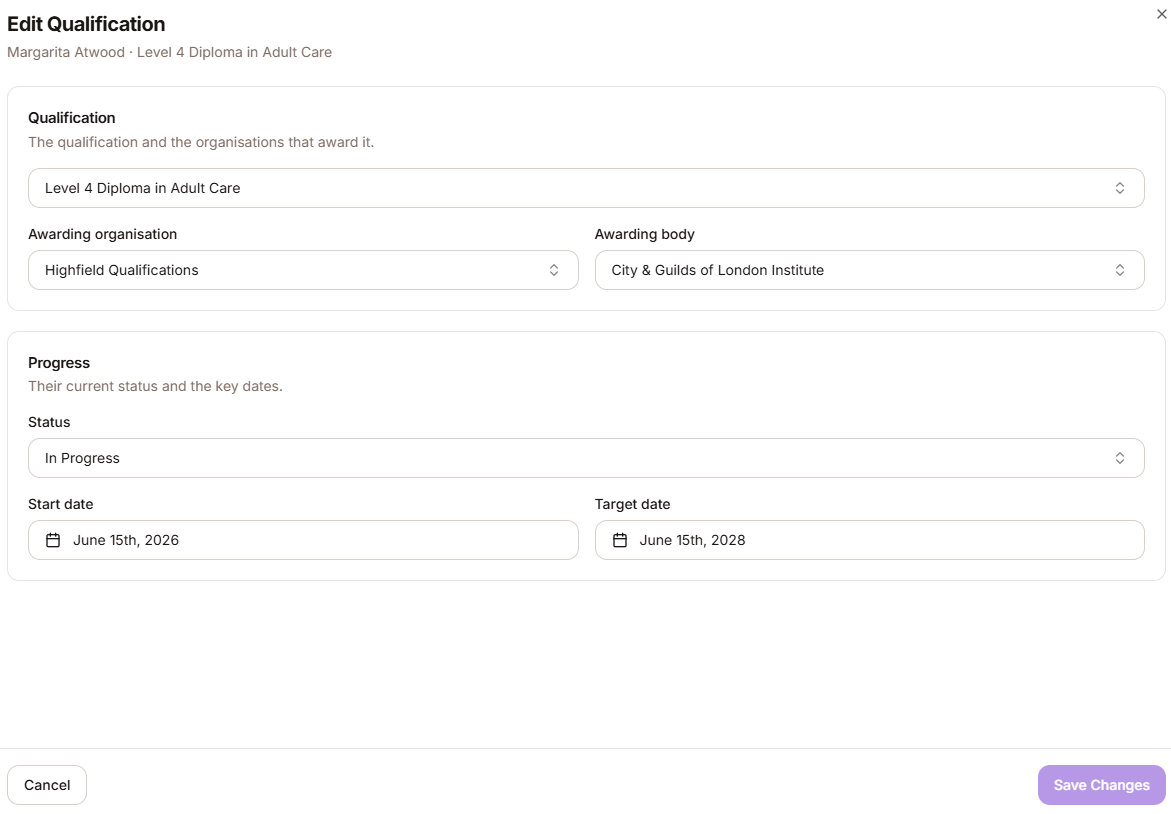
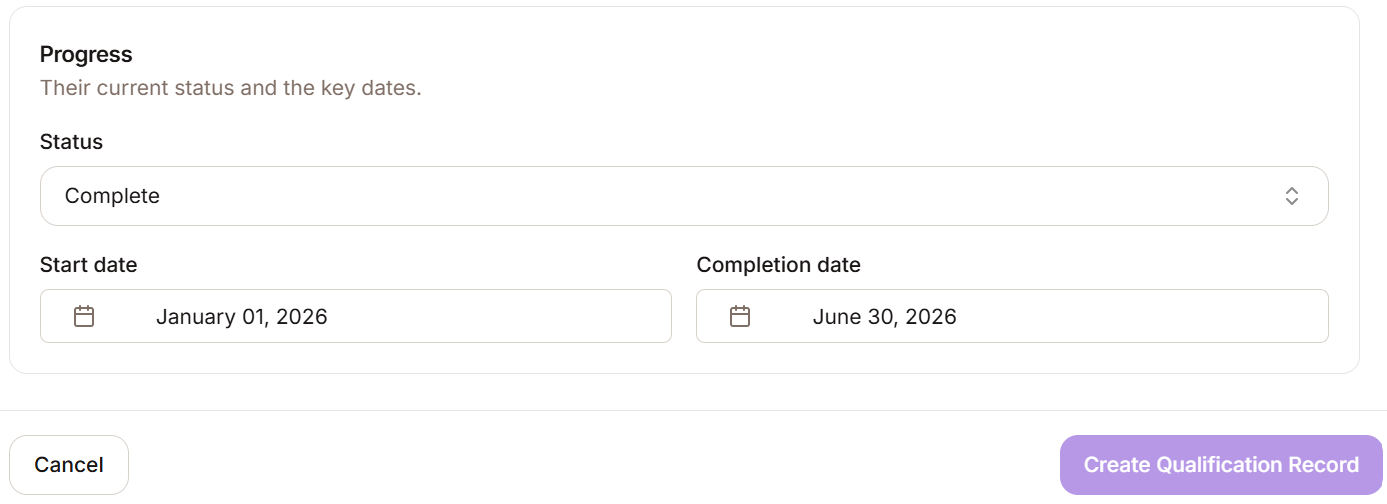
- In the Progress section, change the status to Complete.
- Enter the completion date.
- Select Save Changes. The record in the table will update to show the Complete status and the completion date as the key date.
Recording a withdrawal
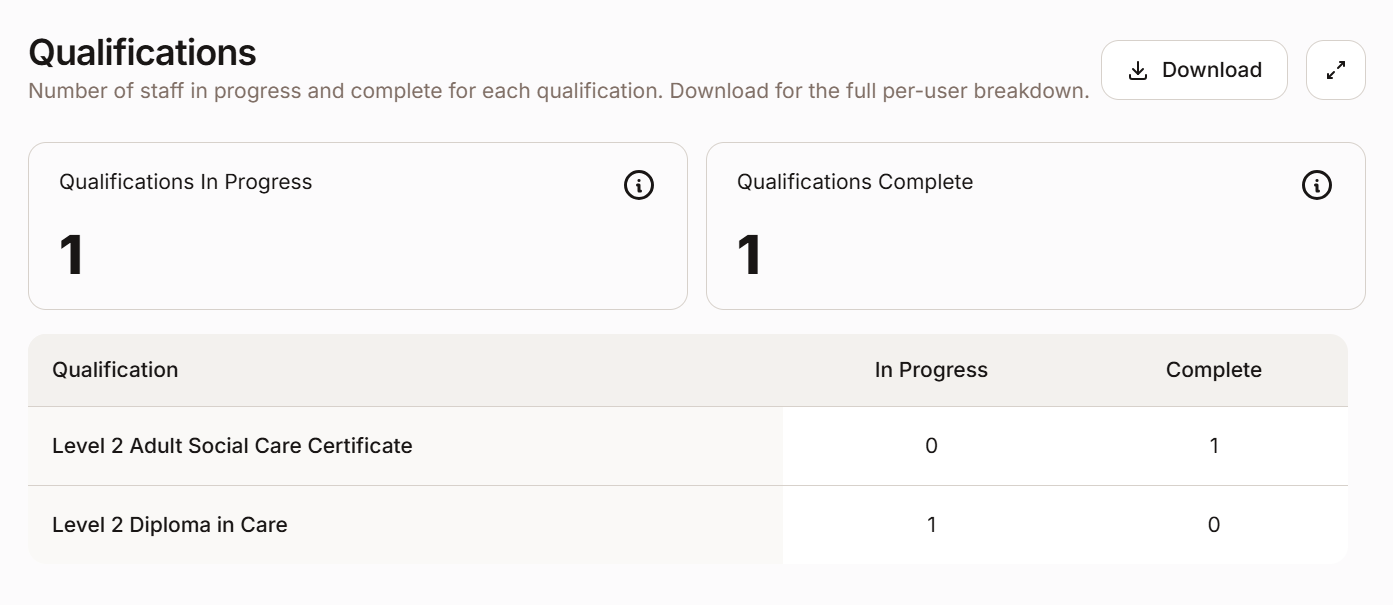
- In the Qualifications Manager, go to the qualification that is In Progress.
- Select the three dots (...) to edit the profile.
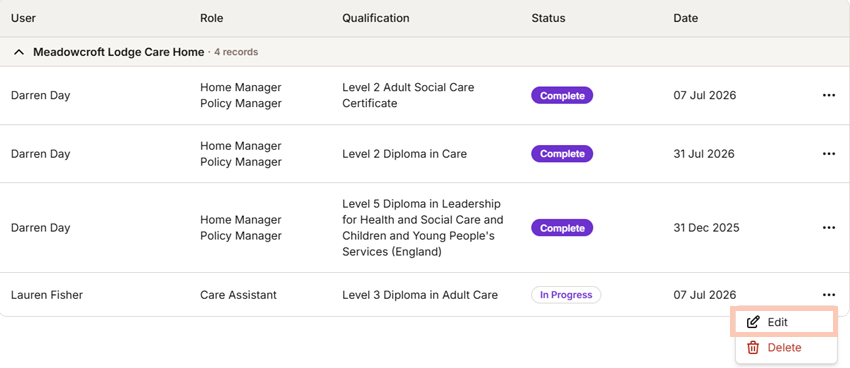
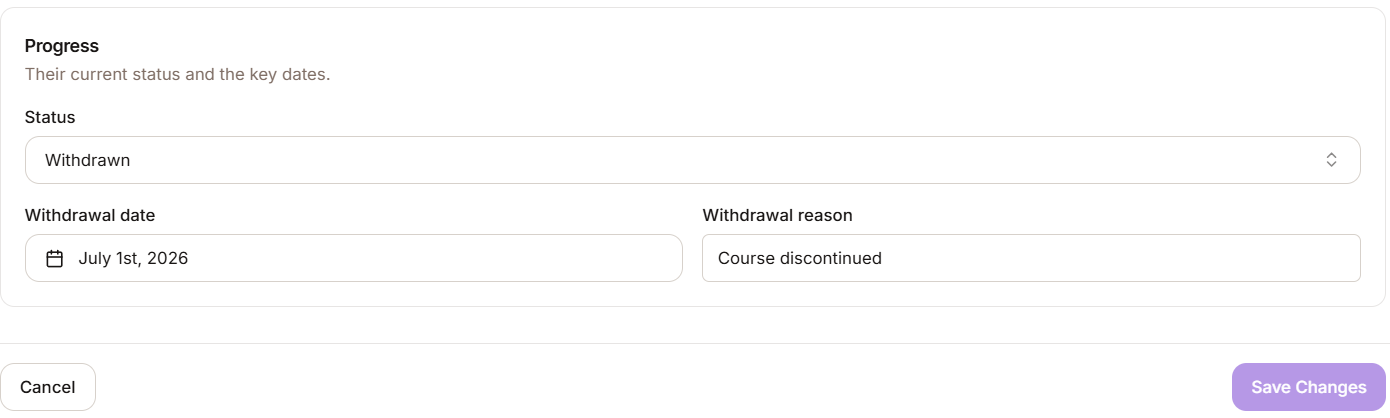
3. In the Progress section, change the status to Withdrawn.
4. Enter the withdrawal date.
5. In the Reason field, type a free-text explanation for the withdrawal.
6. Select Save Changes.
Confirming the withdrawal
Once you have added the withdrawal, you can confirm it by checking that:
- The record status has updated to Withdrawn in the status column.
- The withdrawal date is displayed as a key date.
Deleting a record
If a record needs to be removed entirely:
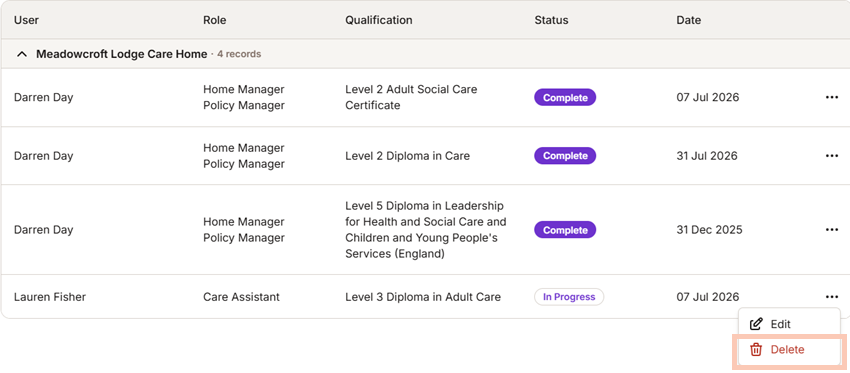
- Select the three dots (⋯) to the right of the record.
- Select Delete.
- Confirm the deletion when prompted.
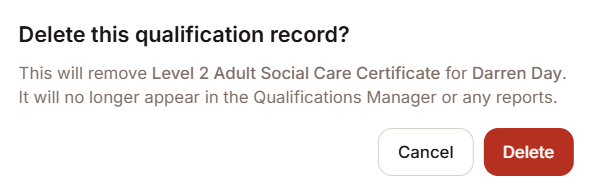
| Note: Deletion is permanent. If you are unsure, consider changing the status to Withdrawn instead of deleting the record. |
Was this article helpful?
That’s Great!
Thank you for your feedback
Sorry! We couldn't be helpful
Thank you for your feedback
Feedback sent
We appreciate your effort and will try to fix the article