Overview
This guide explains how to add a new external qualification record for a member of staff. You will need the Manage Qualifications permission to do this.
Opening the qualifications manager
- From the Boost dashboard, expand Learn in the left sidebar.
- Select Qualifications.
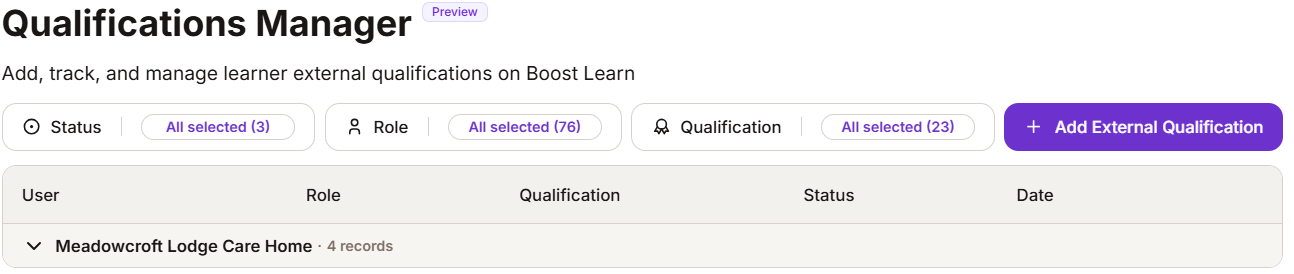
- You will see the main qualifications table, along with filters and the Add External Qualification button.
Adding a new record
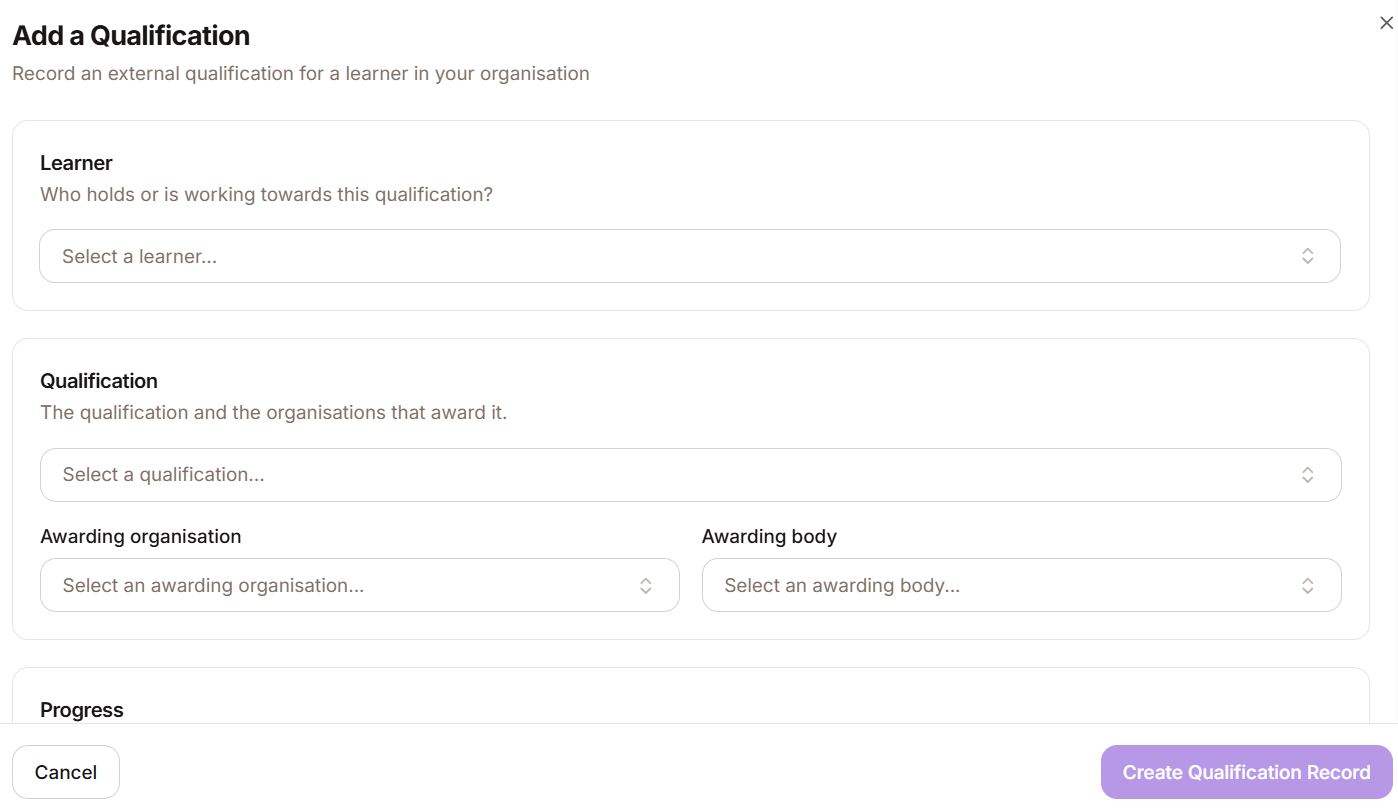
Select Add External Qualification. A side sheet will open on the right side of the screen:
Section 1: Learner
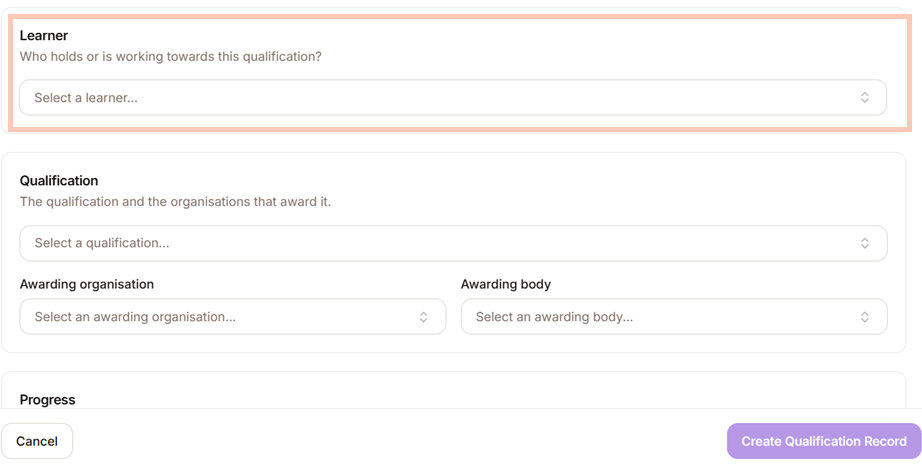
In the Learner field, type the name of the staff member and select them from the search results.
Section 2: Qualification
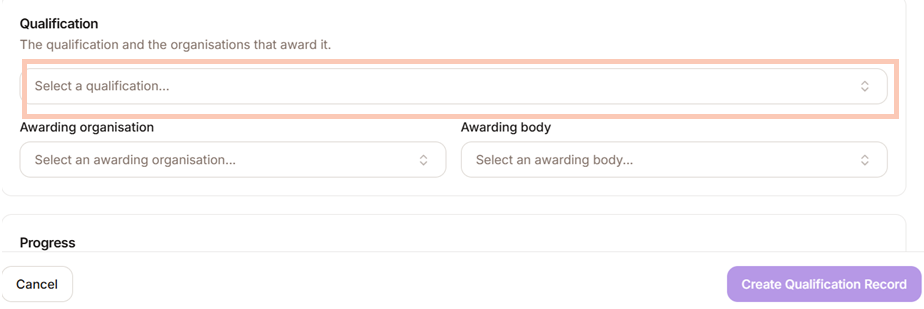
Select the Qualification drop-down and select the relevant qualification.
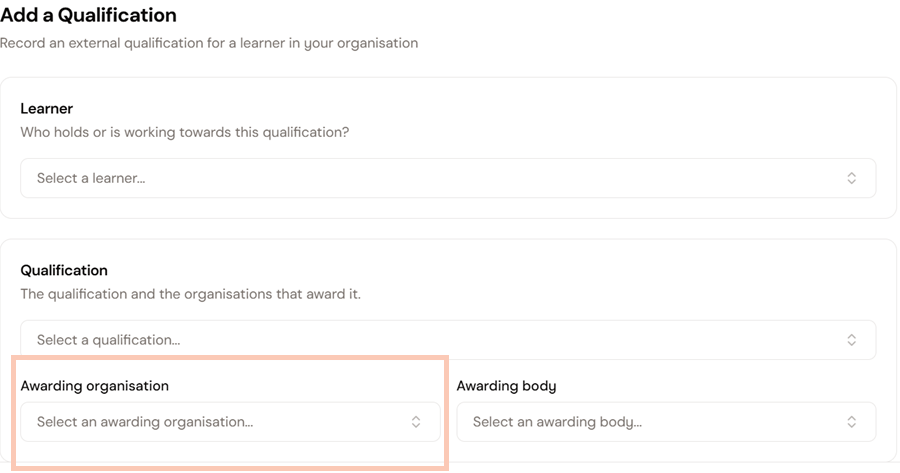
If applicable, use the Awarding Organisation field to search for and select the relevant organisation from the list.
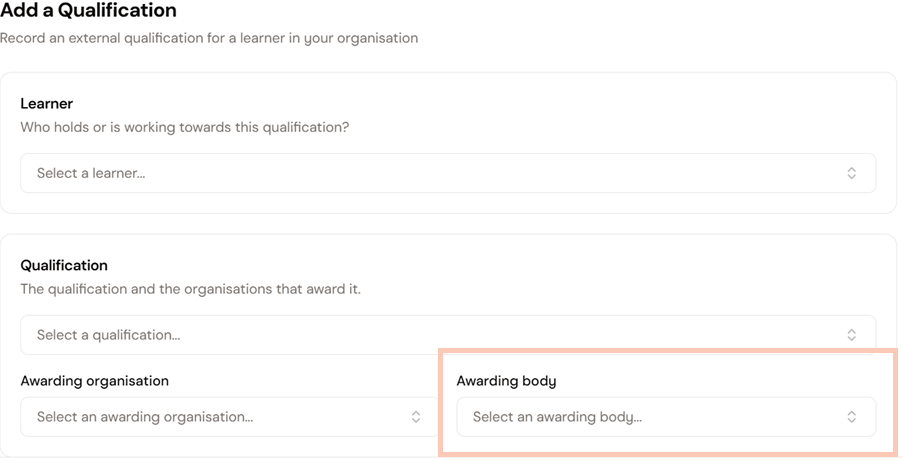
Another option is to use the Awarding Body field to search for and select the relevant body from the list.
| Note: If you can't find the qualification, awarding organisation, or awarding body you're looking for, contact the Boost support team to have it added to the list. |
Section 3: Progress
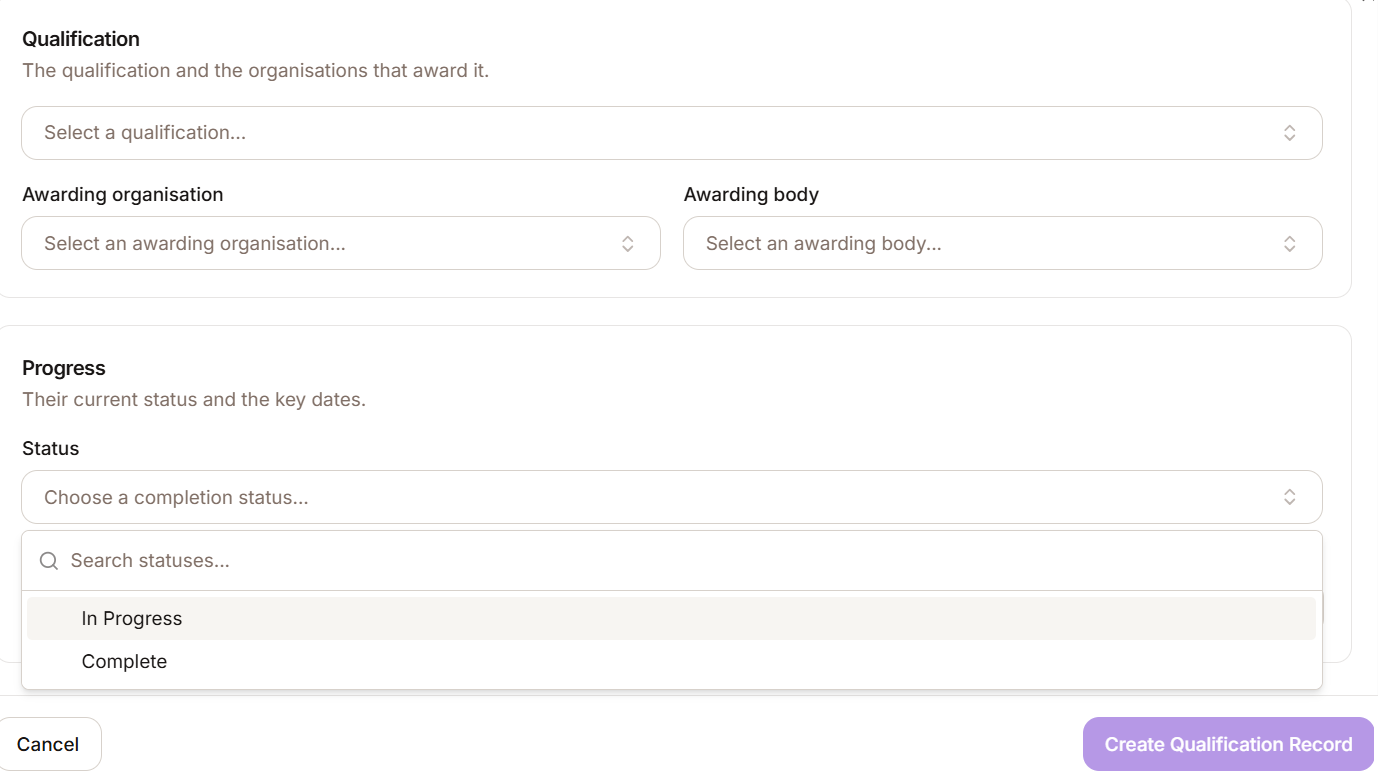
- Select the current Status:
- In Progress: The staff member has started working towards the qualification.
- Complete: The staff member has already received the qualification.
2. Enter the relevant dates based on the status selected:
| Status | Dates required |
| In Progress | Start date and target completion date. |
| Complete | Start date and completion date. |
Saving the record
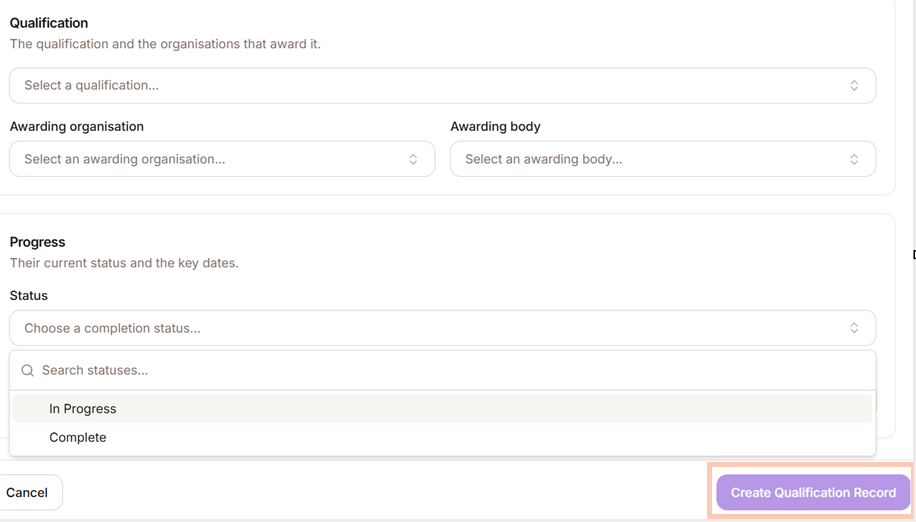
Select Create Qualification Record. A confirmation notification will appear in the bottom-right corner of the screen to confirm the record has been saved.
The new record will now appear in the qualifications table, grouped under the relevant location.
Was this article helpful?
That’s Great!
Thank you for your feedback
Sorry! We couldn't be helpful
Thank you for your feedback
Feedback sent
We appreciate your effort and will try to fix the article