Overview
This guide explains how to navigate and filter the qualifications table. You will need the View Qualifications permission to access this area.
The qualifications table
When you open the Qualifications Manager, you will see a table of all qualification records across the locations you manage.
Records are grouped by location. Select a location name to expand or collapse its list of records.
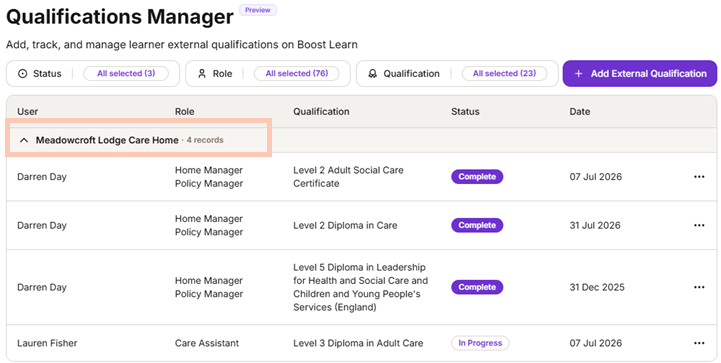
Each record displays the following information:
| Column | Description |
| User | The staff member holding or working towards the qualification. |
| Role | Their job role. |
| Qualification | The name of the qualification. |
| Status | In Progress, Complete, or Withdrawn. |
| Date | See table below. |
The Date shown depends on the record's status:
| Status | Key date shown |
| In Progress | Target completion date. |
| Complete | Actual completion date. |
| Withdrawn | Withdrawal date. |
| Note: You will only see locations that fall within your management permissions. If you expect to see a location that is not appearing, contact your account administrator. |
Filtering records
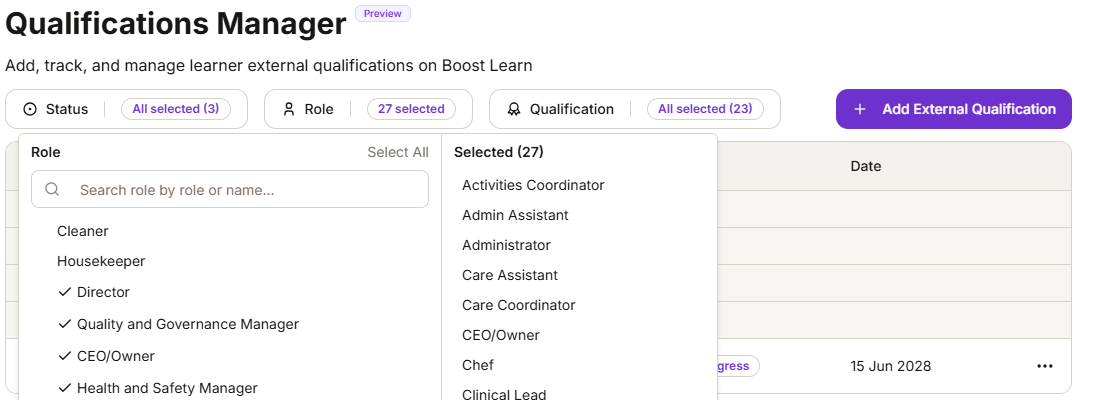
Three filters are available above the table. By default, all options within each filter are selected:

| Filter | What information is filtered |
| Status | In Progress, Complete, or Withdrawn. |
| Role | The job role of the staff member. |
| Qualification | The specific qualification. |
To apply a filter:
- Select the filter drop-down you want to use.
- Select or deselect the options you need. The table will update automatically to show only matching records.
To reset a filter, re-select all available options within it.
Was this article helpful?
That’s Great!
Thank you for your feedback
Sorry! We couldn't be helpful
Thank you for your feedback
Feedback sent
We appreciate your effort and will try to fix the article