Overview
The Qualifications Manager is a feature within Boost Learn. It allows managers to track and report on external qualifications held or being worked towards by staff members, such as a Diploma in Health and Social Care.
| Note: The Qualifications Manager is currently in preview. While fully functional, the user interface and some features may change as we continue to develop it. You should expect the system to work as described in this guide. |
Accessing the qualifications manager
- Log in to your Boost account.
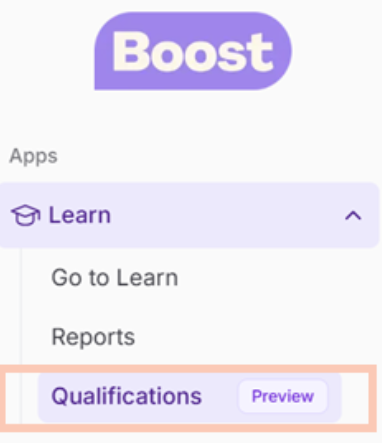
- In the left sidebar, locate the Learn section and select it to expand it.
- Select Qualifications.
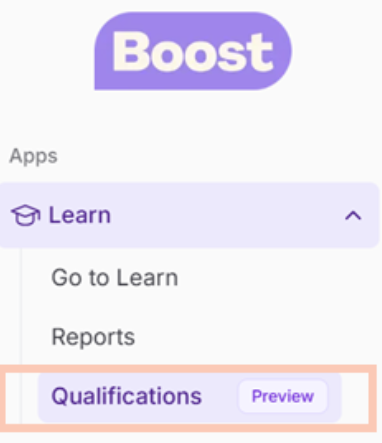
| Note: If you cannot see the Qualifications tab this means the necessary permissions have not yet been enabled for your role. Follow the steps below to enable them or ask your account administrator to do so. |
Enabling permissions
You will need editing permissions on your account to complete these steps.
- Open Settings from the main navigation.
- Select Permissions.
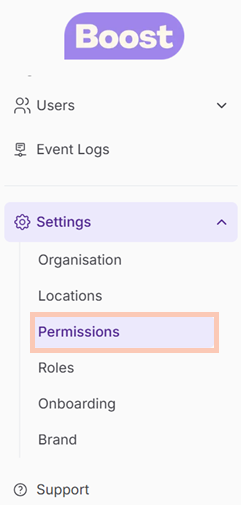
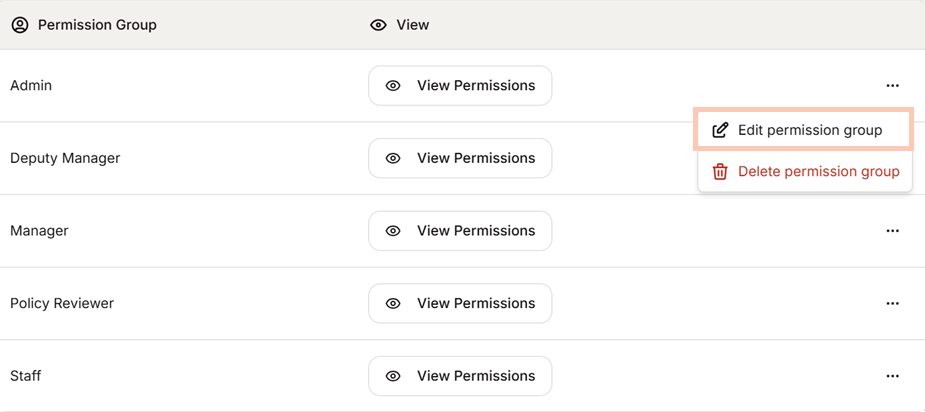
3. Find the permission group you want to update.
4. Select the three dots (⋯) to the right of the group name.
5. Select Edit Permission Group.
Permission Group.
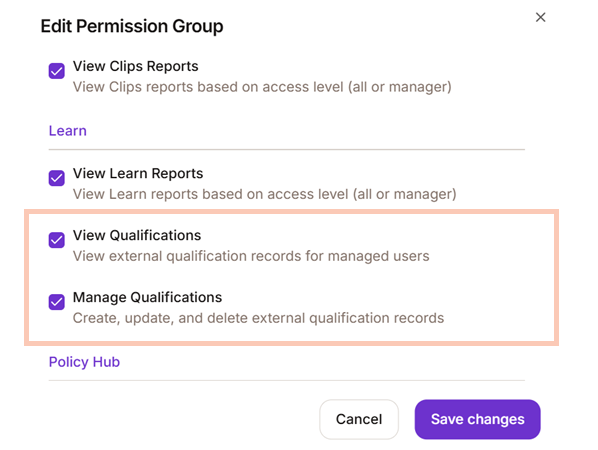
6. Scroll down to the Learn section.
7. Select the permissions required for this group: View and Manage.
8. Select Save Changes.
Verify qualifications manager is enabled
- Ask the affected users to reload their browser.
- The Qualifications option will now appear under Learn in the sidebar.
Was this article helpful?
That’s Great!
Thank you for your feedback
Sorry! We couldn't be helpful
Thank you for your feedback
Feedback sent
We appreciate your effort and will try to fix the article