Step 1
Log into the Boost Dashboard
Step 2
Once in the Dashboard go to Learn then click on Reports
Make sure you click on All Data
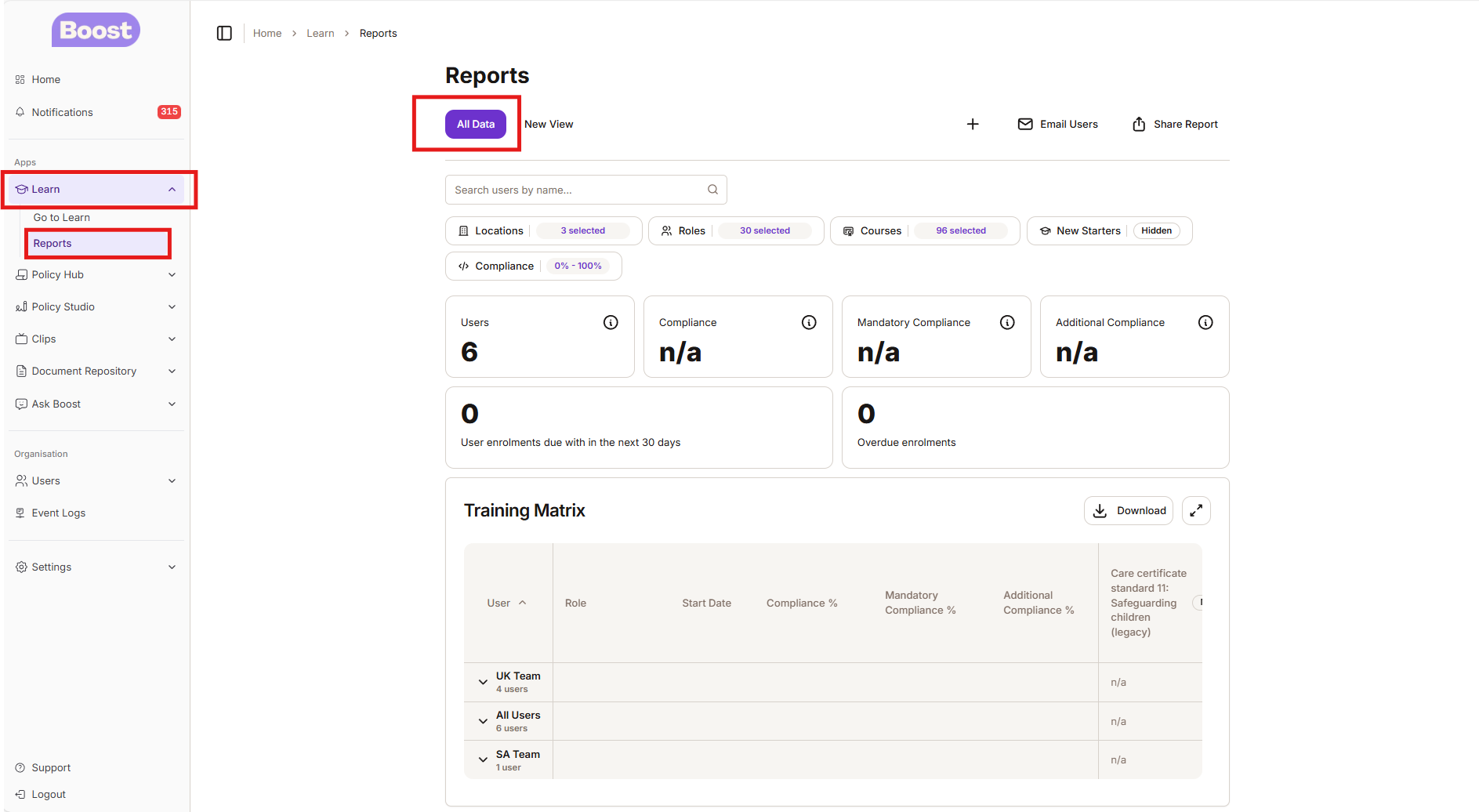
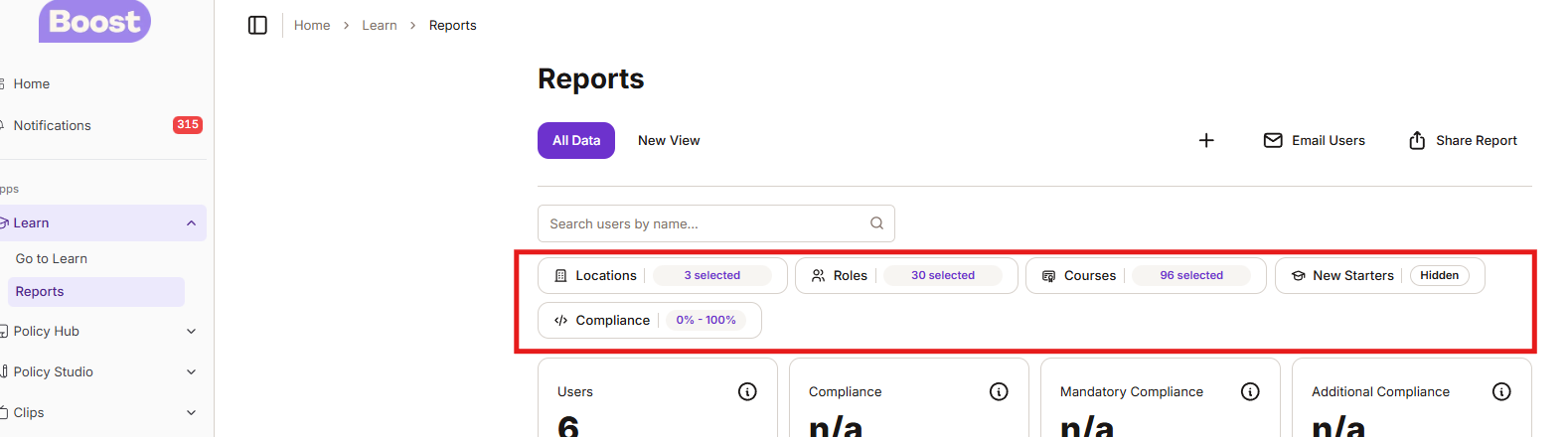
From here you an build your report by using the filters
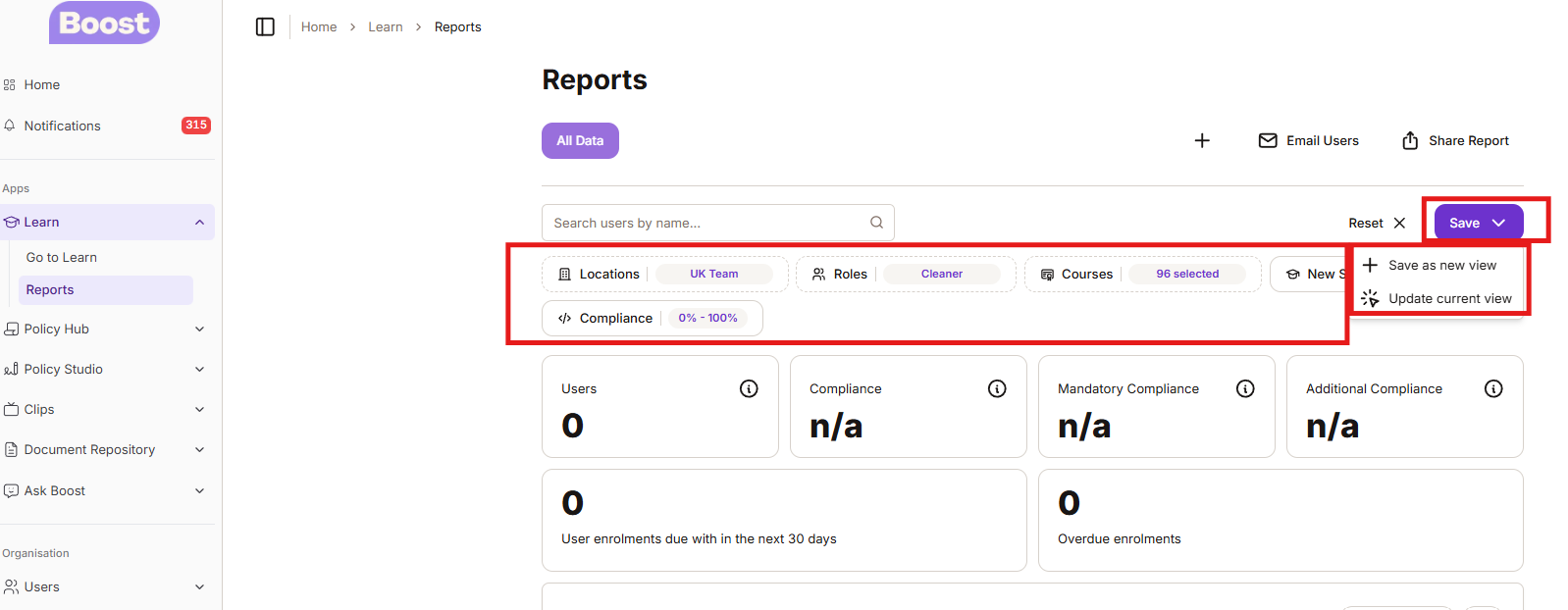
You can also build your own reports and save them to do this:
Select the information you require - Location/Roles/Courses - whilst you are doing this Save button will appear - when you have made all your selections - click the Save button - choose + Save as new view
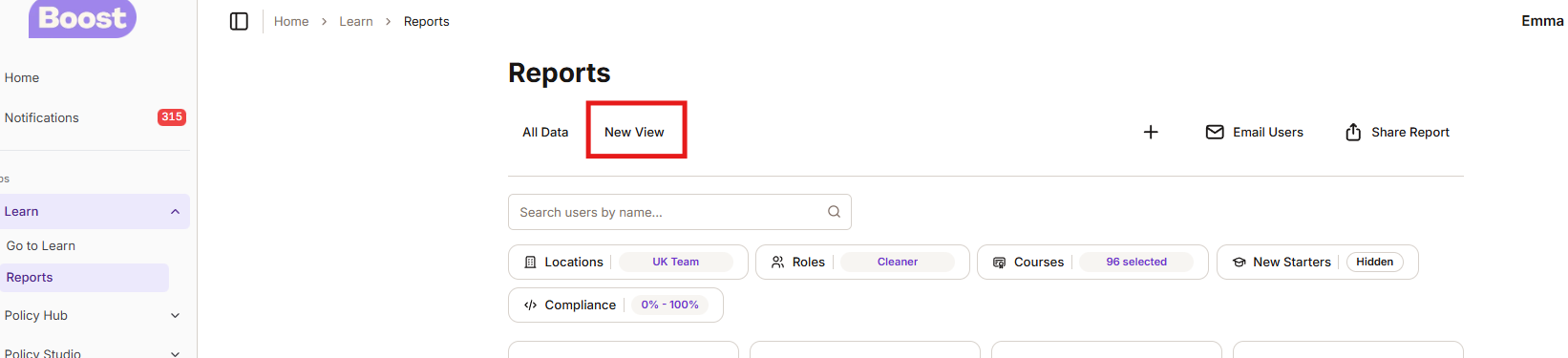
Once you have done this your saved view will appear next to All Data. This function means that you don't have to keep putting in the different filters all the times. You can use this function to create reports for different homes or roles for example.
Was this article helpful?
That’s Great!
Thank you for your feedback
Sorry! We couldn't be helpful
Thank you for your feedback
Feedback sent
We appreciate your effort and will try to fix the article