Overview
The data view gives you an overview of your user data in a report.
| Policy reports | Learn reports |
| To navigate to the data view for policies, select Policy Hub in the side navigation panel and then Reports. | To navigate to the data view for Learn, select Learn in the side navigation panel and then Reports. |
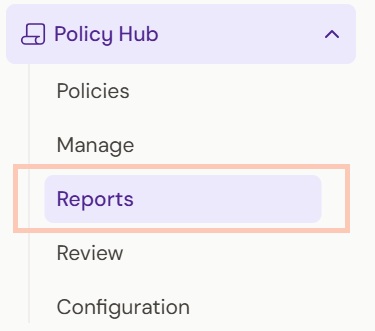 | 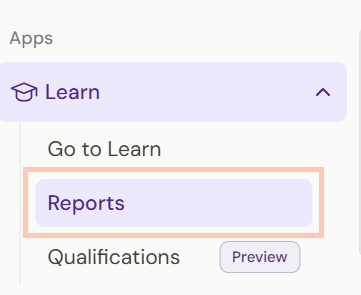 |
You will be directed to the All data view where you will see a combination of report filters including the following for a given report page:
- Locations or the names of your home/s
- Roles
- New starters - These are hidden by default but you can set them to visible when required
- Compliance data range (only in Learn reports)
- Policies (only in Policy reports)
- Courses (only in Learn reports)
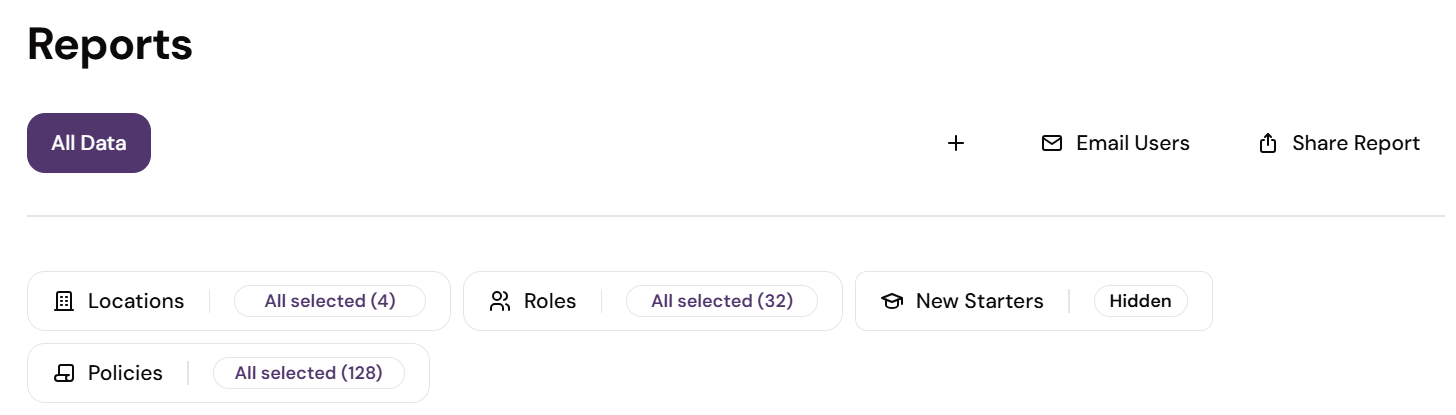
| Note: Every report has an All data view and it cannot be renamed or deleted. |
How to create a new data view
Should you wish to save particular data filters that differ from the All Data view, you can create a new data view. This enables you to configure the data for your reports according to your needs.
There are two ways to create a new data view:
1. Select the '+' button to create a new data view. While this will save the same data as the All Data view, you can then select and deselect the data required and save your changes.
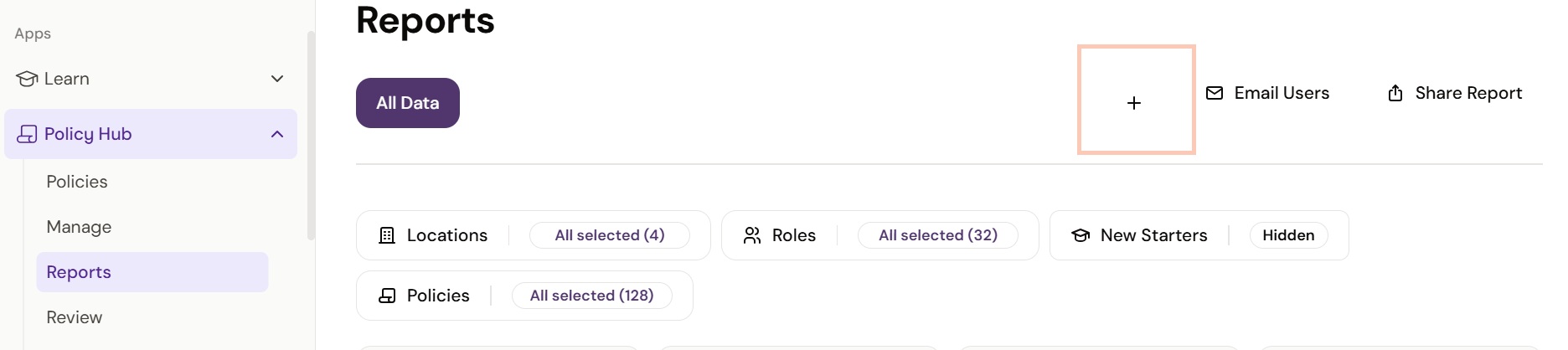
2. While in the All Data view, first select or deselect the relevant data (such as the number of locations you want represented in the new view) and then select Save as new view.
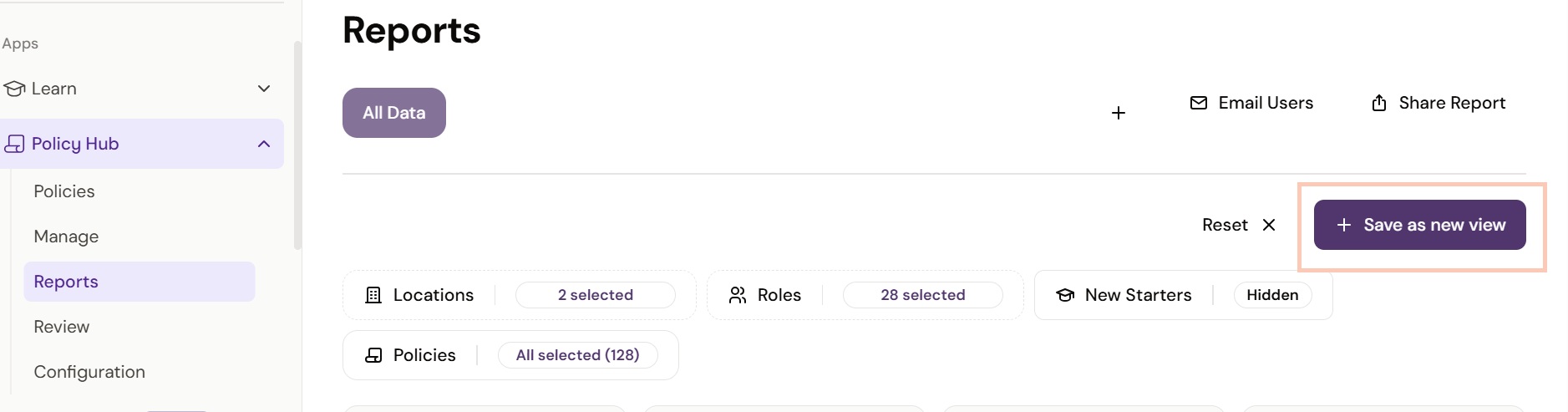
The new data view will appear with its default title 'New View' next to the All Data view in the top left corner.

How to rename a data view
To rename your new data view, first select New View.

Then right click and select Edit.

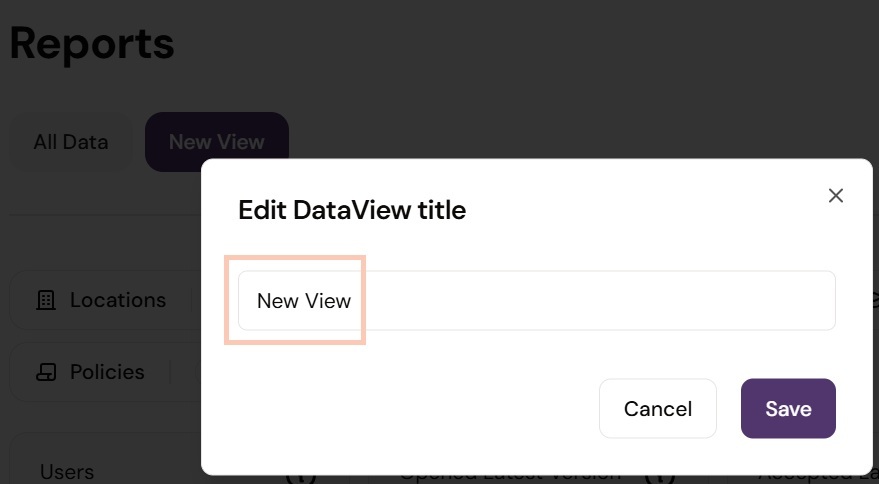
A pop-up titled Edit Data View title will appear and you can add the new name to the text field and then select Save.
Updating a data view after changing filters
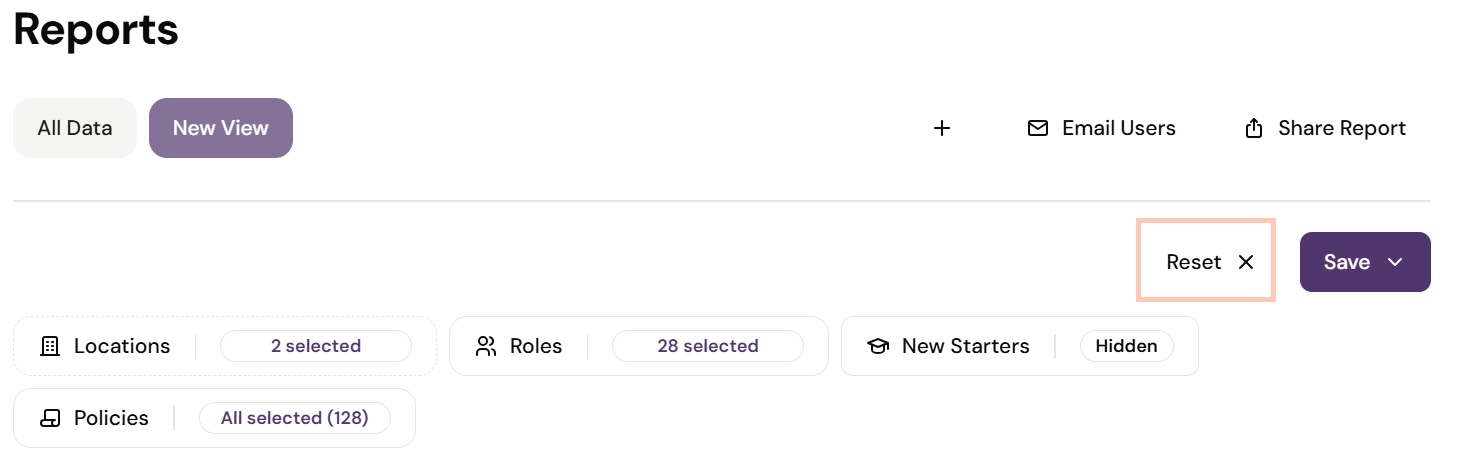
When you select or deselect data filters in an existing view, a Save button and Reset button will automatically appear.
To return to the original data view without making any changes, select Reset.
To update the data view so that it shows your newly selected/deselected filters, select Save and then Update current view. This step will override the data previously set in your data view.
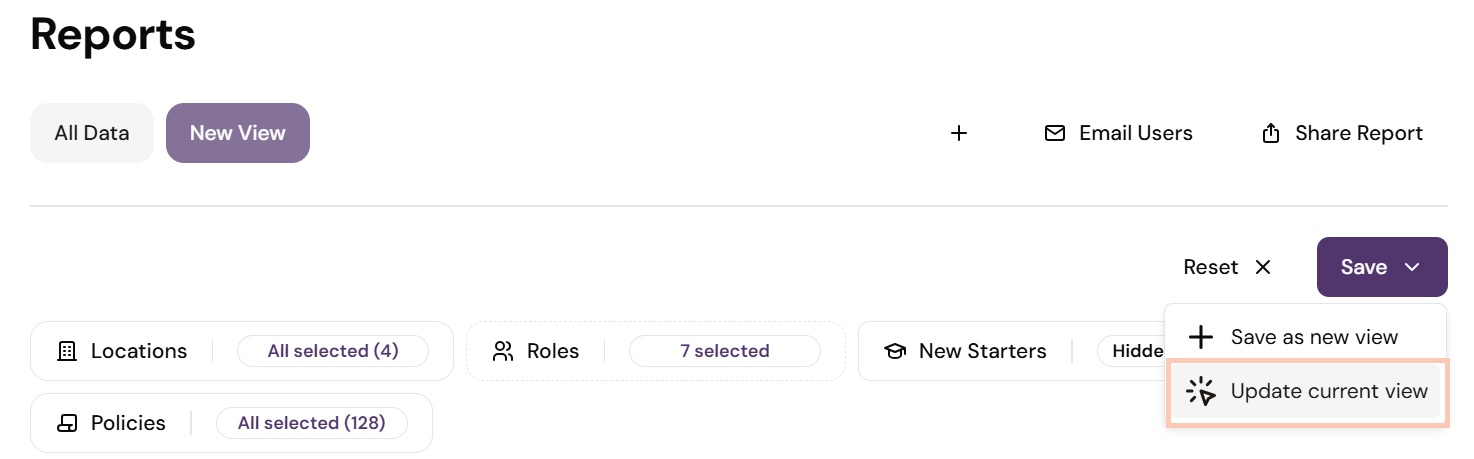
Alternatively, if you want to create another new data view and keep your original data view, select Save as new view.
How to delete a new data view
To delete a new data view, select New View or its renamed title. Then right click and select Delete.

Was this article helpful?
That’s Great!
Thank you for your feedback
Sorry! We couldn't be helpful
Thank you for your feedback
Feedback sent
We appreciate your effort and will try to fix the article