Overview
Departments group your roles together and determine which courses each role automatically receives. Permission groups control what a role can access and manage within the system. You can add a new department or role from the Dashboard, provided you have the correct permission level. When you create a role, you'll assign it to both a department and a permission group: the department determines which courses the role receives, and the permission group determines its level of access.
How to add a department
- From the main Dashboard, go to Settings.
- Select Roles.
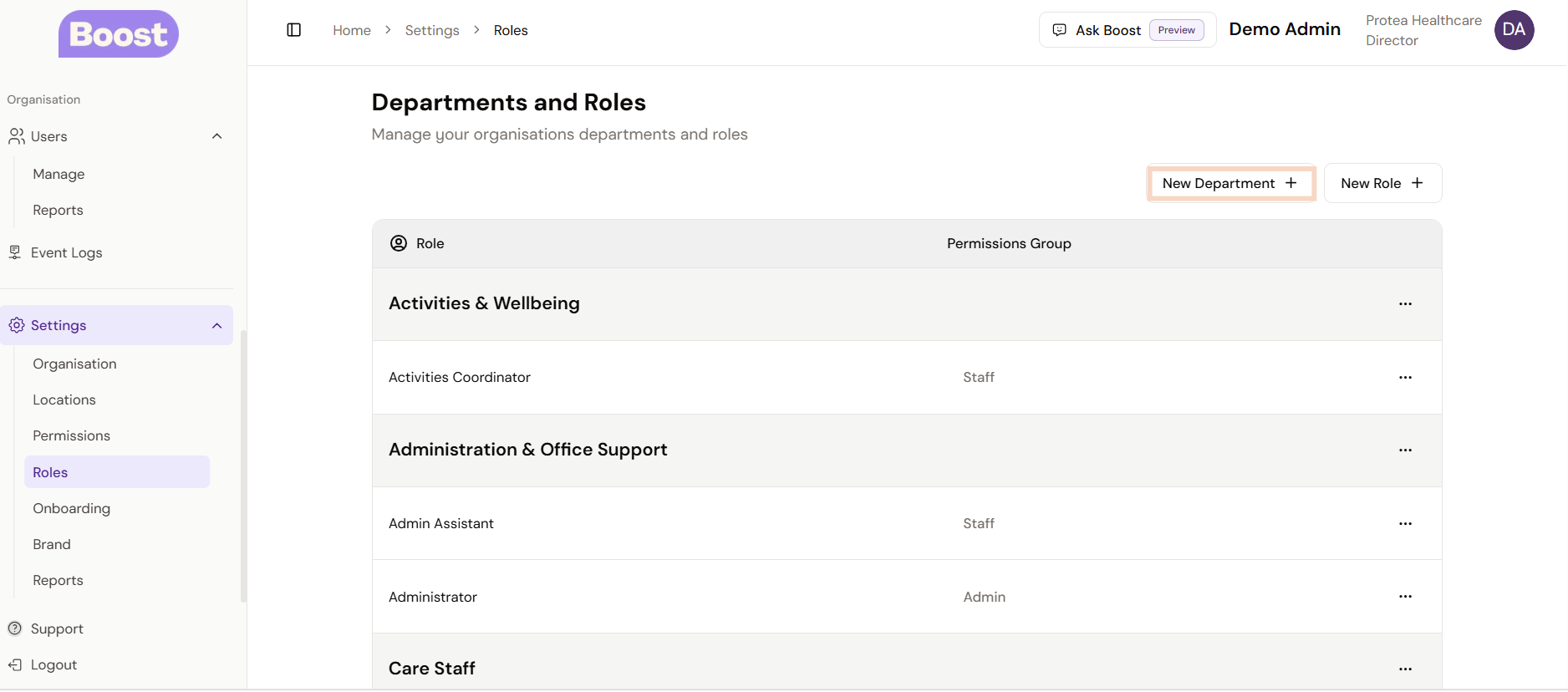
- In the Departments and Roles area, select New Department +.
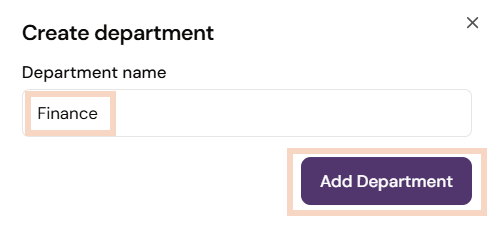
- Enter the new Department name in the field, then select Add Department.
How to add a role
- From the main Dashboard, go to Settings.
- Select Roles.
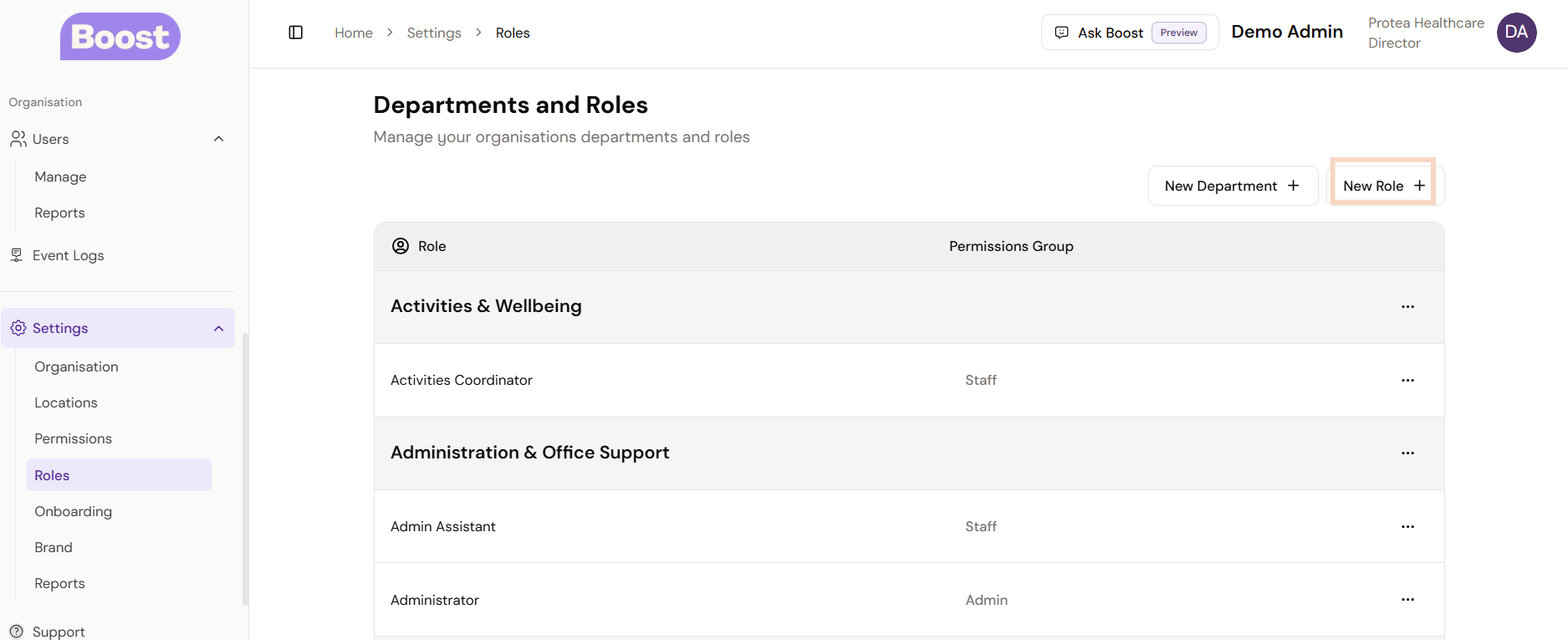
- In the Departments and Roles area, select New Role +.
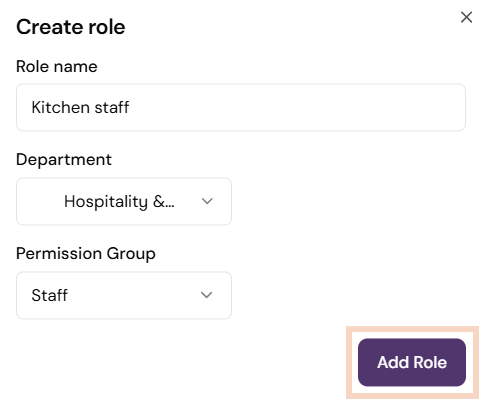
- Enter the new Role name, then select the Department it sits in. For example, a Kitchen Assistant role would be assigned to the Hospitality & Catering department.
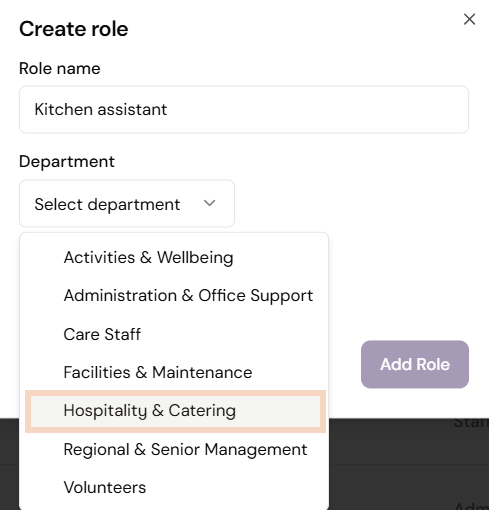
| Note: The department you assign determines which courses are automatically allocated to the role, so make sure you select the correct one. For example, assigning a role to the Hospitality and Catering department will automatically allocate the correct courses for that group. |
- Select the Permission Group for the role (e.g. Admin, Manager, or Staff).
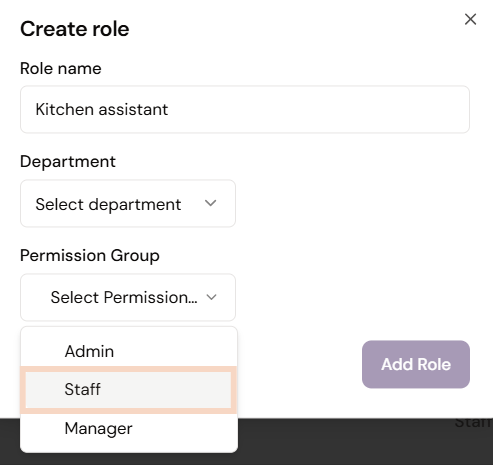
- Once you have completed each section, select Add Role.
Was this article helpful?
That’s Great!
Thank you for your feedback
Sorry! We couldn't be helpful
Thank you for your feedback
Feedback sent
We appreciate your effort and will try to fix the article